

Connect an RFID reader to the app
The app reads tags through one RFID reader at a time. On Android, a plugged-in USB reader takes priority. Otherwise the app uses the handheld scanner over Bluetooth. On iPhone and HarmonyOS the reader is always Bluetooth. To charge the handheld scanner, switch it on, and read its display, see the handheld scanner guide.
Connect a reader
Switch the handheld scanner on and keep it near the phone or tablet.
Tap the reader icon in the top bar, or go to Me → RFID reader.
On Android with a USB reader plugged in, it connects by itself and shows "USB reader connected". Otherwise choose Bluetooth reader in Connect RFID reader.
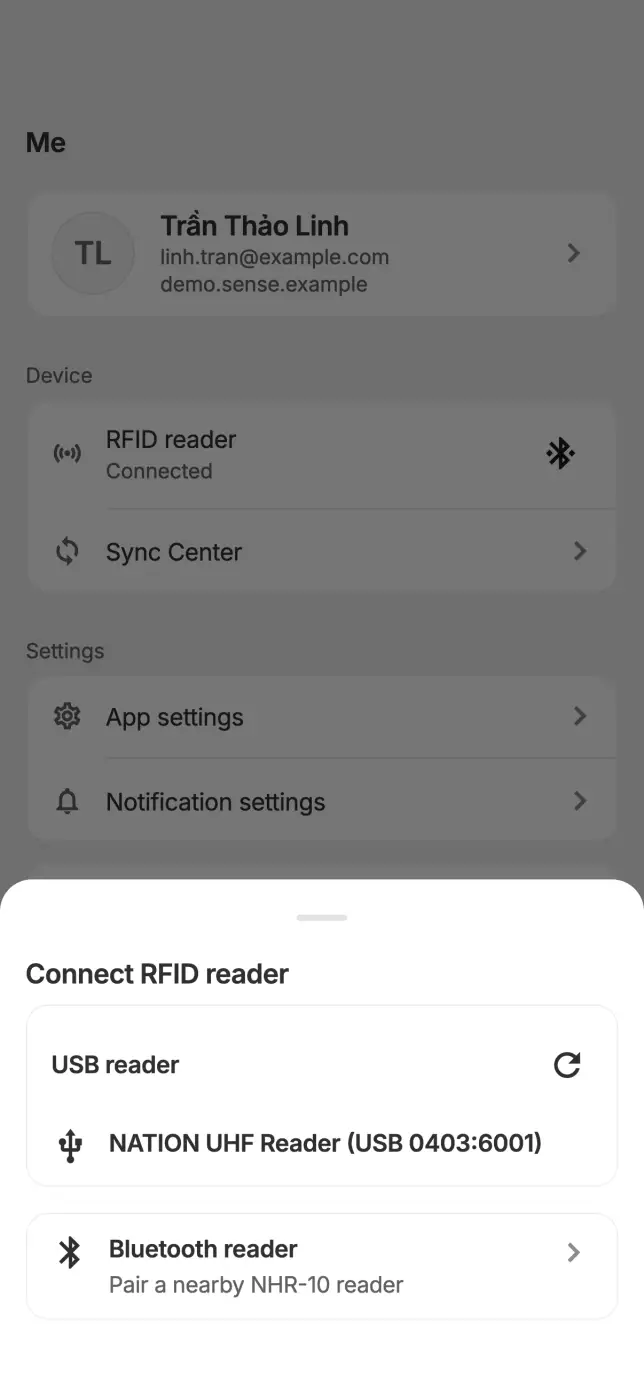
Tap Continue on Bluetooth required and accept the permission prompt. Pick the device labelled Nextwaves reader. Tick Remember this reader to connect automatically next time.
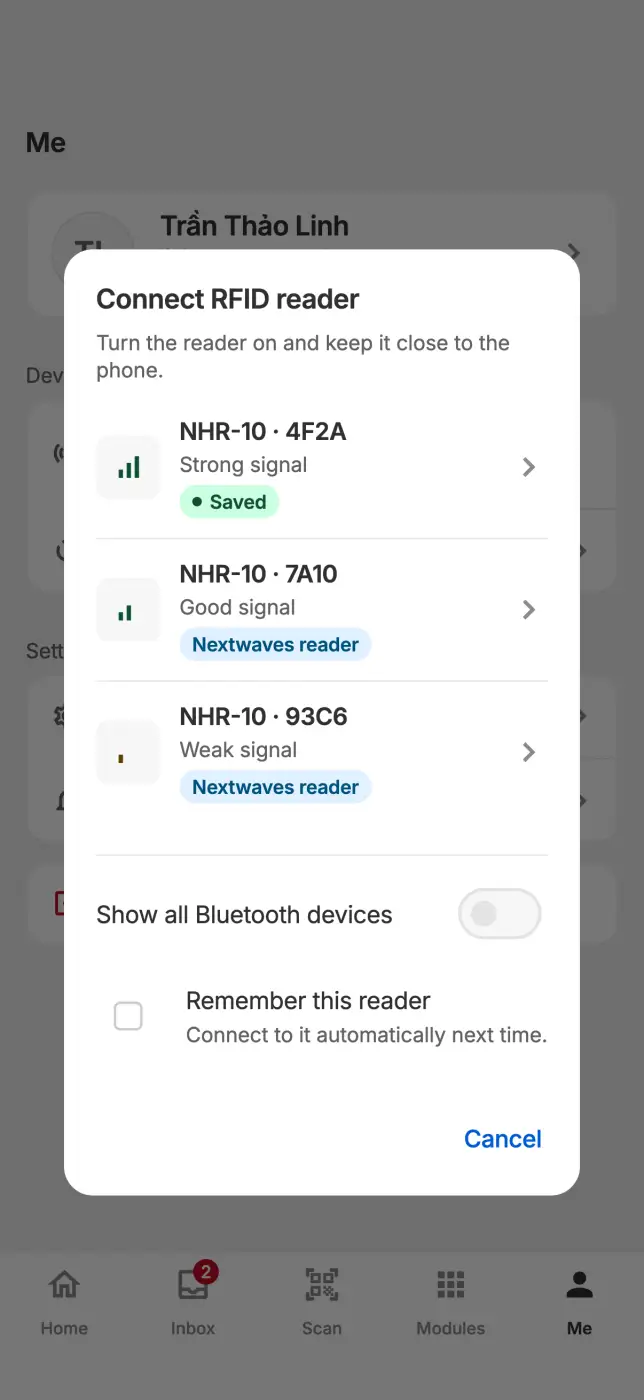
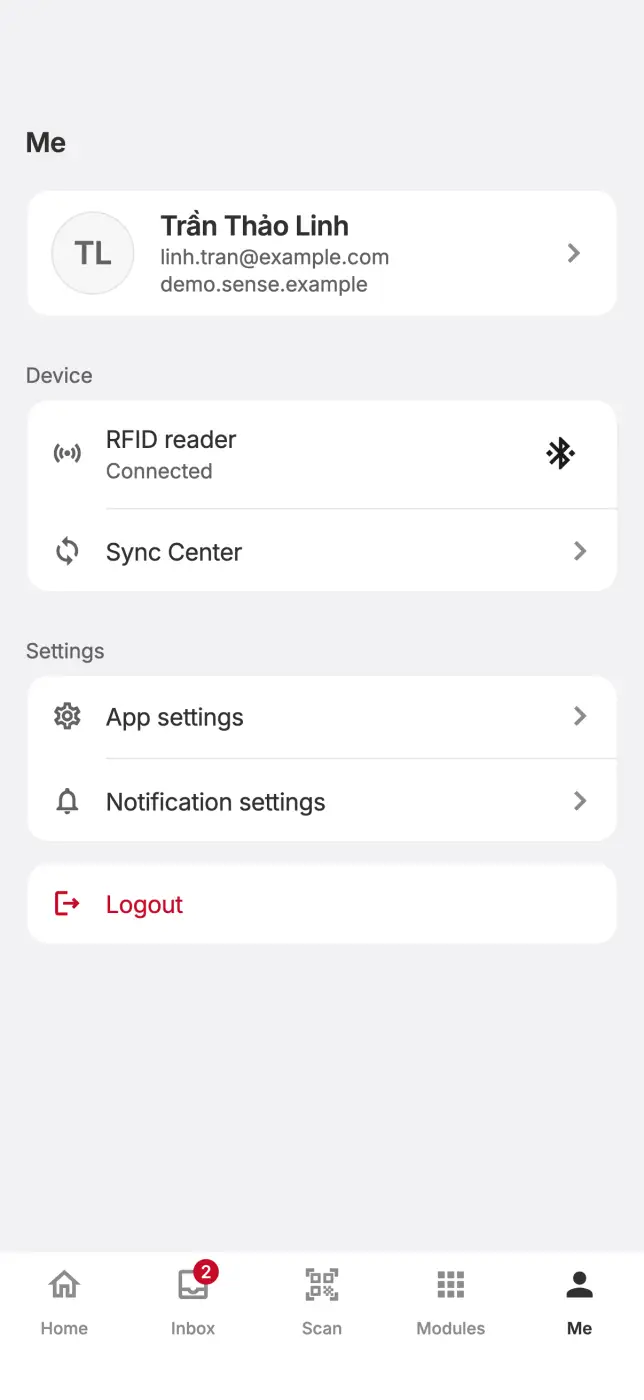
Check for the message "Bluetooth reader connected". Change reader power with the power slider on scan screens.
Pull the handheld scanner's trigger to start a scan without touching the screen. Without a reader, scan screens let you type or paste EPCs by hand.
Stop a remembered reader from connecting
Go to Me → Device and tap Forget.
When the reader does not connect
| Message | What to do |
|---|---|
| Bluetooth is off | Turn Bluetooth on in the system settings and try again. |
| Bluetooth permission denied | Open the app settings and allow Nearby devices. |
| It does not expose the NHR RFID service | You picked the wrong Bluetooth device. Pick the one labelled Nextwaves reader. |
| It did not answer service discovery within 15 s | Switch the reader off and on, turn Bluetooth off and on, then try again. |
| No USB reader found | Plug the reader in with a USB or OTG cable, then tap Refresh. |
USB readers work on Android only. The app connects to one handheld scanner at a time.