

Count and reconcile inventory
A stock count compares the goods on the shelves with the quantities on record, then settles the differences in a controlled way. The menu entry is Inventory → Stock Audit (Inventory & Audit → Stock Audit on the classic layout). On the count screen the buttons say "Reconciliation". Both names mean the same job.
A count reconciles three things: what the system expected, what the readers read, and what you decide to do about the difference. Expected quantities come from the stock ledger, not from the number of tags. Tags that are read are matched to products. Stock changes only if you choose to adjust.
Operational guidance
Most stores count at month or quarter end, and straight away when the numbers look wrong.
The life of a session
Finalizing does not always change stock. Stock changes only when you finalize with the adjustment option, described in Finalize the session and adjust stock. If you make a mistake, Revert moves the session back one stage. Reverting needs its own role permission.
Before you start
Unfinished documents create phantom differences: gaps that come from paperwork, not lost goods. Clear them before you create a session:
- Receive every pending transfer. Goods in transit belong to no warehouse and show up as missing, see Issue, transfer, and adjust stock.
- Approve and complete stock-in and stock-out documents that are still Submitted. Until they complete, the recorded quantity has not caught up.
Operational guidance
Agree a start time with everyone who counts, so all devices compare against the same moment.
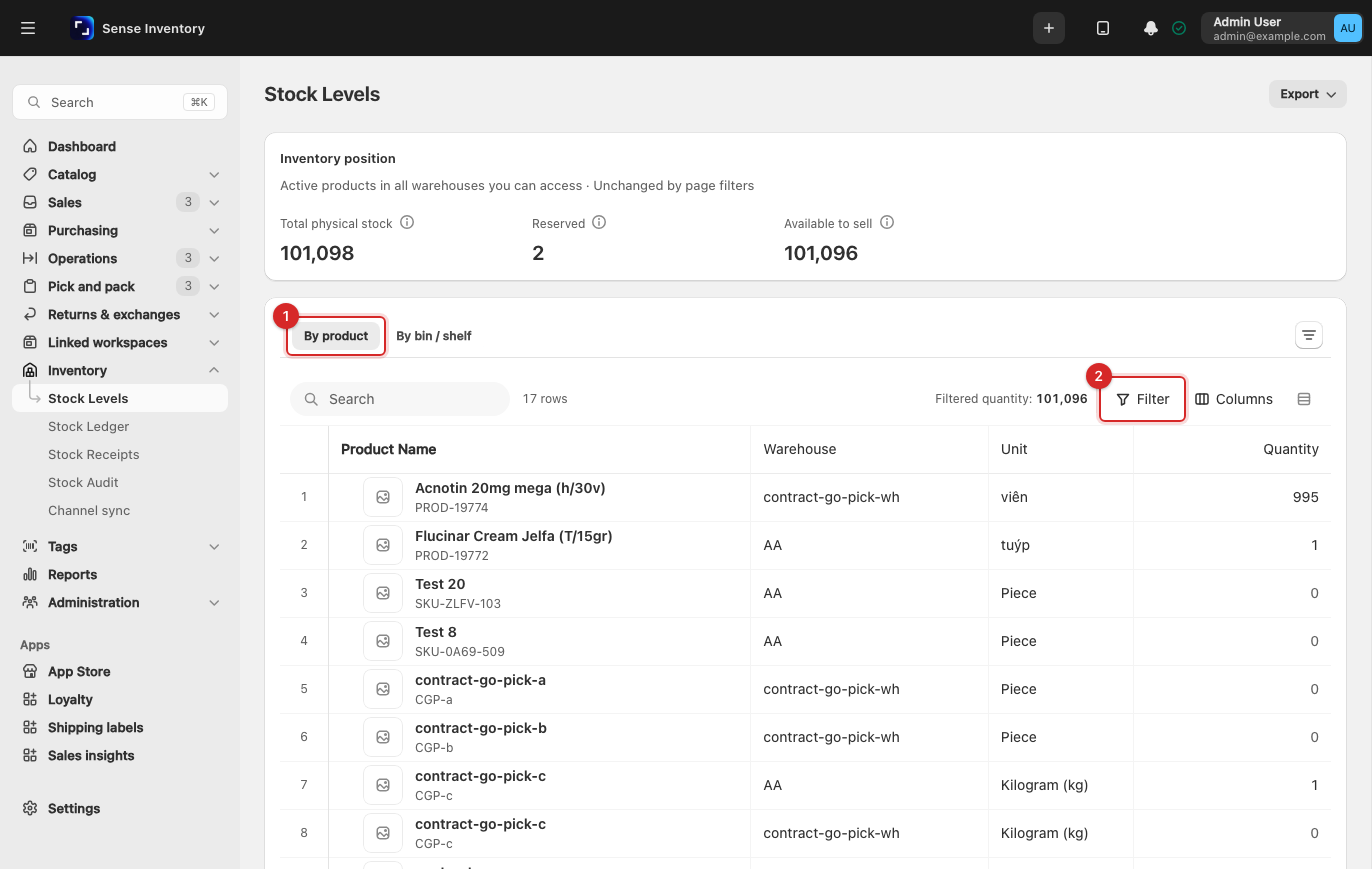
To see the scope, open Inventory → Stock Levels and filter to the warehouse you are counting:
Create a session and start
Open Inventory → Stock Audit and click New Reconciliation.
In Start Reconciliation, pick the Warehouse. A warehouse count includes all its child warehouses and locations.
Under What to count, choose the scope:
- Whole warehouse: every product with stock there.
- Selected items: a spot check. Search for products, or click Import file (CSV or XLSX, one SKU, barcode, or product code per row, at most 5,000 rows). Download template gives you the file layout. A spot check covers at most 2,000 products. A product with variants is replaced by its variants. Combos are refused because they hold no stock of their own.
- By category: see Count by category.
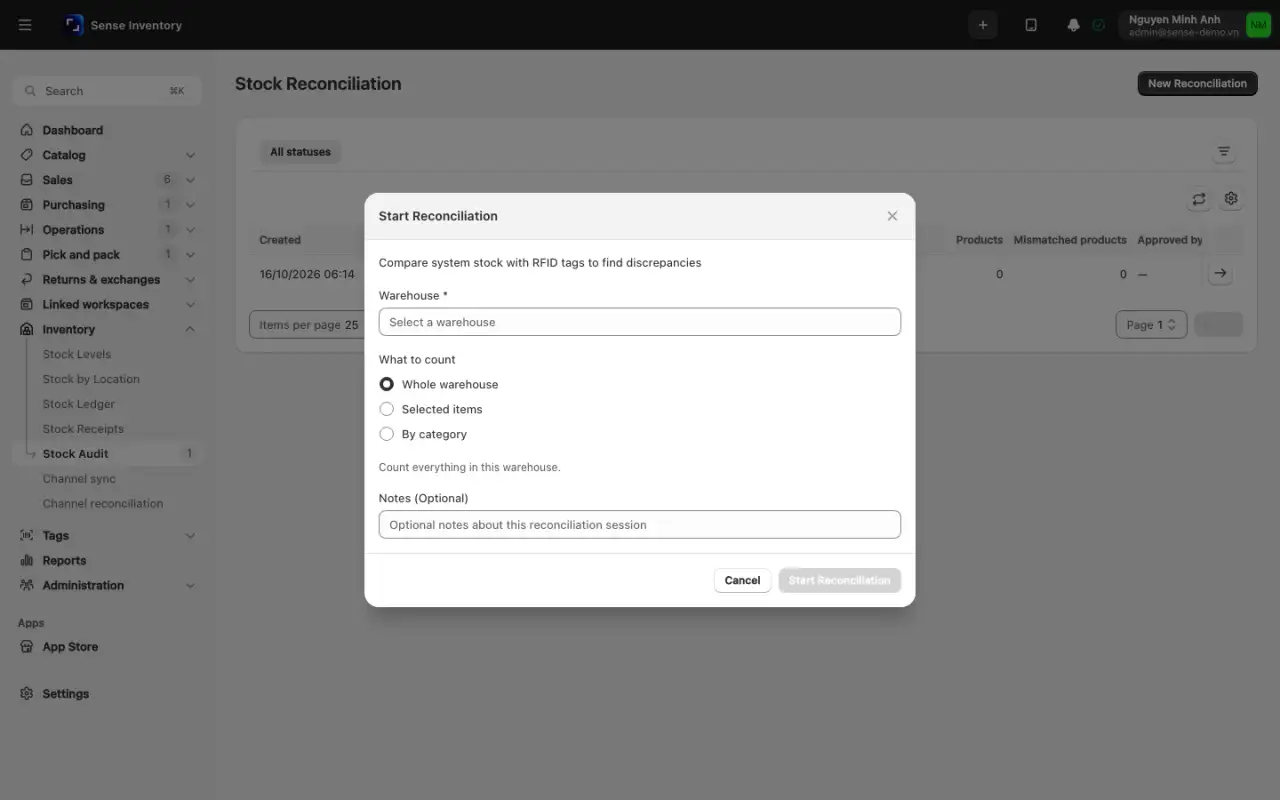
Optionally add Notes, then click Start Reconciliation. The count opens.
A count of one shelf or one category says nothing about the rest of the warehouse.
Count by category
Click New Reconciliation and pick the Warehouse.
Under What to count, choose By category.
In Categories to audit, search and click categories to add them. A parent category includes its subcategories. Remove one with ×. You can add up to 200 categories.
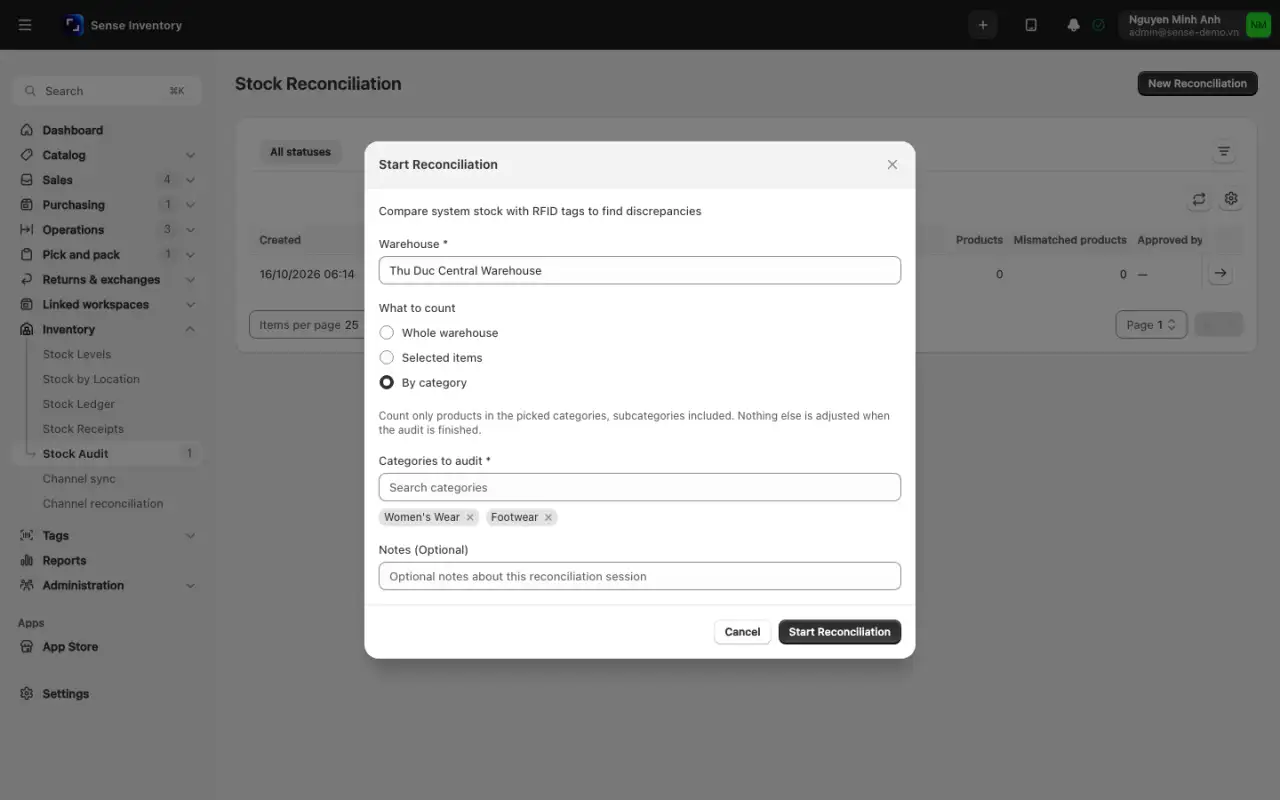
Click Start Reconciliation. The count header shows "Categories: …". Only products in those categories are expected, counted, and adjusted. Other tags that are read appear under Outside the audit scope. A variant without a category counts under its parent product's category.
You cannot add categories after the count starts. To narrow a running count, use Exclude a category, or select products in the worklist and click Exclude from audit. Excluding a category removes only products that are not counted yet. Counted products must be excluded one by one, and only when Stock audit: allow removing counted products is on.
Scan and read the differences
Open the count. Under Readers, click Add reader and choose NHR-10 (the Bluetooth handheld scanner) or USB (Web Serial). This works in Chrome or Edge. Click Start, or Start all for several readers. Reads appear in the Live feed. With Auto-sync every 2s on they upload automatically; otherwise click Sync now.
Scan the area. Several devices can scan into the same count at the same time. Location tags are used to place items and are not counted as products.
Read the results in the worklist tabs:
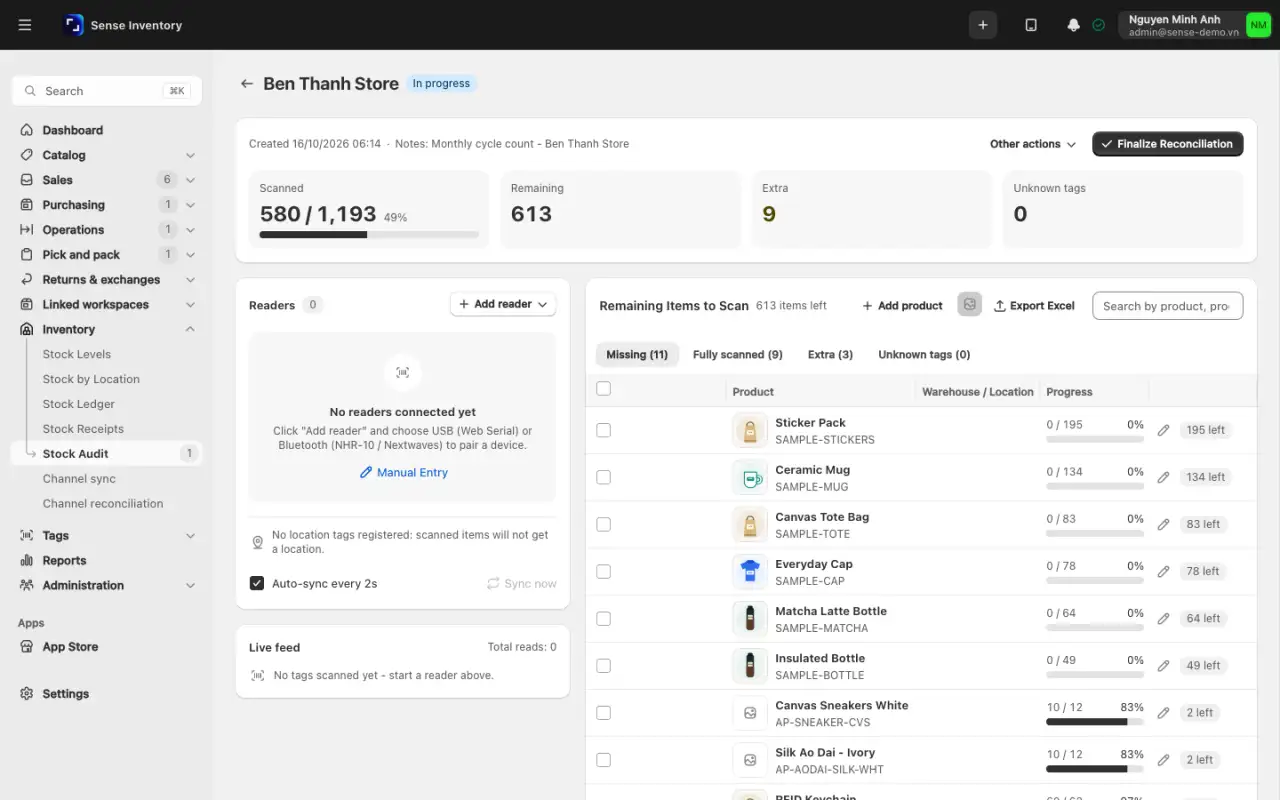
Tab Meaning First check Fully scanned Scanned exactly what the system records Nothing to do Missing On record, not found by scanning Check pending transfers and nearby shelves before you record a loss Extra Scanned here, not on record here. A sold tag found on the shelf counts as extra Goods on the wrong shelf, or received without a document Unknown tags Reads that match no product in stock: not registered, already left the warehouse, or no product linked. They never count as differences Note the code and handle it after the session, see Manage RFID Duplicate The same tag read more than once Check the scanning route and stacked tags Not counted Products not scanned or counted yet Keep scanning, or exclude them Rescan any doubtful area from a different angle before you conclude. Tags can be missed when something blocks them, see Manage RFID.
Operational guidance
Scan along a fixed route, for example left to right and top to bottom, so nothing is skipped or scanned twice. Watch the number of unique tags, not total reads: one tag read three hundred times is still one item.
Tags from another warehouse and products outside the scope are listed separately and are never counted or adjusted. If Stock audit: allow manual input is on in Settings → Inventory settings, use Manual check on a row to enter a quantity or weight, and Add product to count a product that is not on the list. Other actions → Recount whole session discards every device's reads after you type RECOUNT to confirm.
Finalize the session and adjust stock
Check each difference against the Stock Ledger and the tag history before you change any numbers, see Issue, transfer, and adjust stock.
Click Finalize Reconciliation. It stays disabled until at least one item is scanned or counted. The dialog offers three choices. This is where stock does or does not change:
- Continue scanning: go back to counting.
- Just complete: lock the session and keep the result. Stock is not changed. Use it when a manager should review first.
- Finalize & Adjust stock: lock the session and write one adjustment per difference into the ledger. Stock changes here.
Optionally turn on Do not adjust some products, tick the products to leave alone, and add a Reason (optional). Under Sync sold tags back into stock, tick any sold tags found on the shelf to return them to active stock.
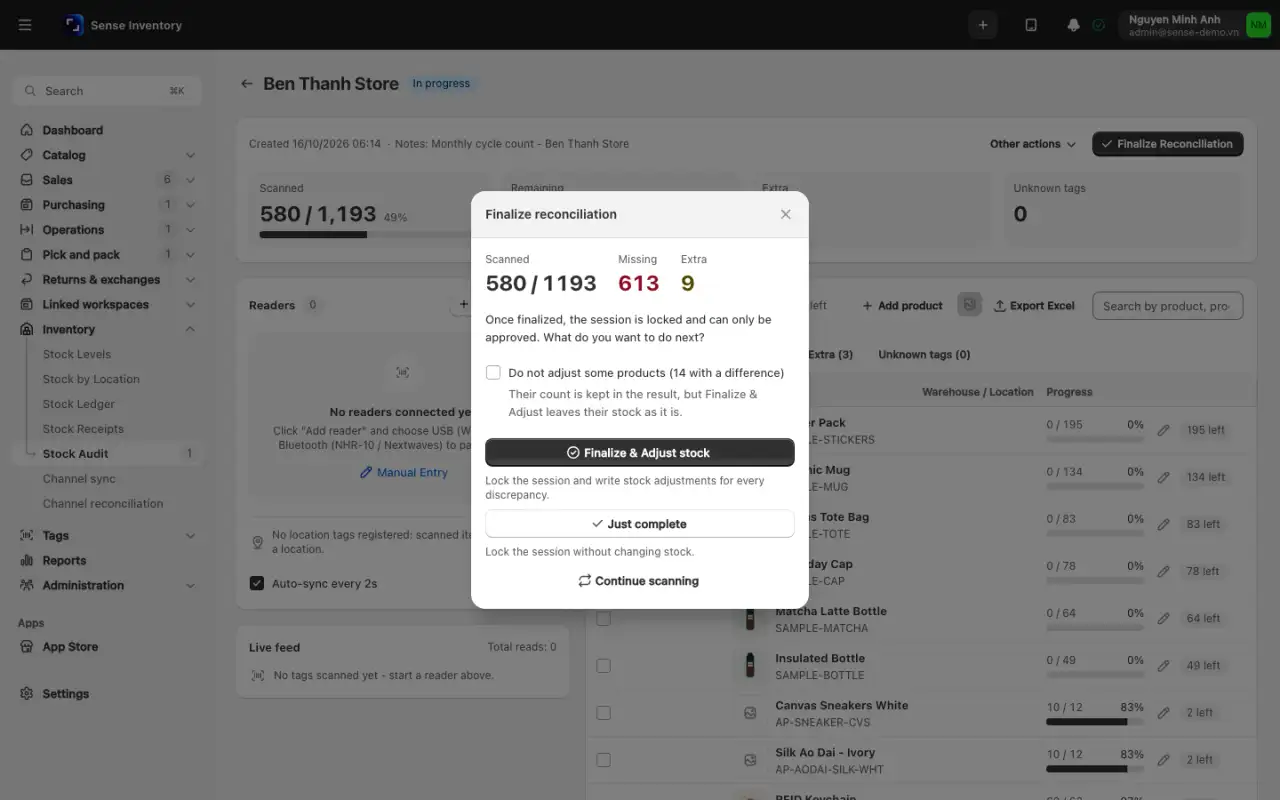
Confirm. The page shows "Reconciliation completed". Click Approve Reconciliation to close the count. On the web, approving never adjusts stock, so the adjustment must happen at finalize.
Open the Stock Ledger, filter the Action Type column to Audit adjustment, and review the new lines.
If Stock audit: increase stock on surplus is off, only shortages are adjusted. Extra stock is reported but never added. If you chose Just complete and now want to adjust, revert to In progress and finalize again with adjustment, or approve in the mobile app with Approve & Adjust stock. A second adjustment is refused, so the same difference is never posted twice.
Export the result or Form 05-VT
In the count, click Export Excel.
Choose Rows (All products or Only discrepancies), Include EPC columns, the Warehouse, and the Format (Excel, or CSV for the main sheet only).
Under Layout, choose Stock count minutes (Form 05-VT) for the official Vietnamese count minutes. Pick the Legal basis (Circular 200/2014/TT-BTC, 133/2016/TT-BTC, or 99/2025/TT-BTC) and fill in the Audit committee. The first person is the Chair. You can add up to 7 people.
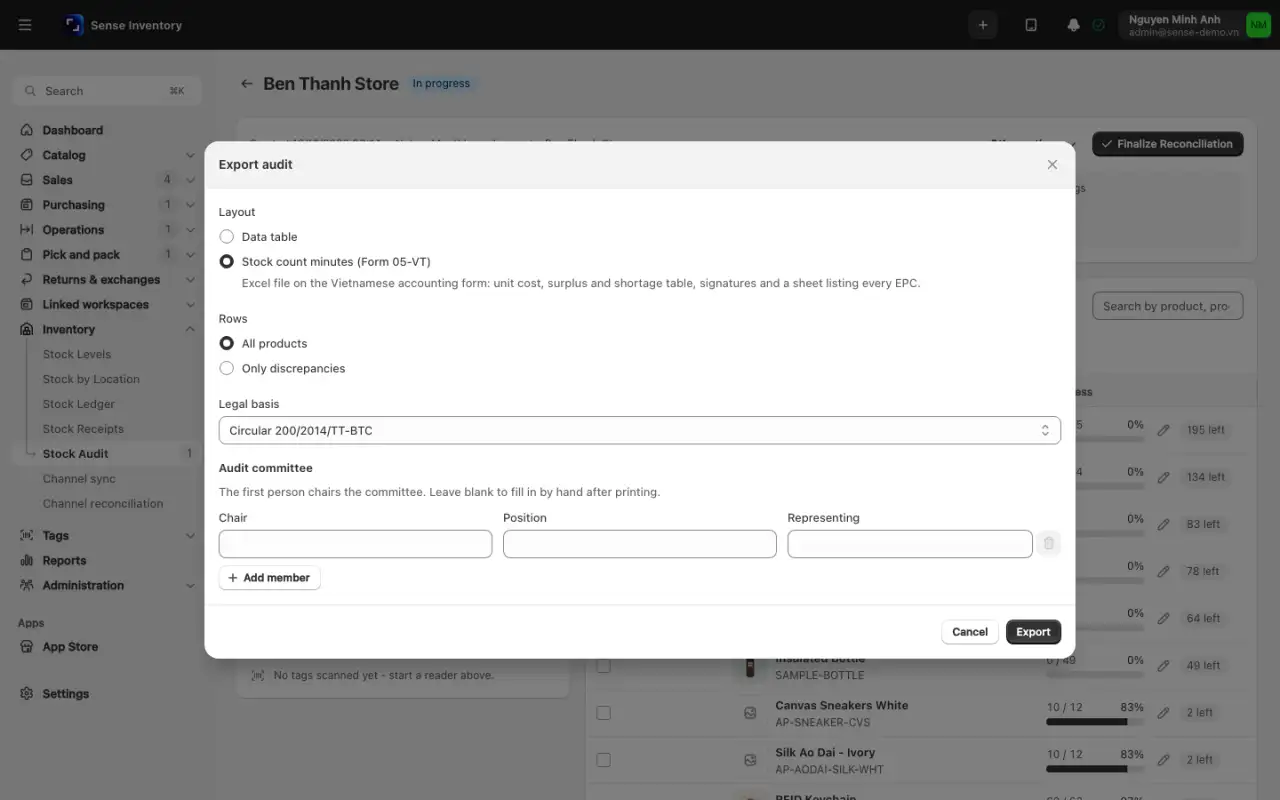
Click Export. The minutes are always in Vietnamese, valued at each product's cost price, and include a sheet that lists every tag, up to 100,000 rows.
Cancel or revert a session
Neither action deletes history. Reversals are written as new ledger entries.
- Revert moves back one stage and asks for a reason of at least 10 characters. Approved goes back to Completed and reverses any adjustment made at approval. Completed goes back to In progress, reverses the finalize adjustment, and clears the result so the next finalize starts fresh.
- Cancel works from any status except Cancelled. Choose Other actions → Cancel Audit, enter a reason of at least 10 characters, and click Cancel audit. Every stock movement the count made is reversed.
Both check first that the reversal would not push any stock below zero, unless Allow overselling is on. If customers have already bought the extra stock, cancelling can fail with "Insufficient stock".
When something goes wrong
| Symptom | Likely cause | What to do |
|---|---|---|
| Many products missing at once | Transfers still pending | Receive them and count again, see Issue, transfer, and adjust stock |
| One product short by exactly one batch | That batch's stock-in never completed | Complete the document and compare again |
| Products showing as extra | Goods on the wrong shelf, or received without a document | Search nearby shelves. Create the missing stock-in if that is the cause |
| A scan shows an unknown tag | Tag not registered, or never linked to a product | Note the code and handle it after the session, see Manage RFID |
| Finalize Reconciliation is disabled | Nothing scanned or counted yet | Scan at least part of the scope first |
| Numbers still off after adjusting | Documents were still pending | Expected quantities come from the Stock Ledger. Check there and finish pending documents |
| "This stock count is not in progress." | It was already finalized | Refresh, then Revert it to In progress if you need to scan again |
| "Complete the stock count first." | Approve was clicked before finalizing | Finalize the count, then approve |
| Manual check is missing | Manual input is off | Turn on Stock audit: allow manual input in Settings → Inventory settings |
| A device dropped mid-count | Network loss | Stop at a clean boundary, check what was saved, and rescan the affected area |
Read next
- Issue, transfer, and adjust stock: clear pending documents before a count, read the ledger after.
- Manage RFID: scanning hardware and stray tags.
- Review reports: the Stock In-Out-Balance report to confirm the ledger after adjustments.
Do this on mobile
The Sense Inventory app can run a count on a phone or the handheld, and counting works offline. In the app, Complete with Slide to finish locks the count without changing stock. Stock changes at Approve → Approve & Adjust stock; Approve only closes the count without adjusting. Counts started offline show "Offline · not synced yet" until they upload. See Use the mobile app and Connect a reader to the app.