

Pair or remove a tablet or handheld
Pairing signs a tablet or handheld in with a one-time QR code, so nobody types a password on the device. Removing a device signs it out at once, for example when it is lost or retired.
Before you start
Pairing needs a user who may manage devices, usually an administrator or manager. You choose who the device signs in as, yourself by default. Administrators can choose anyone. Other users can choose only people whose permissions all fall within their own.
Pair a device with a QR code
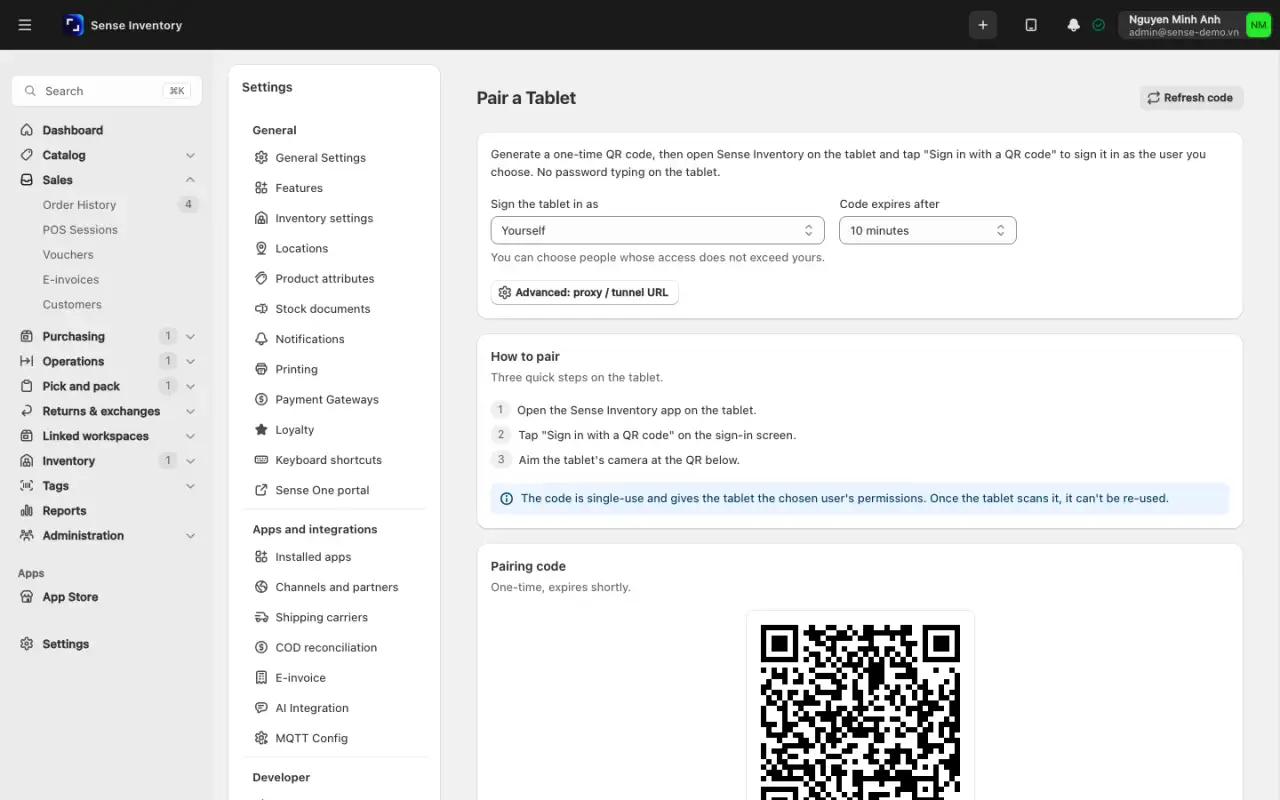
In the web app, go to Settings → Devices → Pair a Tablet.
Under Sign the tablet in as, choose the account the device will use. The default is Yourself.
Under Code expires after, choose 10 minutes, 1 hour, 8 hours, or 24 hours. The QR code appears under Pairing code and works for one scan only.
On the tablet, tap Sign in with a QR code, then Continue on Camera required.
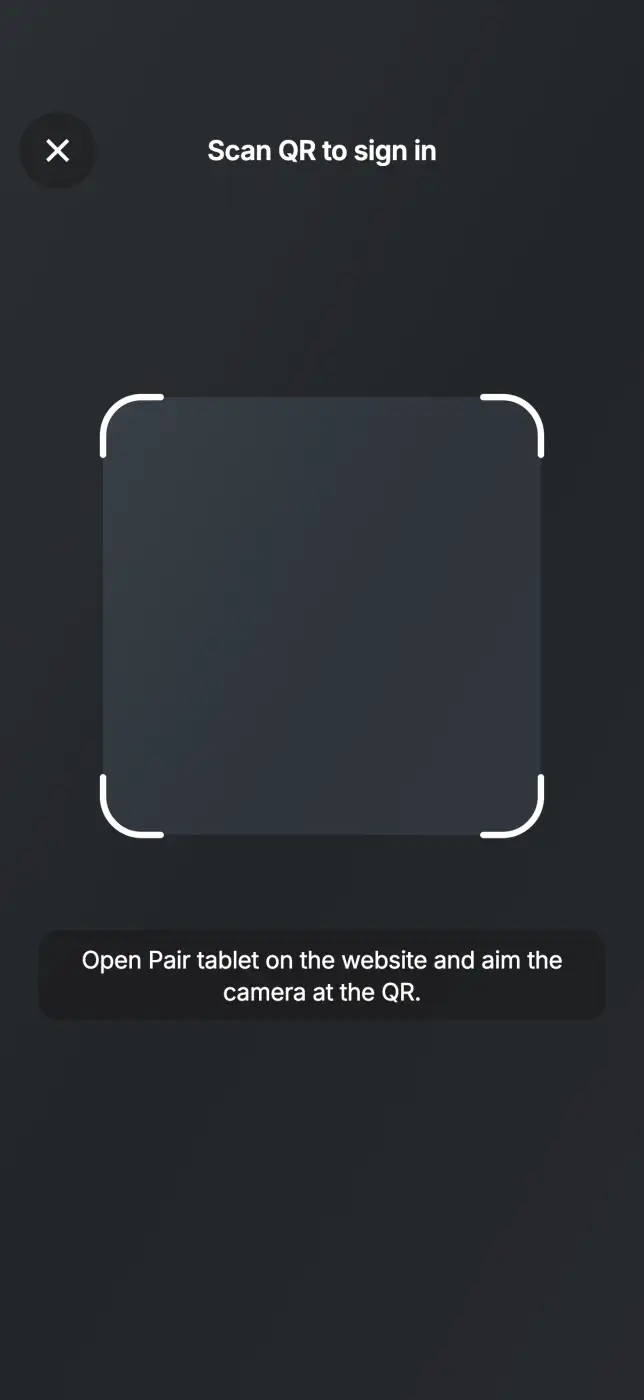
Point the camera at the QR code. The tablet signs in as the chosen user and runs its first sync.
Check the web page. It shows Tablet signed in, and the Paired by column under Connected devices shows your name.
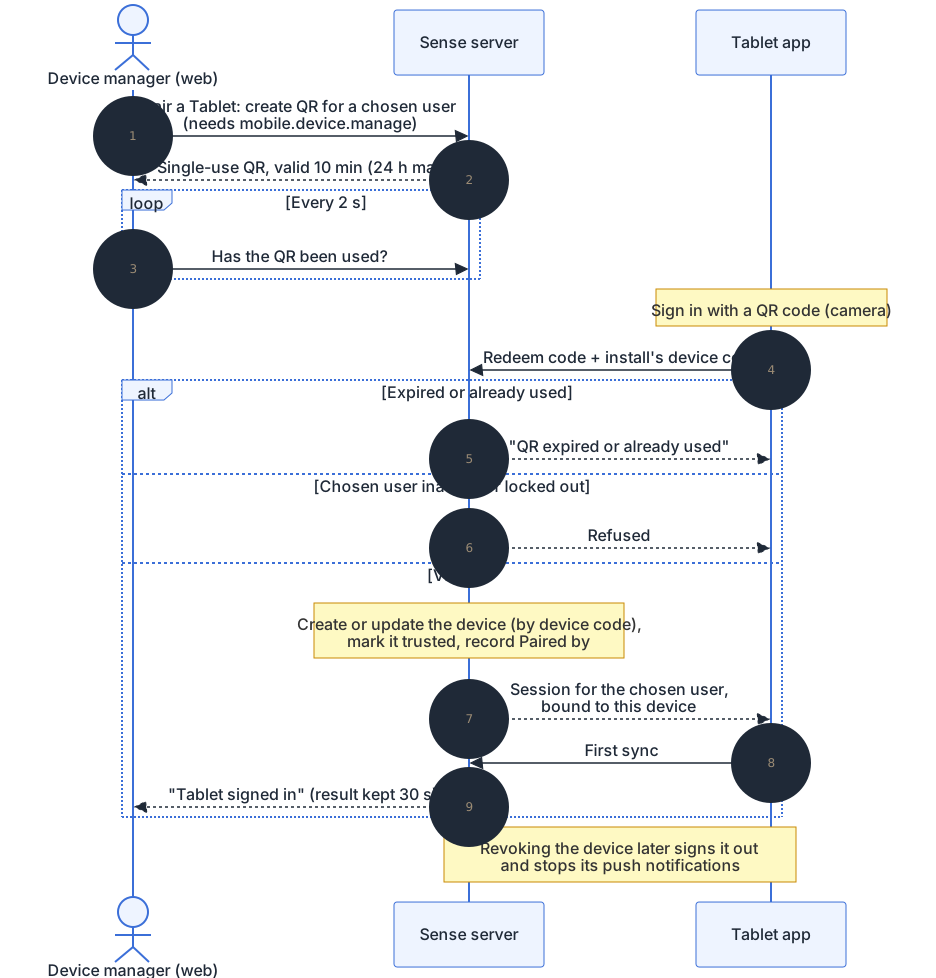
If the code expired or was already used, click Generate a new code on the web.
Remove a lost or retired device
- Device managers: open Settings → Devices → Pair a Tablet and find the device under Connected devices.
- Everyone else: open Profile → Your devices. You see and can remove only your own devices.
- Click Revoke and confirm. The device is signed out at once and stops receiving push notifications.
A revoked device cannot sign in again with a password. Pair it again with a new QR code to keep using it.
When pairing fails
| Message | What to do |
|---|---|
| That QR isn't a Nextwaves pair code | Scan the QR from Pair a Tablet, not another code. |
| QR expired or already used | Generate a new QR code on the web. |
| Camera permission is required | Allow the camera in the device settings. |