

Use the Sense Inventory mobile app
The Sense Inventory app puts receiving, counting, finding, picking, packing, and selling into one handheld app, and it keeps working when the Wi-Fi drops. It runs on Android phones, handhelds, and tablets, on iPhone and iPad, and on HarmonyOS. It reads tags through the kit's Bluetooth handheld scanner, see Connect a reader.
The bottom bar has Home, Inbox, Scan, Modules, and Me. On tablets the bar moves to the left edge. Screens for modules that are off, or outside your permissions, are hidden.
What you can do in the app
| Job | In the app |
|---|---|
| Count stock | Create counts, find items, count untagged items by hand, complete or approve a count. Works offline. |
| Stock in and stock out | RFID scanning, lots with expiry dates, bins, cartons, and loan returns. |
| Warehouse tasks | Task hub, scan lookup, bin contents, and moves between bins. |
| Transfers and pick lists | Create, scan, and receive transfers; assign and complete pick lists; packing station and goods issue notes. |
| Tags | Find Item, Check Item, build cartons, remove tags, tag locations. |
| Sell | Tablet POS with an offline sales queue, receipt printing, and e-invoices. |
| Reports | Daily briefing, sales, stock, aging, movements, debts, and vouchers. |
Sign in with email and password
Open the app. On Sign in to your workspace, enter the Workspace (for example
acme.nextwaves.app), Email, and Password.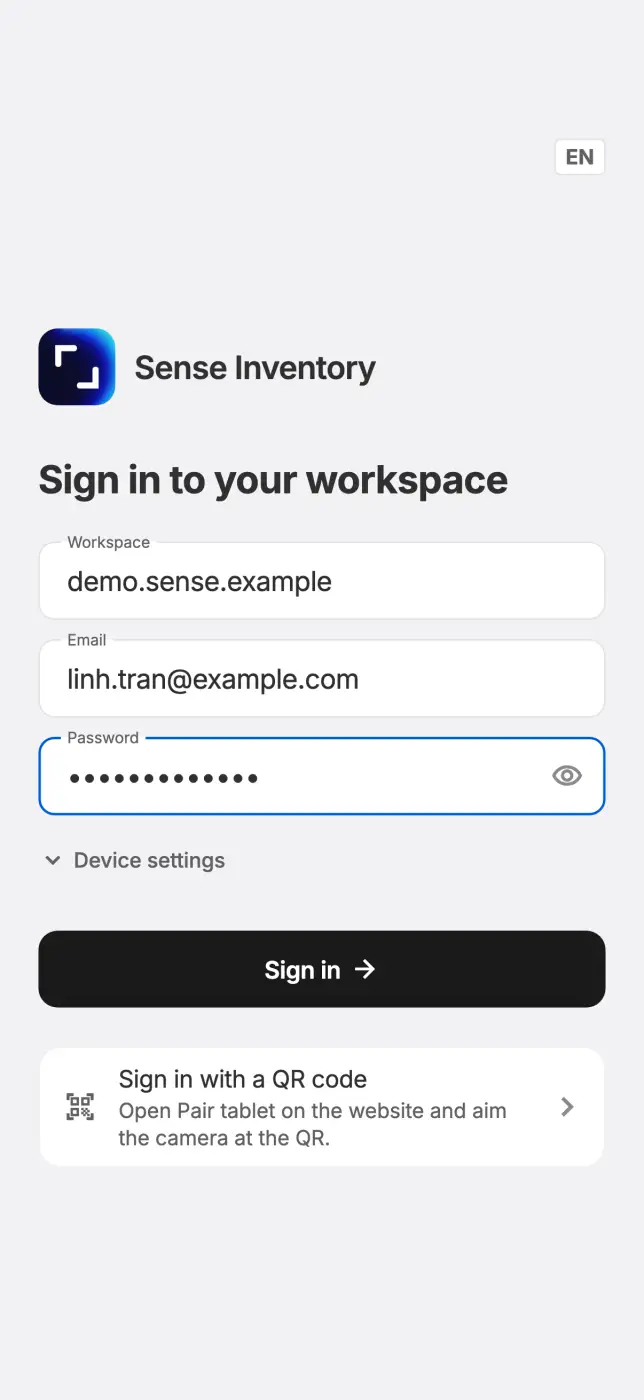
Optionally, open Device settings and enter a recognizable Device name.
Tap Sign in. If your account uses two-factor authentication, enter the Authentication code and tap Sign in again.
Wait on Preparing your workspace until Home opens. The first sync downloads your workspace data, so keep the app open.
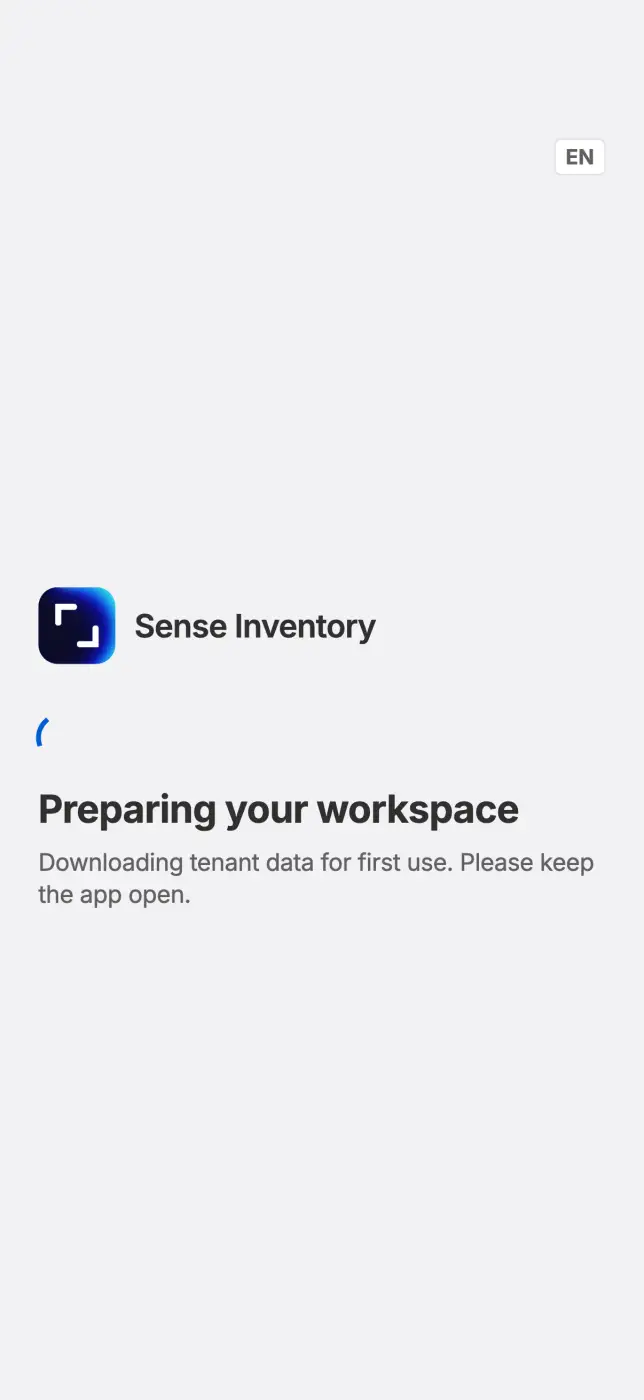
Later sign-ins open straight away and sync in the background. After the first sign-in, the app offers Continue as with your name, so you do not type the password again.
Check app settings
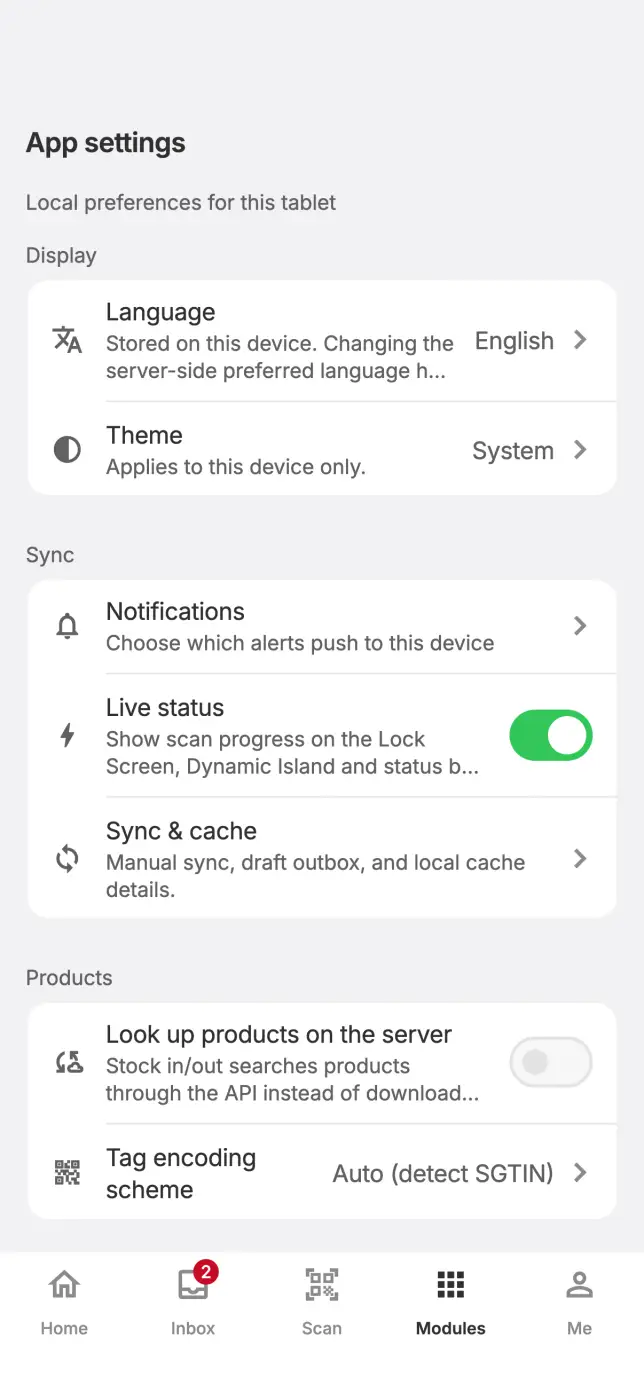
Open Me → App settings to change language, theme, scanning, and sounds. These settings apply to this device only. Tag encoding scheme is the exception: it applies to the whole workspace, and you can only view it unless you may change workspace settings.
If sign-in fails
| Message | What to do |
|---|---|
| Incorrect email or password | Check the workspace, email, and password. |
| Too many failed attempts | The account is locked for 30 minutes. Wait, then try again. |
| This device was removed from the workspace | Ask an administrator to pair the device again with a QR code. |
| Could not download initial data | Check the connection and sign in again. |
| You don't have mobile sync access | Your role does not include mobile access. Ask an administrator to grant it. |
| Update required | Update the app from the app store. |
The app cannot set up two-factor authentication or use a security key. Set up two-factor authentication in the web app. If your workspace requires a security key, sign in with a backup code or pair the device with a QR code.