
Process channel orders
A sales channel is an outside system that sells your goods, such as Sapo or Haravan. Once a channel is connected, orders that customers place online arrive in Sense Inventory for picking and shipping, and the catalog and stock levels go up to the channel. This page is for the administrator who connects a channel the first time and for the staff who process channel orders every day.
Before you turn on sync, decide which system owns the stock numbers. After that, edit stock and the catalog only in that system.
What flows in which direction
The three flows are independent. The catalog and stock go up to the channel, orders come down to Sense Inventory, and fulfillment status goes back up so the channel can notify the customer. Each connected channel has one role:
- Primary channel: the source of catalog and stock updates for the connected channels. There is only one primary channel. Use Make primary to change it.
- Mirror channel: receives catalog and stock updates from Sense Inventory.
For Sapo, Inventory operating model decides which side owns stock. Choose App is stock master when Sense Inventory owns stock. Choose Sapo is stock master when Sapo owns stock: Sense Inventory then only copies stock from Sapo, and does not push stock or sync order fulfillment.
Connect a channel
- Go to Settings → Channels and partners and click Configure on the Sapo or Haravan card. If the channel is not listed, turn it on under Settings → Features first.
- Enter the credentials the channel gives you, then click Save connection.
- Choose the Default fulfillment warehouse. Orders from the channel are assigned to this warehouse for picking.
- Choose the channel's role: keep it as a mirror channel, or click Make primary.
- Link the products on both sides. Sense matches by SKU first, then by barcode. If both sides use the same SKUs, most products link themselves, see Catalog and warehouses. The rest appear on the Unlinked products tab of the sync screen.
Operational guidance
Run a trial sync with a small group of products and check that both sides agree before you open it to the full catalog.
Handle incoming orders
- Open Sales → Order History. Channel orders show the Sales channel and the Channel order ID.
- Before picking, check the customer, products, fulfillment warehouse, and payment status. Some channels mark an order complete as soon as the customer pays, which is not what "complete" means at the counter.
- Pick, check, and ship as for any other order, see Pick, check, and ship.
- After shipping, the status is pushed to the channel according to the integration settings. If the channel has not received a status, check the Orders tab of the sync screen.
What you can and cannot do with a channel order
The channel owns the order, so Sense Inventory limits what you can change:
- Payment, status, and cancellation are controlled by the channel. Channel orders offer only warehouse actions. Refunds and returns are also made on the channel, so the return and exchange buttons are hidden, see Sell, return, and use kiosk.
- While the channel holds an order, picking waits until the channel releases the hold.
- Channel orders are accepted for picking even when the channel already marks them Done or Delivered, because the goods are still in your warehouse. For Haravan, Deduct physical stock when picking completes controls when stock is deducted.
- Channel orders cannot be sold on credit and get no e-invoice from Sense Inventory. The channel issues its own.
- Delivery carriers are separate from sales channels. Create a waybill for a channel order as for any other order, see Pick, check, and ship.
Reconcile with the channel regularly
Sync runs automatically, but compare the numbers on purpose from time to time:
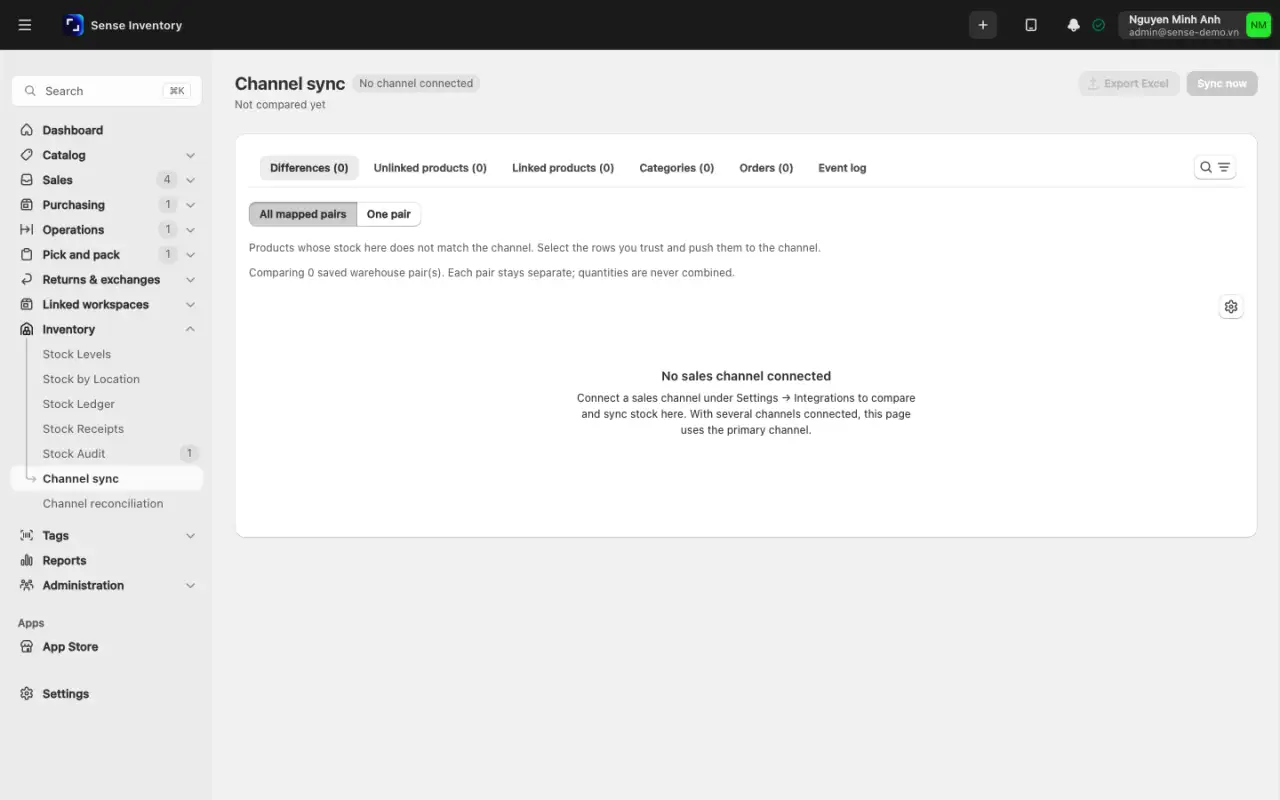
- Go to Inventory → Channel sync (Inventory & Audit → Channel sync on the classic layout) and click Sync now to compare both sides. The first run reads the channel's whole catalog.
- Open the Unlinked products tab first. A product that exists on only one side never matches. Click Link automatically on a row, or Link all automatically, to match by SKU and then barcode. Only Sapo supports automatic linking. For other channels, link by hand.
- Then open the Differences tab. Check each row, select the correct rows, and click Push to channel. When Sapo owns stock, the push button is disabled.
- Use the Linked products, Categories, Orders, and Event log tabs to look at one type of data when you suspect it has drifted.
Operational guidance
Do not edit the same data in both systems while sync is running. Edit in the system that owns the data and let sync bring the other side into line.
When something goes wrong
| Symptom | Likely cause | What to do |
|---|---|---|
| An order placed on the channel never arrives | Connection interrupted or a webhook failure | Check the connection status under Settings → Channels and partners and the Event log tab of the sync screen before you re-create the order by hand |
| Stock differs between the two sides | The same item sold in both places, or stock edited outside the owning system | Find the transaction that changed stock on each side so nothing is deducted twice, then go back to editing in one place only |
| One product never matches | The product is not linked between the two sides | Clear the Unlinked products tab first, with Link all automatically or by hand |
| The channel does not tell the customer the order shipped | Status not pushed to the channel | Check the Orders tab of the sync screen and the integration's settings |
Read next
- Pick, check, and ship: the goods side of a channel order.
- Catalog and warehouses: SKU and barcode conventions that let both sides link themselves.
- Settings and integrations: channel connections and webhooks.