
Manage debt and consignment
This page is for the accountant or the store owner. It shows how to record credit sales, collect and pay debt, and run consignment from the agreement to the settlement. The two jobs share a page because both live under the Purchasing menu and answer the same question: who owes whom, and how much. Debt tracks money between you, your customers and your suppliers. Consignment means selling on someone else's behalf: the consignor's goods sit in your warehouse, you owe nothing until an item sells, and the two of you settle up periodically.
Where debt comes from
Debt comes from transactions elsewhere and lands in a ledger that is only ever added to. Existing entries cannot be edited or deleted. A positive balance means the customer owes you, or you owe the supplier.
Receivable grows when a customer buys On credit, see Sell, return, and use kiosk, and shrinks when you record Collect Debt.
Payable grows when you confirm a purchase order, not when the goods arrive, see Purchase and receive. Cancelling the order reverses it. Closing the order short adjusts it to the value of the goods actually received. Posting a consignment settlement also adds to Payable. It shrinks when you record Pay Debt.
Before you start, turn on Customer debt under Settings → Features.
Add a customer with credit terms
Open Sales → Customers and click Add Customer.
On General Info, enter the Name (required) and choose the Type. Leave Customer Code blank for an automatic code.
In Credit sales (shown only when Customer debt is on), tick Allow credit sales and set:
- Credit limit: leave it blank for no limit. Enter 0 to allow no credit.
- Credit term (days): the due date of a credit sale is the booking date plus this number of days. 0 means due straight away.
- Credit policy: Warn but allow the order or Block orders over the limit.
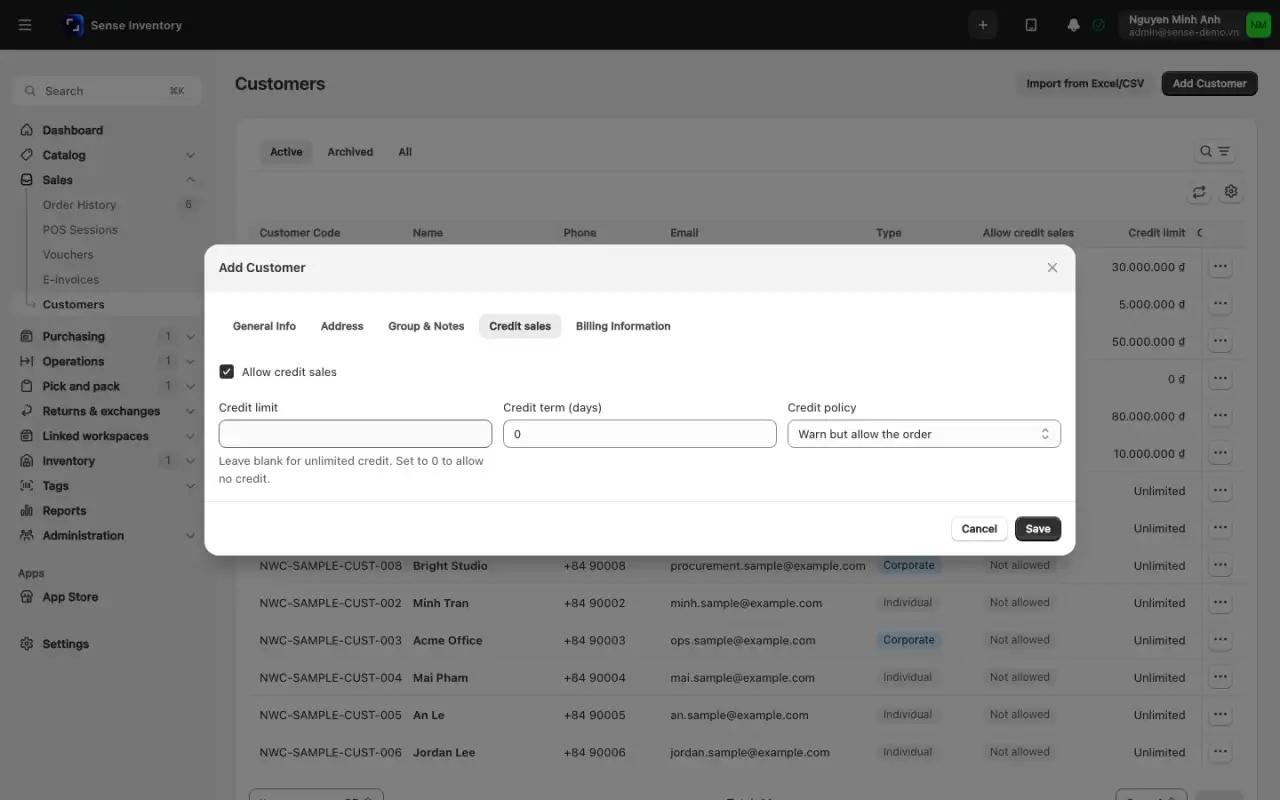
Click Save. You see "Customer created successfully".
To stop a customer buying, click Archive. The customer disappears from the default list, and Restore undoes it. Delete customer is for administrators only and works only for customers with no history, debt, spend or points.
Sell on credit
Create an order under Sales → Order History and pick a customer who is allowed credit. Only such customers get the On credit option.
On confirm, under Payment type choose On credit and enter any upfront payment. The panel shows Current debt, Available credit, Debt from this order, Total debt after this order and Payment due.
If the order is over the limit, a Credit limit warning shows the amount over. Under the warn policy, the order still goes through.
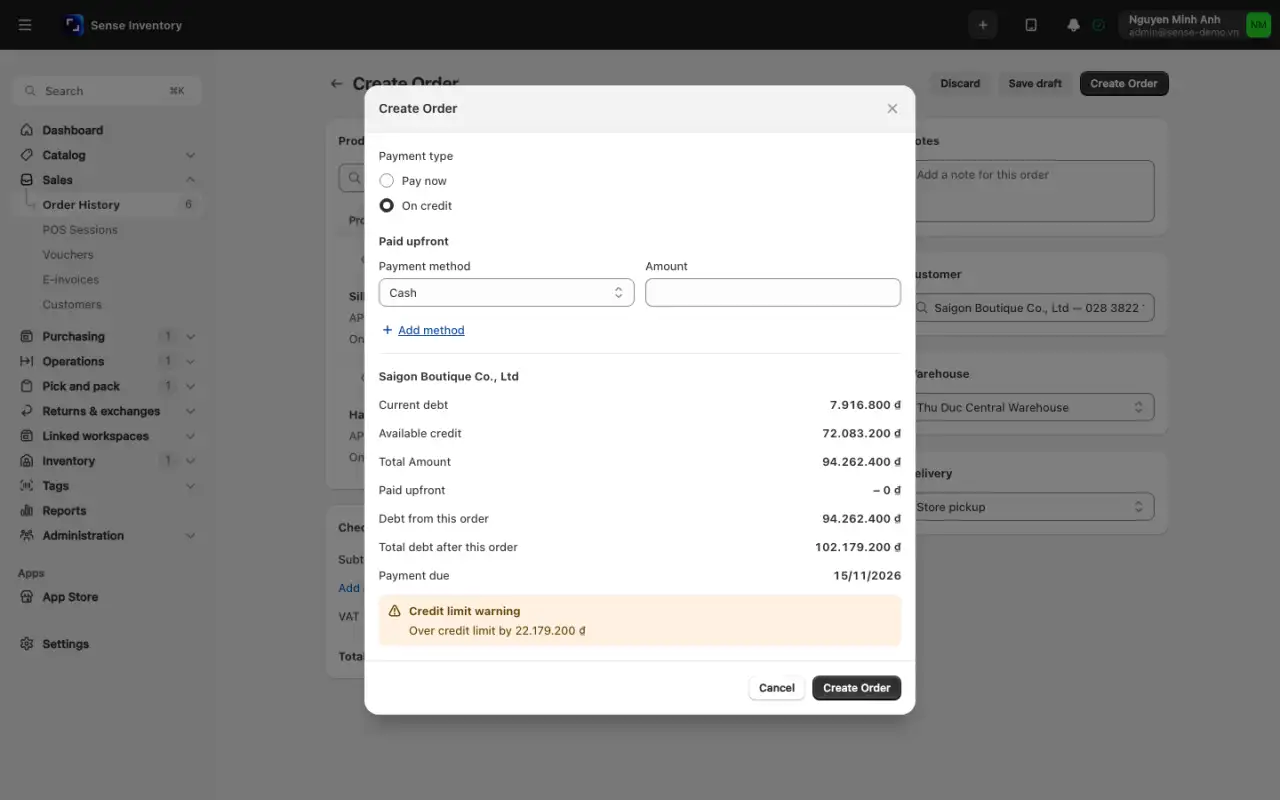
Under the block policy, you see Credit is not available and the order cannot be submitted.
QR, card terminal and e-wallet payments cannot be used on credit. Orders from a sales channel cannot be sold on credit either, because the channel controls their payments.
Collect or pay debt
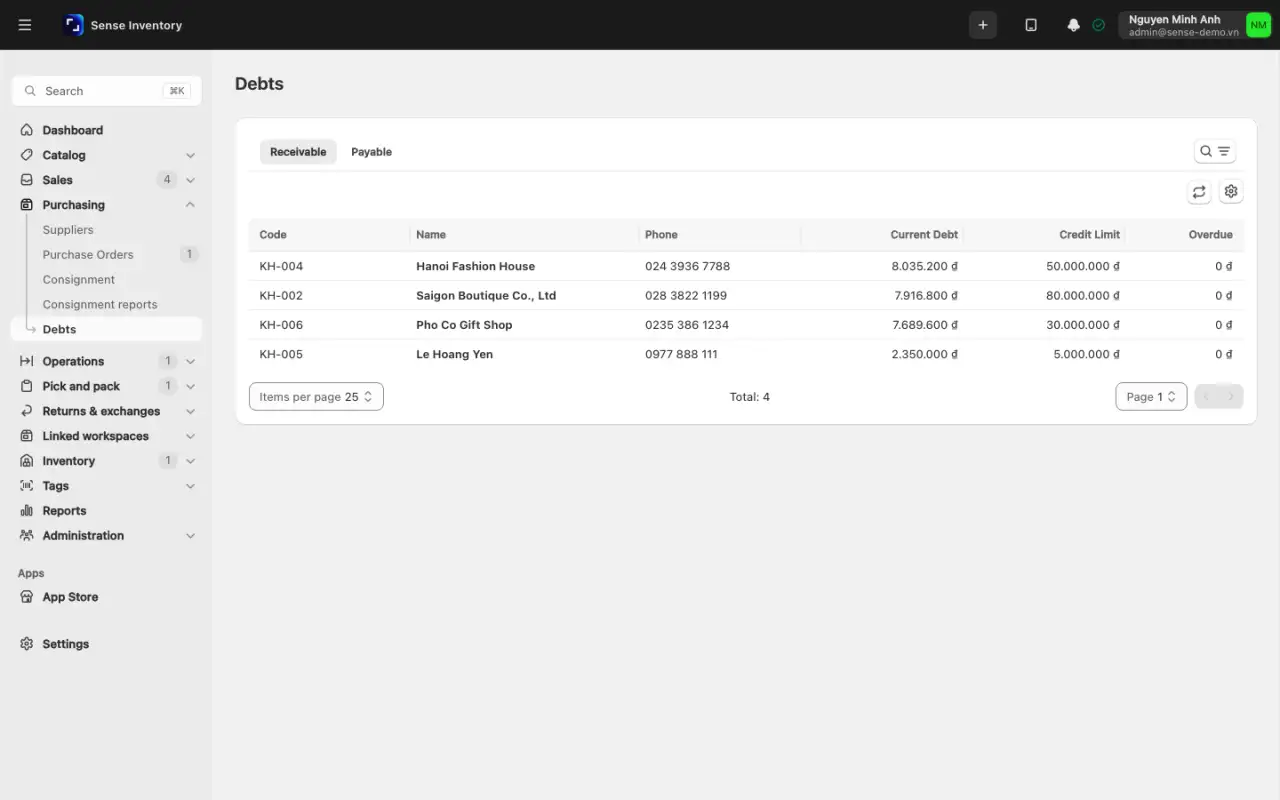
Open Purchasing → Debts. The Receivable and Payable tabs separate the two directions: customers owing you, and you owing suppliers.
Pick a customer or supplier to open their detailed ledger.
Check the balance against the underlying orders and transactions before touching money.
When a customer pays, click Collect Debt. When you pay a supplier, click Pay Debt on that supplier. The amount starts at the total owed, and Allocations are filled oldest first. Edit Amount Applied to allocate by hand. Choose the Payment Method, add a Note and confirm. You see "Receipt recorded".
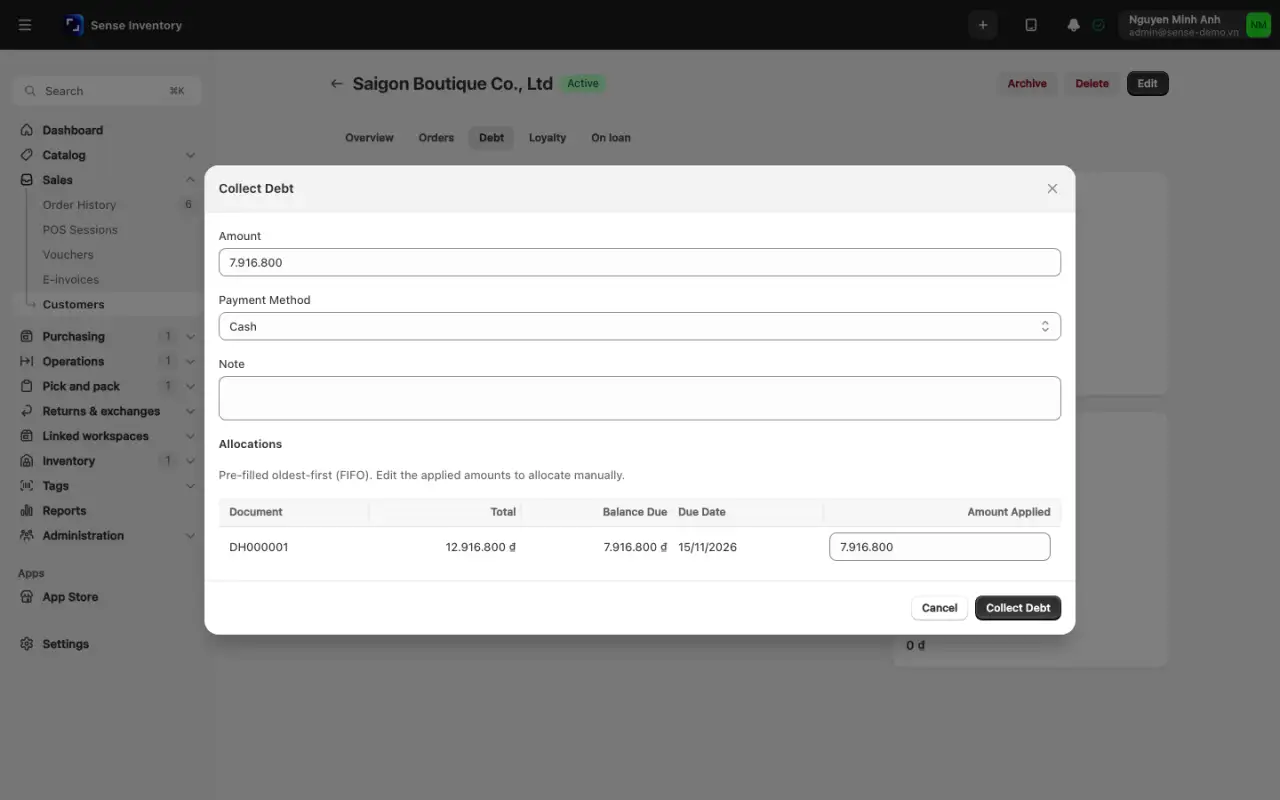
Each receipt becomes one line in the ledger. Every order or purchase order it paid moves to partly paid or paid.
A receipt larger than what is owed still lowers the balance by the full amount, so the customer can end up in credit (you are holding the customer's money). Only orders sold on credit can take an allocation.
Void a receipt, adjust, or write off
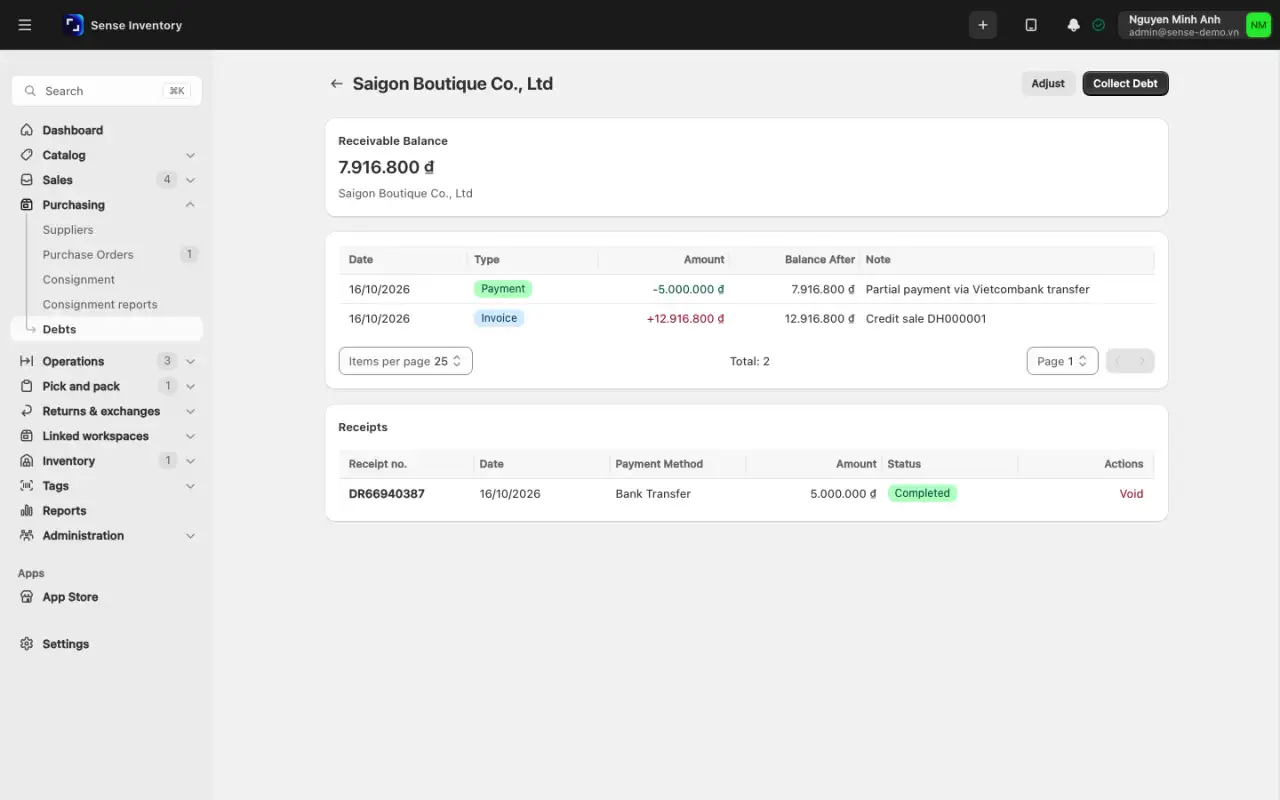
Receipts cannot be deleted. Void the receipt instead: the ledger keeps both the original line and the reversing entry.
Open the customer or supplier ledger and find the completed receipt in the Receipts card.
Click Void and confirm. The amount goes back on the balance, and the documents it paid become unpaid or partly paid again. A receipt can be voided only once. If you voided one by mistake, record a new receipt.
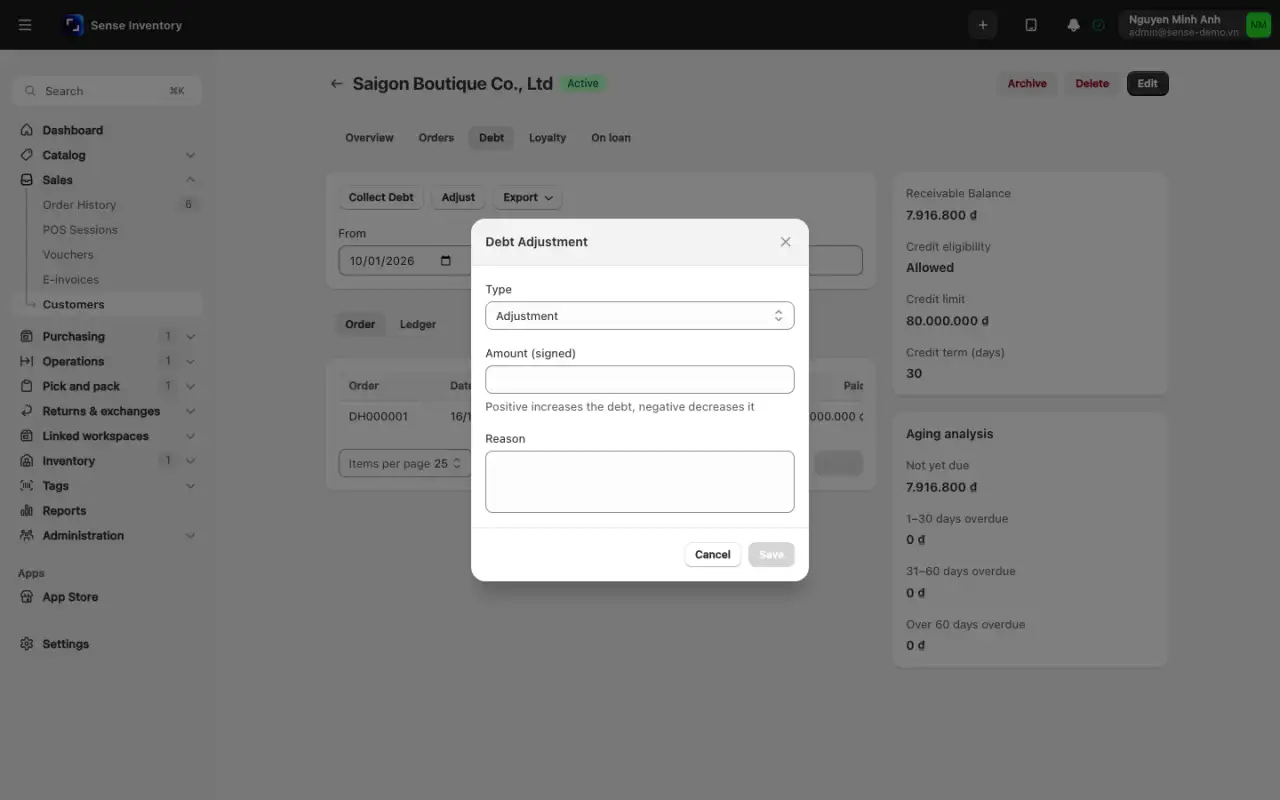
For an opening balance, a correction or a write-off, click Adjust. Choose the Type (Adjustment, Opening Balance or Write-off), then enter the Amount (signed) and a Reason. Both fields are required. A positive amount increases the debt and a negative one decreases it, so a write-off must be entered as a negative amount.
Operational guidance
Use Adjust only with a clear reason and evidence, for example to write off a verified difference. Do not use it to fix a balance before you know why it is off.
Export a debt statement
- On the customer's Debt tab, set From and To.
- Click Export and choose Excel (.xlsx), CSV or PDF. The PDF is a customer debt statement with the Opening balance, Closing balance and signature lines.
The Debts list shows partners with a balance or an overdue amount, largest first. A credit sale with a term of 0 is due the moment it is booked, so it shows as overdue straight away.
How consignment works
Consignment stock differs from goods you buy outright in one way: it remains the consignor's property until it sells. It sits in your warehouse and is counted and audited like everything else, but you owe nothing yet. Receiving consigned goods never creates debt; only posting a settlement creates a payable.
An agreement uses one of two Pricing models:
- Agreed cost: you pay a fixed agreed cost for each unit sold. Anything above it is your margin.
- Commission: the consignor sets the retail price, and you keep a percentage of each sale.
Set up an agreement
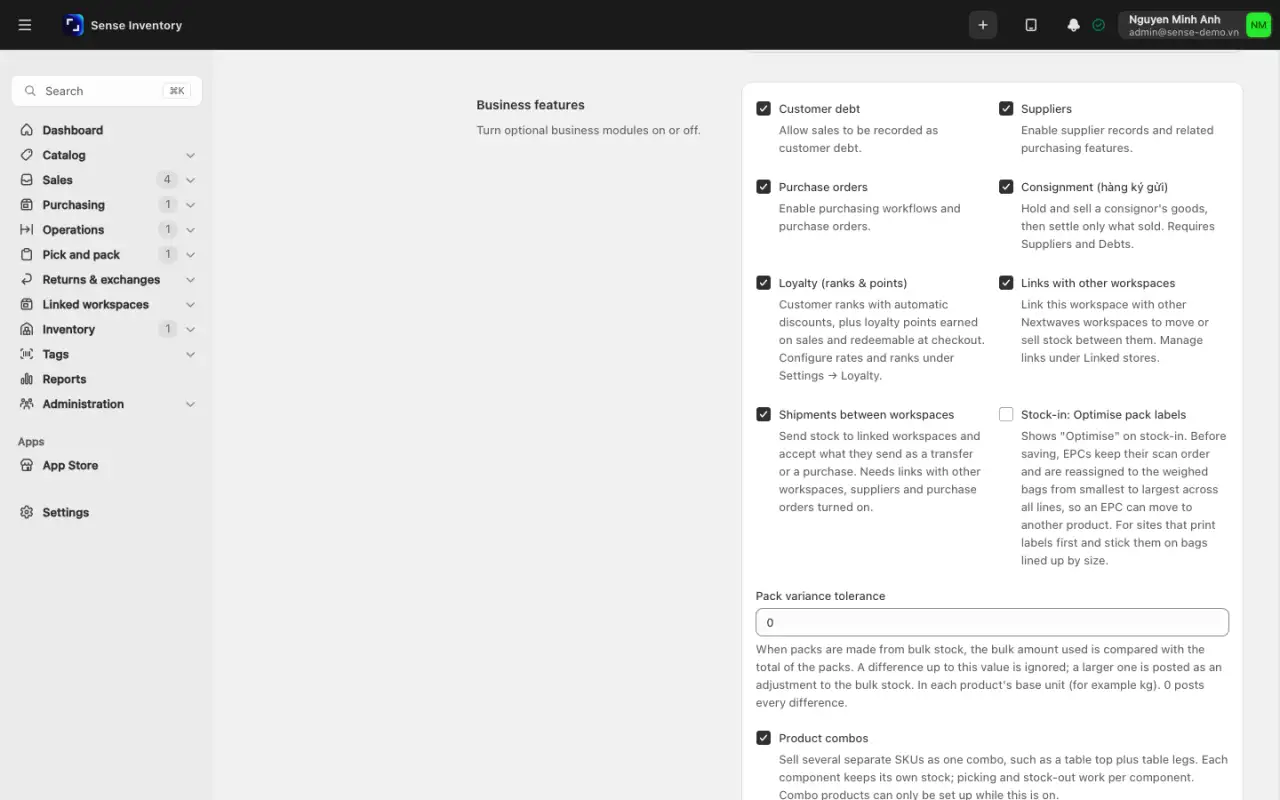
Open Settings → Features, turn on Suppliers and Customer debt, then turn on Consignment and click Save. The Purchasing group now shows Consignment and Consignment reports.
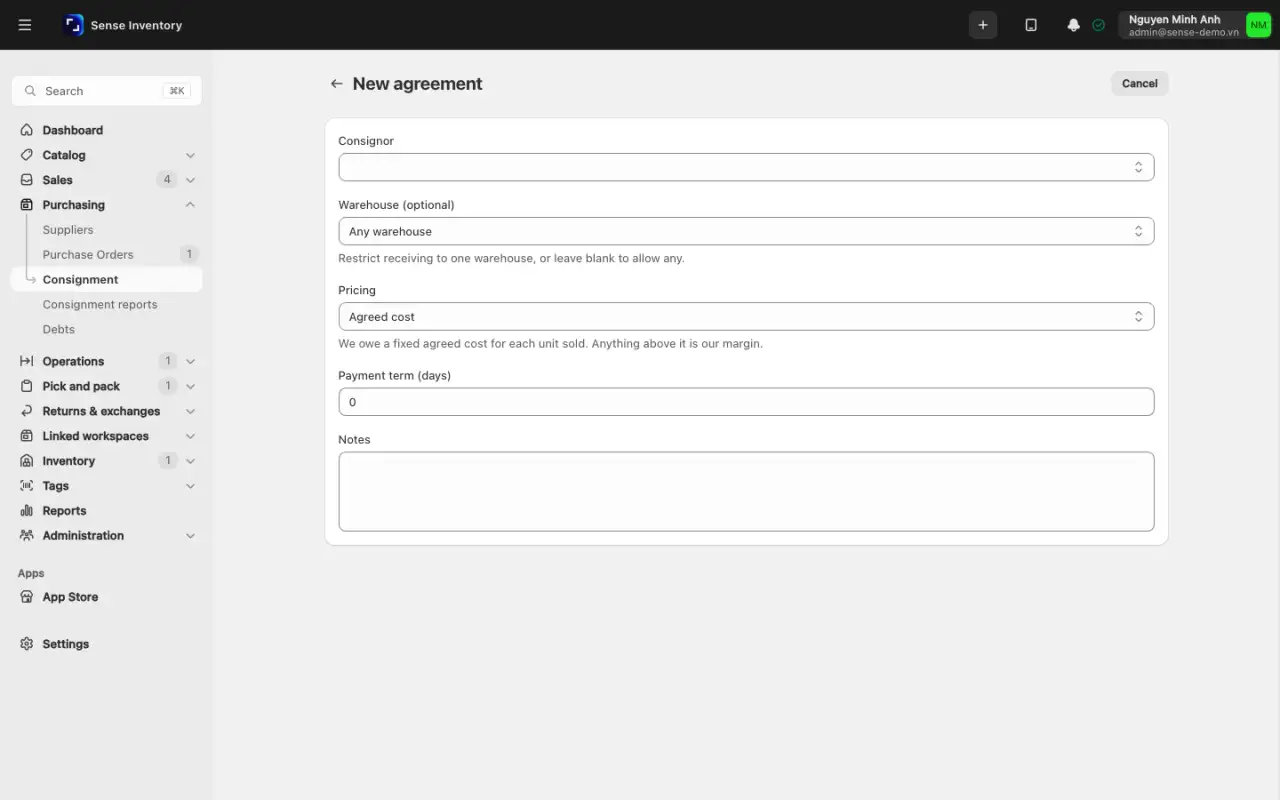
Open Purchasing → Consignment and click New agreement. Choose the Consignor, Warehouse (optional), Pricing, Commission (%) if you use commission, Payment term (days) and Notes, then click Create. With no warehouse, the agreement can receive goods into any warehouse.
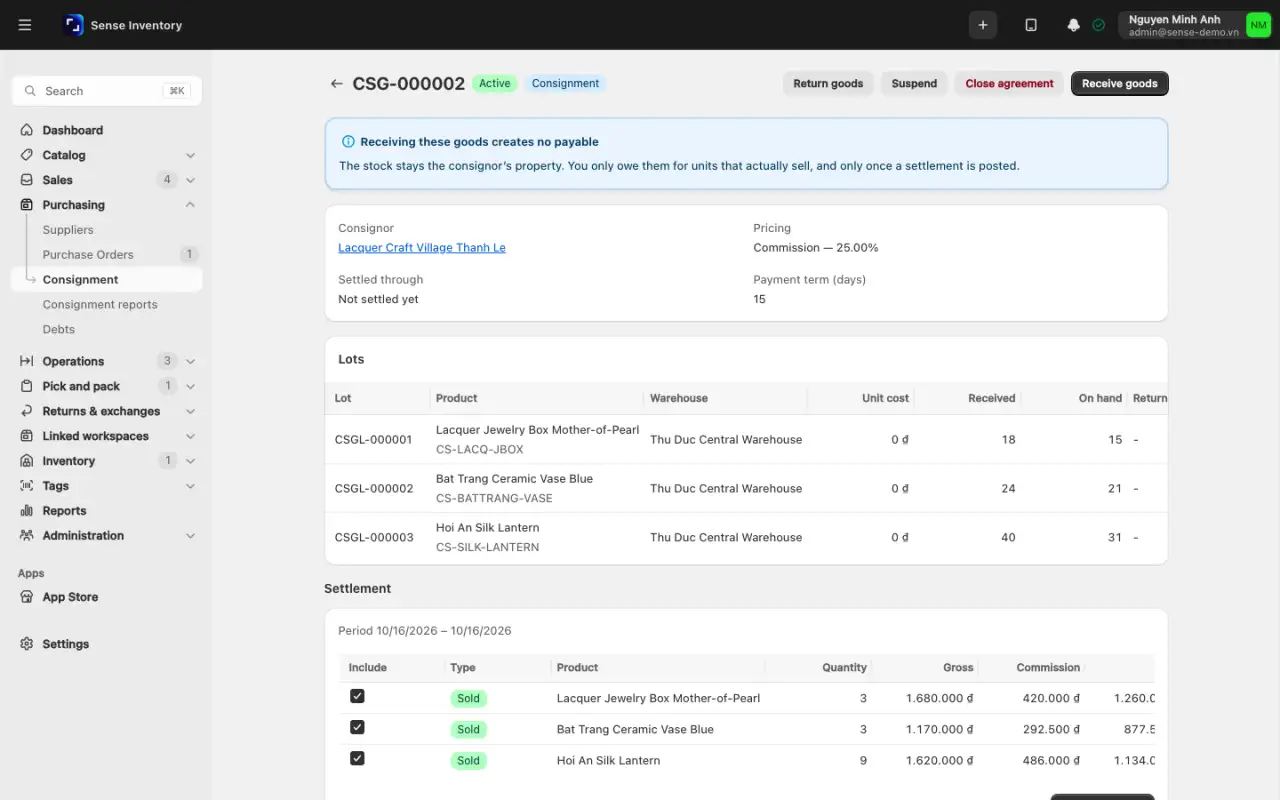
On the agreement page, click Activate. Until then the agreement is Draft. Only an Active agreement can receive goods.
To pause it, click Suspend: it stops receiving goods but can still return them. Click Activate to resume. To end it, click Close agreement. This cannot be undone. An agreement with consigned stock still on hand cannot be closed; return or sell the stock first. The pricing model also cannot change while stock or lots exist.
Receive, sell, and return consigned goods
Open an Active agreement and click Receive goods. Choose the Warehouse (fixed if the agreement has one), add products, and set Quantity, Unit cost and, if needed, Return by. Click Receive. New rows appear under Lots. An agreed-cost agreement needs a unit cost on every line.
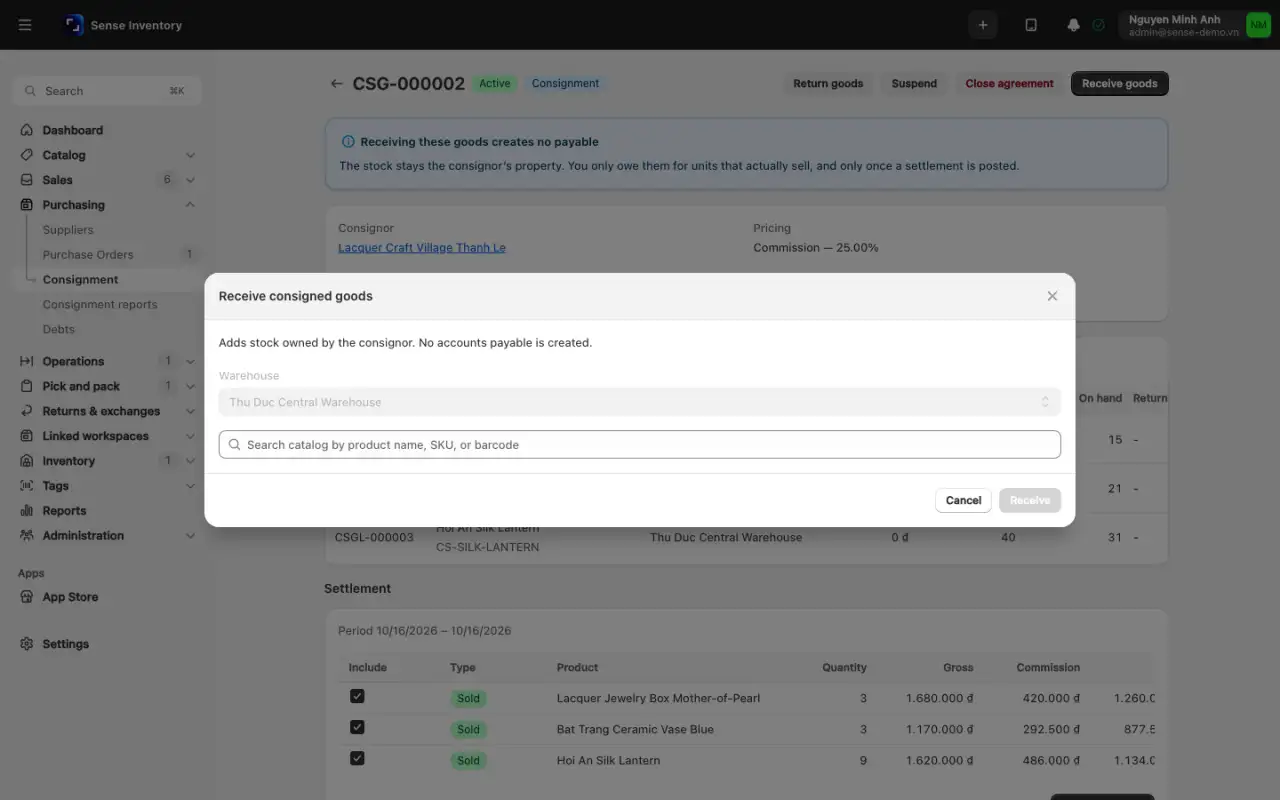
If RFID is required, the dialog shows RFID scanning required. Pick the products, click Continue to RFID stock-in, then scan the tags on the Stock In page. An ordinary stock-in of a consignment product is also booked as a consignment lot on the product's default agreement.
Sell at the counter or against orders like any other product. Each unit sold is traced back to its lot.
To send unsold goods back, open an Active or Suspended agreement and click Return goods. Enter quantities per lot, no more than On hand, and click Return. Nothing is owed or reversed.
A product holds either your own stock or consigned stock, never both, so it cannot switch while it holds stock of the old kind. Consigned stock cannot be moved with a stock transfer: return it, then receive it into the other warehouse. A consignment product cannot be bought on a purchase order.
Settle a consignment period
When it is time to pay the consignor, you close a period:
Open the agreement. The Settlement panel shows the period from Settled through to now. Each line has a Type of Sold, Returned, Shrinkage or Adjustment, with the quantity, gross, Commission and Net.
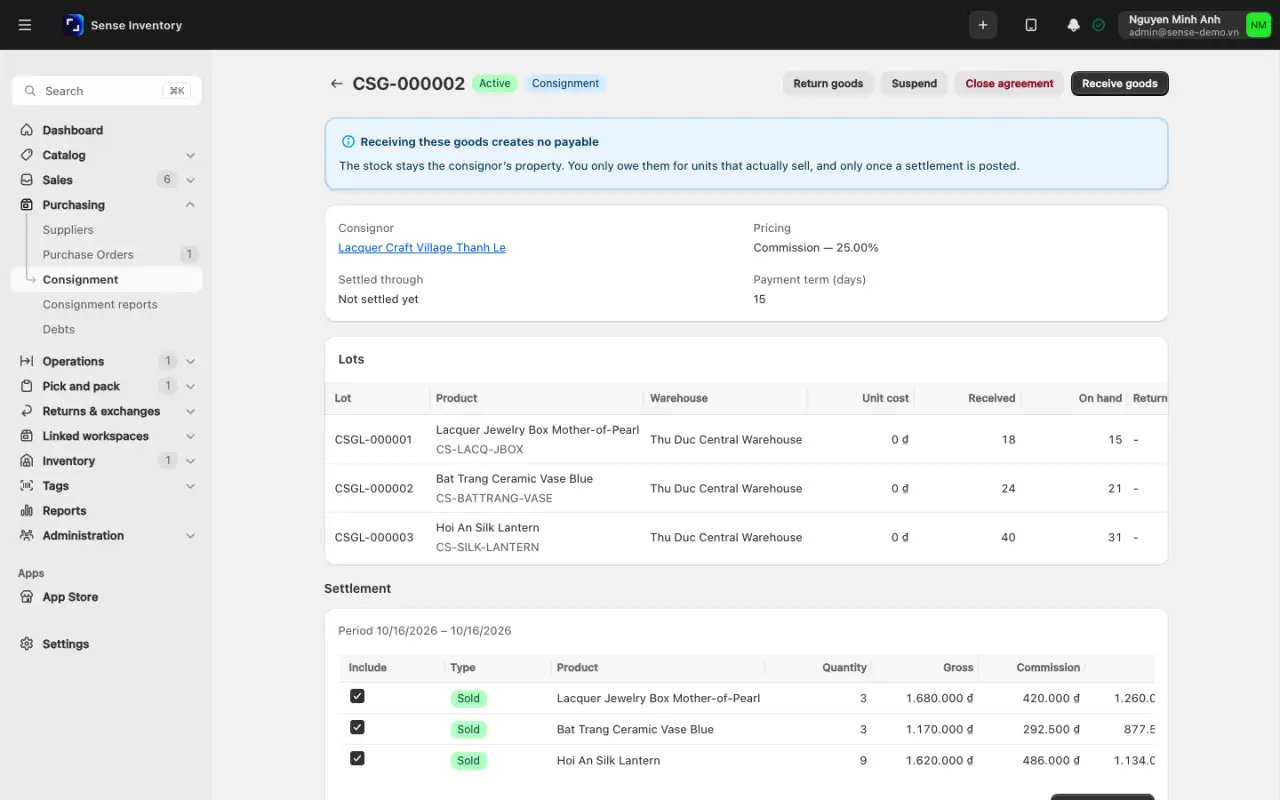
In the Include column, tick any Shrinkage lines you agree to pay for; shrinkage is left out by default. Check the Payable to consignor amount.
Click Post settlement. Sense recalculates the period from the stock ledger, so a late sale is not lost. The amount owed appears on the Payable tab of Purchasing → Debts. The due date is the post date plus the payment term, and Settled through moves to the end of the period, even if nothing was billable.
When you pay the consignor, record it with Pay Debt like any supplier payment.
If you posted the wrong period, click Void on the settlement in the settlement history. Only the most recent settlement can be voided, and only if nothing has been paid against it. If a payment exists, void that payment receipt in Debts first. Voiding reverses the payable and moves Settled through back.
Review consignment reports
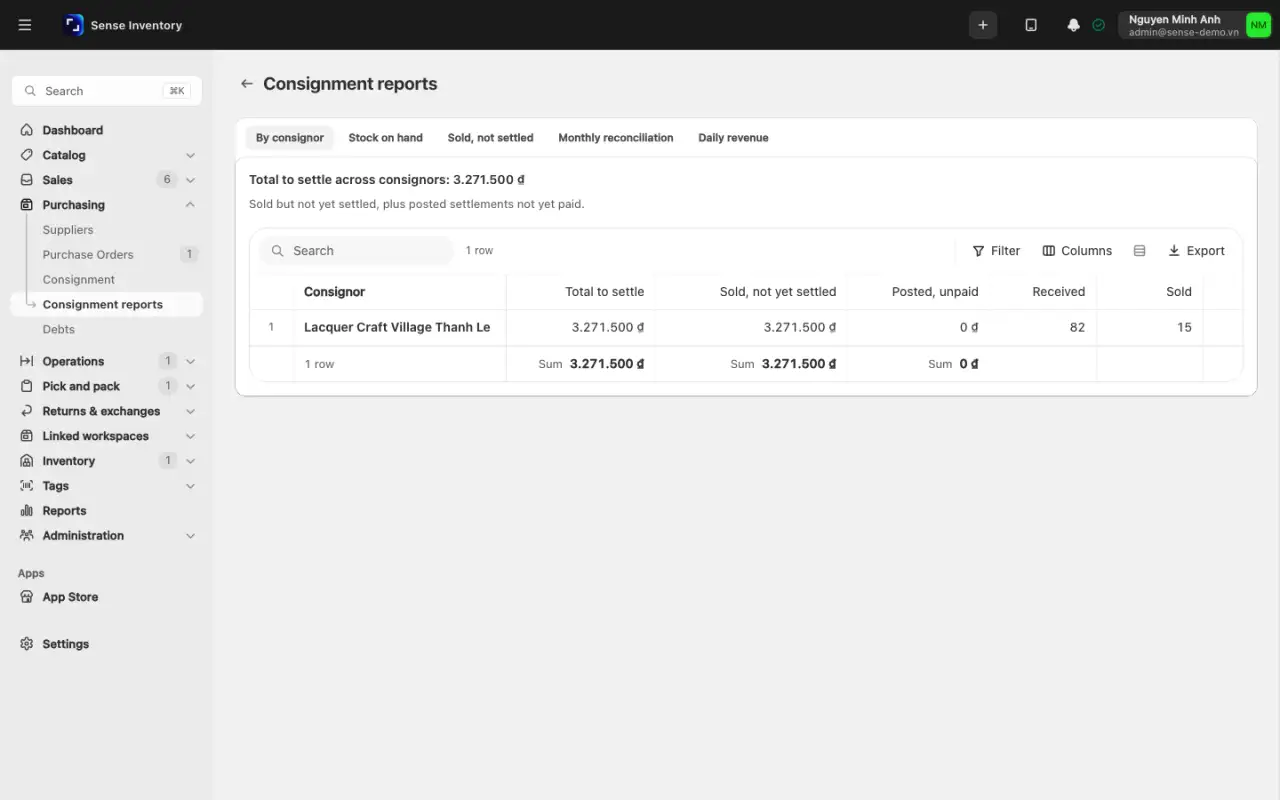
Open Purchasing → Consignment reports.
Use the tabs By consignor, Stock on hand (with the option Only past their return-by date), Sold, not settled, Monthly reconciliation and Daily revenue.
Click a consignor to open the Consignor statement, with Settle {agreement} links to each agreement.
The Contingent liability figure on the Stock on hand tab is what you would owe if every consigned unit sold. It is not booked debt.
When something looks wrong
| Symptom | Likely cause | What to do |
|---|---|---|
| Cannot pick a consignor when creating an agreement | Suppliers is off, or no supplier record exists yet | Turn it on and create the supplier first |
| Consignment cannot be turned on | It needs both Suppliers and Customer debt | Turn those on first |
| On credit is missing on an order | The order has no customer, or the customer is archived or not allowed credit sales | Pick a customer and tick Allow credit sales on their record |
| Credit is not available | The customer's policy is Block orders over the limit and the order is over the limit | Raise the limit, take an upfront payment, or change the policy |
| "The allocated total is more than the receipt amount." | The allocations add up to more than the receipt | Lower the applied amounts |
| The debt balance disagrees with the customer's own records | The two sides compare different date ranges | Agree on one range, then open each source transaction in the ledger |
| "The consignor still has stock here. Return or sell it first." | You are closing, or changing the pricing of, an agreement that still holds stock | Return or sell the stock first |
| "The period must end after the last settled date" | The period overlaps one already settled | Pick an end date after the current Settled through |
| "Only the most recent settlement can be voided: void the later ones first" | A later settlement exists | Void from the newest settlement backwards |
| "This settlement has been paid against. Unwind the payment before voiding it." | A payment was recorded against it | Void the payment receipt in Debts, then void the settlement |
| A recorded entry needs fixing | Ledger entries cannot be edited | Void the receipt, or enter a signed adjustment with a reason |
Read next
- Sell, return, and use kiosk: credit sales, the source of Receivable.
- Purchase and receive: confirming an order, the source of Payable.
- Review reports: Debt reports and Consignment reconciliation.