

Work offline and sync changes
When the server cannot be reached, the app saves your changes as drafts and sends them on the next sync. This page shows how to check that everything reached the server, and how to sell on a tablet POS.
Check that everything reached the server
Keep working as usual: stock in and out, transfers, picking, counts. Changes that cannot be sent are queued without an error.
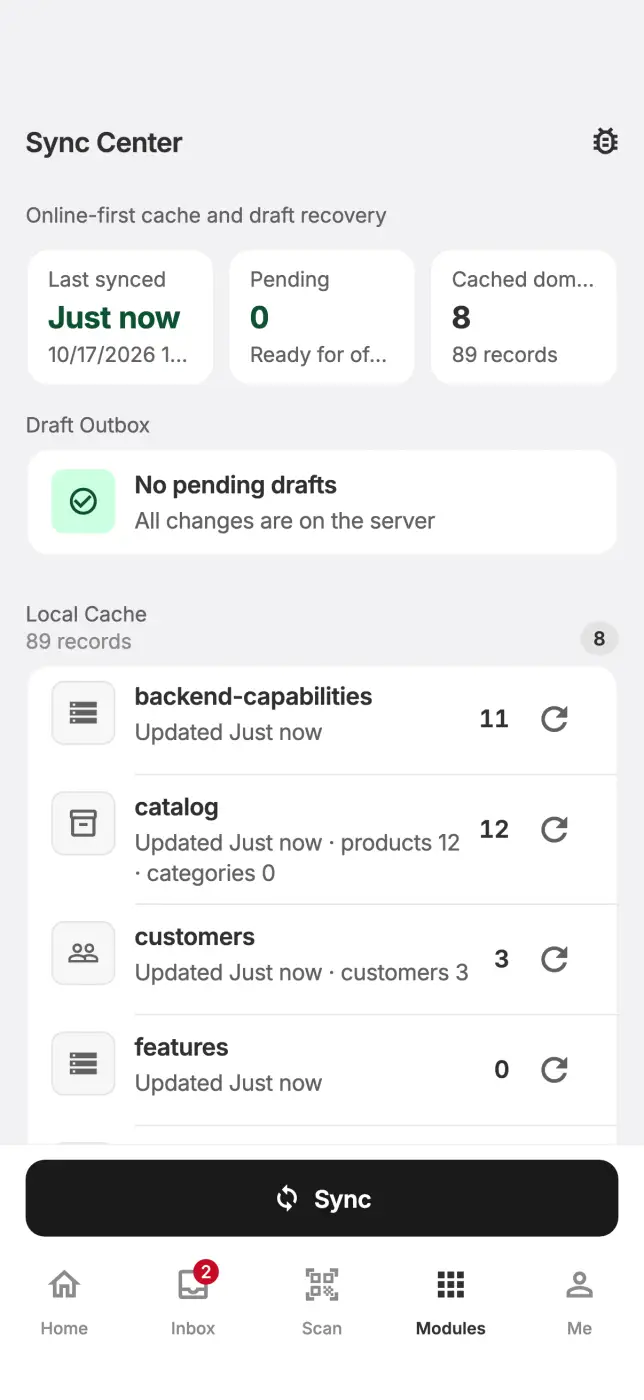
When you are back online, open Me → Sync Center and tap Sync.
Check Draft Outbox. When everything is on the server, it shows "No pending drafts" and "All changes are on the server".
For a Rejected, Conflict, or Needs online submit row, read the error, redo the work while online, then tap Dismiss this operation.
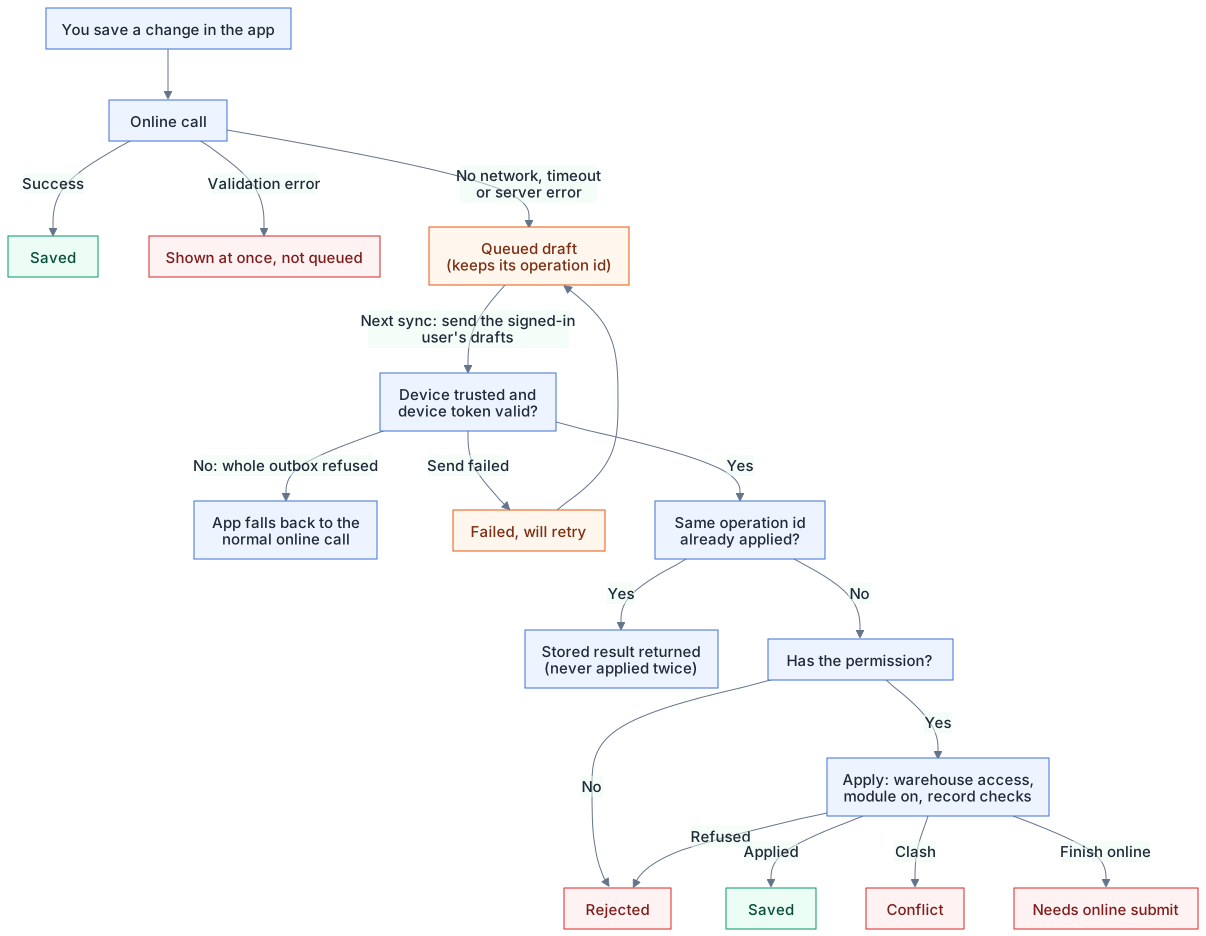
Draft statuses
| Status | Meaning | Retried automatically |
|---|---|---|
| Pending | Waiting to be sent | Yes |
| Failed, will retry | The last attempt failed, for example no connection | Yes |
| Rejected | The server refused it | No, dismiss it |
| Conflict | The record changed on the server and clashes with your change | No, dismiss it |
| Needs online submit | The change must be finished while online | No, dismiss it |
Drafts are sent with your next change, when you reopen the app, or on the periodic background sync (about every 5 minutes). The server applies each draft only once, so a resend never duplicates a change. Pick list changes on Haravan orders are not queued and need a connection.
Ring up sales on a tablet POS
- Use a tablet in a workspace whose plan includes POS. Tap Point of Sale in the quick actions on Home or in Modules.
- Open the shift when asked, then sell from Sell.
- Use Orders and End of day in the left rail. Tap Back office to return to the rest of the app.
While the counter is offline, the POS accepts cash only. Offline sales wait in their own queue and are sent when the connection returns. If the entry is missing, the screen may be too small (the POS needs a tablet), your plan may not include POS, or your role may lack POS access.