

Issue, transfer, and adjust stock
This page gathers the three operations that reduce or relocate stock outside of retail sales: stock-out entries, transfers, and adjustments, plus one shared skill, reading the stock ledger when something needs tracing. The main audience is warehouse staff and their manager.
Picking the right document type matters more than moving fast. Sell goods to a customer through a stock-out entry and you lose the payment, revenue, and customer records; put damaged goods through the POS and you invent revenue that never happened. The stock ledger is only trustworthy when every movement carries its true name.
Match the reason to the document
Customer sales go through the POS or channel orders. Differences discovered while counting are handled with a stock count, never with a stock-out entry "to make the numbers fit". The two middle branches are this page. There is also a fifth case: a completed document later found to be wrong, handled in the adjustment section below.
Issue stock outside of sales
Use Stock Operations → Stock Out whenever goods leave without a paying customer: damage, expiry, supplier returns, loans, internal use.
Check the source warehouse first: the system pre-fills the last one you used, and this is the most commonly wrong field.
Pick a Reason that matches reality: Damaged, Expired, Returned, Lost, Borrowed goods, or another. Months later, that reason line is the only thing in the ledger explaining why the goods left.
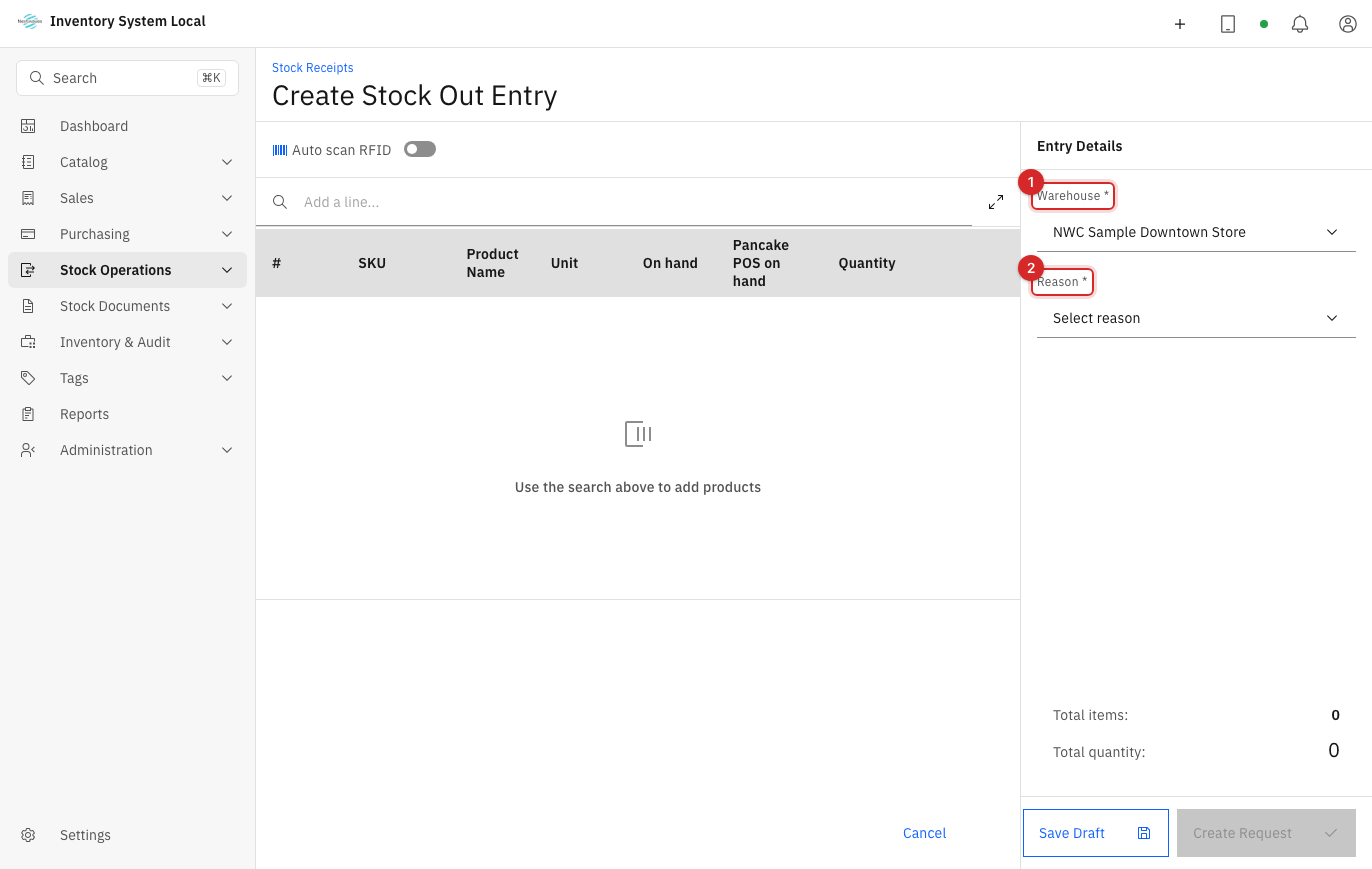
Add the lines: search by name or SKU and enter quantities; for RFID-tagged goods, scan the exact EPC of the items leaving, so per-item history matches reality.
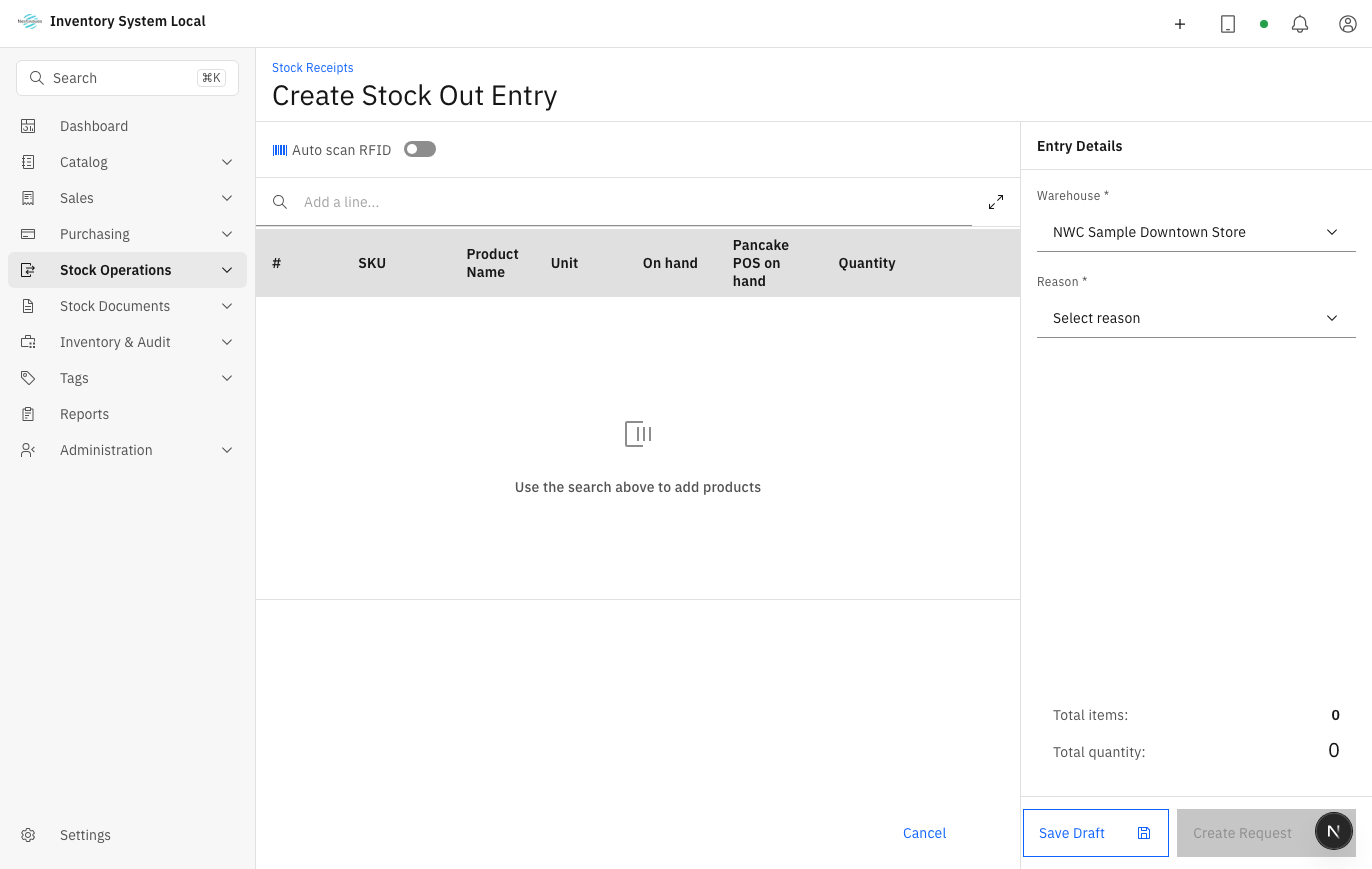
Compare the on-screen list with the physical pile in front of you, remove any wrong line, then press Create Request. If mandatory approval is on, the document waits in Submitted until someone with the permission completes it; stock only drops at Completed, see the document lifecycle.
Transfer goods between two warehouses
A transfer only changes location: the company's total stock stays the same, and tagged items keep their EPCs. The part worth understanding is the middle of the journey:
Go to Stock Operations → Stock Transfers and create a new transfer.
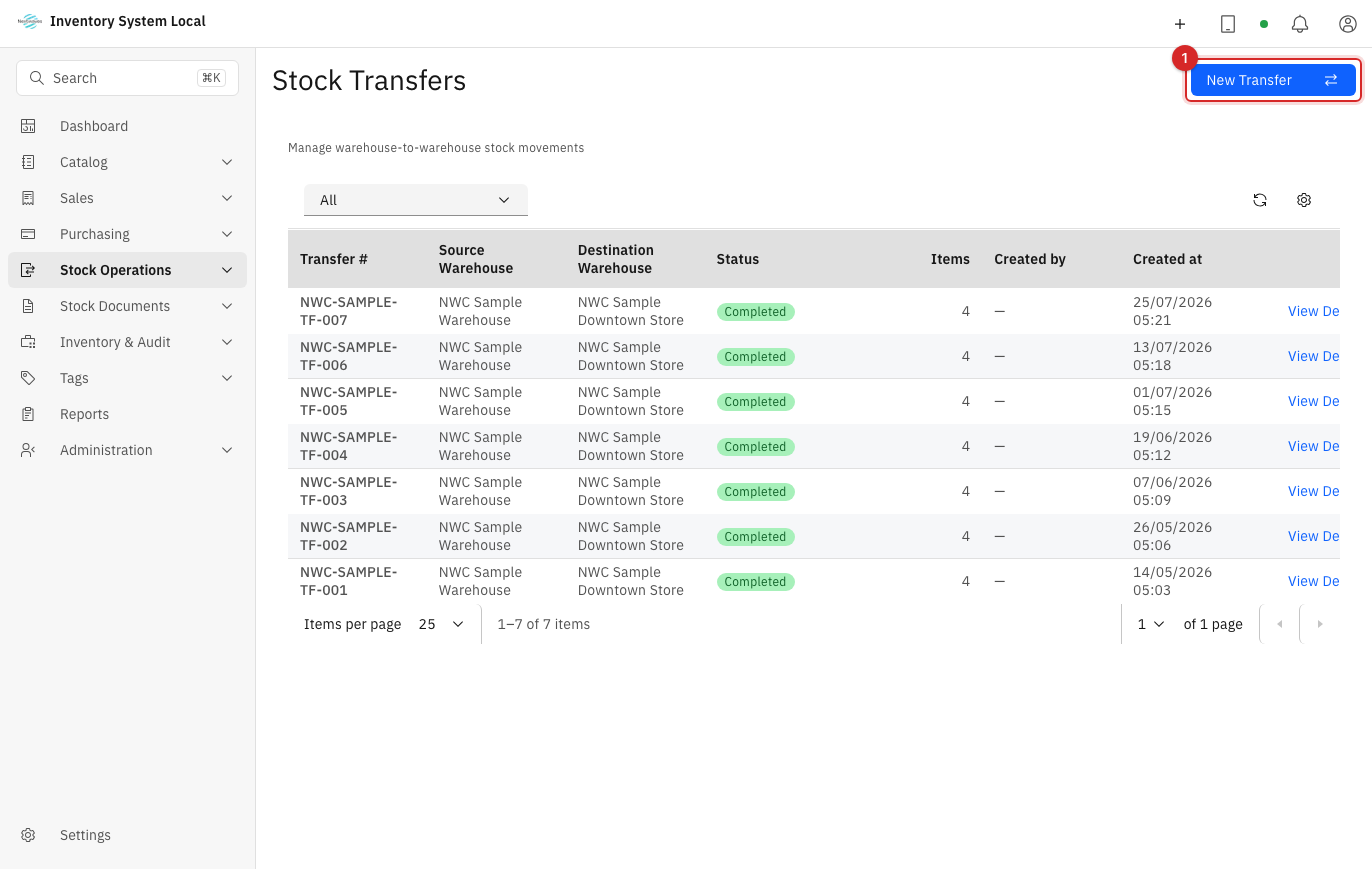
Pick the source and destination warehouses; they must differ. To consolidate goods between bins inside one warehouse, use Relocate stock between bins on the stock screen instead of a transfer, see bin setup in Catalog and warehouses.
Add lines by product, or scan EPCs for tagged goods.
Submit. The system checks source stock at submission, not at creation, so a draft written yesterday can be blocked today if the goods sold out in between.
Shipping the transfer reduces the source immediately, but the destination's stock only rises when the destination confirms completion. For the whole gap in between, the goods belong to no warehouse: total stock looks "short" by exactly the amount on the road.
Because of that gap, check for pending transfers before every stock count. When total stock looks short with no obvious cause, nine times out of ten a transfer is still waiting to be received.
Adjust when a number is already wrong
An adjustment is the document that says "I am overriding the number because it is wrong", which makes it the last resort, used after checking the source document, the ledger, EPC history, and count results. There are two legitimate paths:
- A difference found while counting: handle it inside the count session with Create Stock Adjustment, so every correction stays attached to a specific counted session, see Count and reconcile.
- A one-off error on a completed document, say one over-received line: create a new stock-in or stock-out entry with the Adjustment reason and a note pointing at the original document number. Never try to overwrite the old document; the original and the correction belong in the ledger together, or nothing can be traced later.
Operational guidance
Large or repeated adjustments in the same warehouse should pass through a manager. A steady stream of adjustments is usually a symptom of a broken process somewhere, not random number noise.
Read the Stock Ledger when tracing
Inventory & Audit → Stock Ledger records every movement in order, with the running balance after each line. The Action Type column says where a line came from: Stock In, Stock Out, Sale, Refund, Transfer, Adjustment, or Reconciliation.
Filter by warehouse and reason to isolate the group of movements you care about.
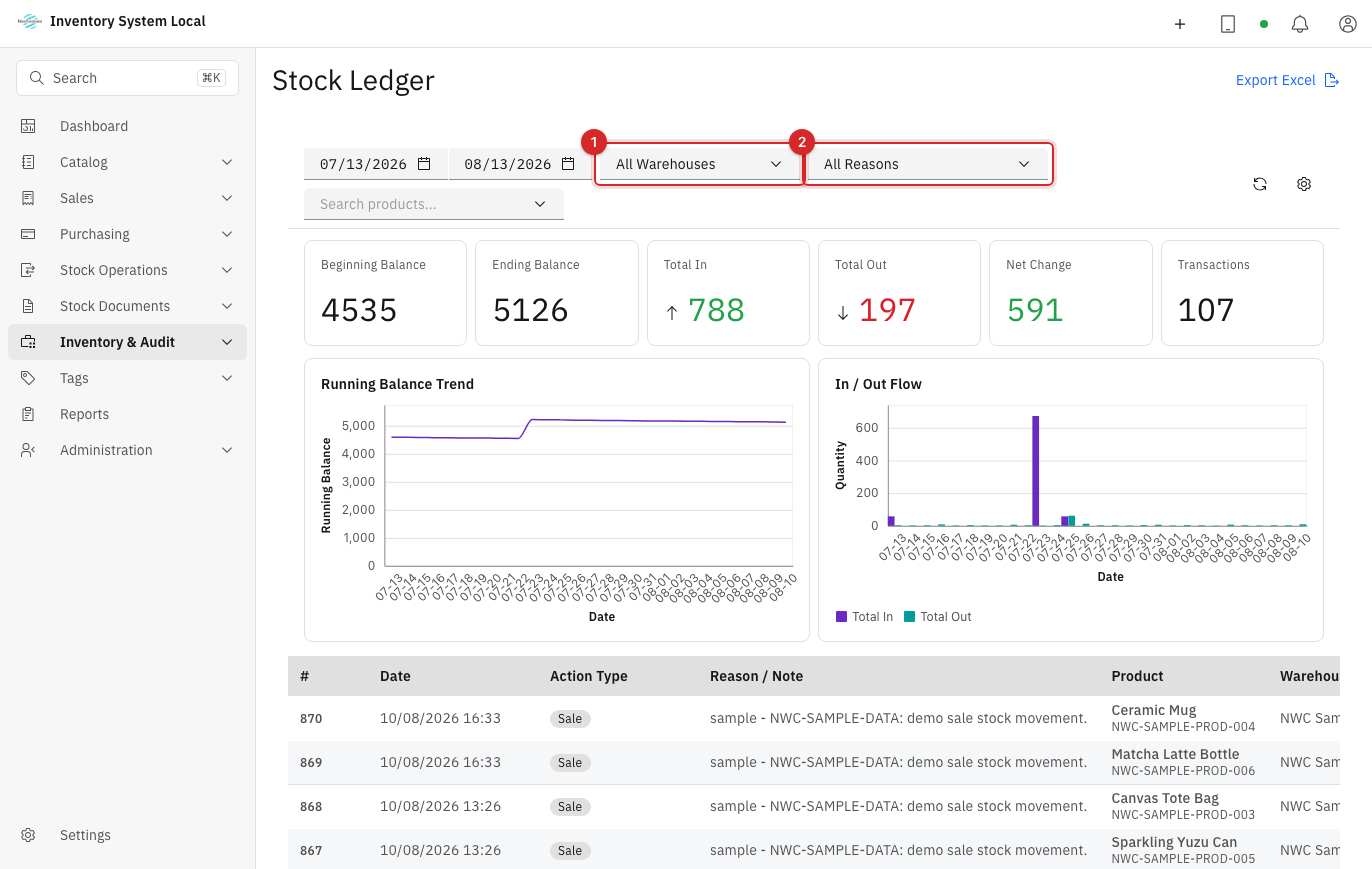
When the balance disagrees with a physical count, find the most recent point where the number was still right and read forward line by line from there. Reading forward always beats standing at the total and guessing backwards.
If Allow overselling is on, the ledger is allowed to go below zero. A negative number is then the system's true state, not corrupted data: it means something sold before it was received.
When something goes wrong
| Symptom | Likely cause | What to do |
|---|---|---|
| A warehouse cannot be selected | Its stock-in or stock-out capability is off | Fix the warehouse Capabilities, see Catalog and warehouses |
| A quantity is rejected | Not enough available stock and Allow overselling is off | Check physical stock; only enable overselling if the company accepts negative ledgers |
| A transfer cannot be created | Source and destination are the same | Pick two different warehouses; within one, use Relocate stock between bins |
| Submitting a transfer reports missing stock | Source stock dropped since the draft was written | Recheck quantities against current stock and submit again |
| Consignment lines refuse to transfer | The lines belong to an unsettled consignment agreement | Settle the consignment first, see Debt and consignment |
| Total stock looks short | Transfers are still on the road | Open the transfer list and receive the pending ones |
| The destination does not see the goods | The transfer was never completed at the destination | Have the destination confirm receipt |
| Stock unchanged after an issue | The document is still Submitted | Someone with the permission completes it under Stock Documents → Stock Receipts |
Read next
- Count and reconcile inventory: fix differences through a controlled counting session.
- Purchase and receive: the opposite direction, goods entering.
- Review reports: the Stock In-Out-Balance report proves the ledger adds up.