

Process channel orders
Sales channels are the outside systems selling your goods: marketplaces or a website, connected through Sapo Integration and Haravan Integration. Once a channel is connected, orders customers place online flow into Easy Inventory for picking and shipping, while stock levels and the catalog flow the other way up to the channel. This page serves two people: the administrator who connects a channel once, and the staff who process incoming orders every day.
One question must be answered before turning on any sync: which system owns the stock numbers. Once answered, every stock and catalog edit happens only there; the other system follows.
What flows in which direction
The three flows are independent: catalog and stock go up to the channel, orders come down, and fulfillment status goes back up so the channel can notify the customer. During configuration you pick one of two flows:
- All channels: Nextwaves is the central inventory source and exchanges updates with every connected channel. The choice for stores that treat Easy Inventory as the master ledger.
- Primary channel: one channel leads catalog and stock updates and Easy Inventory follows. Pick this when the team already manages everything on the marketplace.
Connect a channel
- Go to Settings → Integrations and open Sapo Integration or Haravan Integration.
- Enter the connection details from the channel's admin console, usually the store address and an access key.
- Choose the All channels or Primary channel flow as above.
- Link the products on both sides. The system auto-matches by SKU first, then by barcode, so if both sides use the same SKUs from the start, most products link themselves; see Catalog and warehouses for SKU conventions. Whatever remains sits in the Unlinked tab of the sync screen, handled in the reconciliation section below.
- Run a trial sync with a small group of products, confirm both sides agree, then open it up to the full catalog.
Handle incoming orders
- Channel orders appear in Sales → Order History, with the source channel shown on the order.
- Before touching goods, check four things: customer, products, fulfilling warehouse, and payment status. Note that marketplaces often mark an order complete the moment the customer pays, which is not what "complete" means at the counter.
- Pick, check, and ship like any other order, following Pick, check, and ship.
- When you ship, the status is pushed back to the channel according to the integration settings, so the marketplace can notify the customer. If a channel has not received a status, check the Orders tab of the sync screen.
Reconcile with the channel regularly
Even with sync running automatically, compare numbers deliberately once a week:
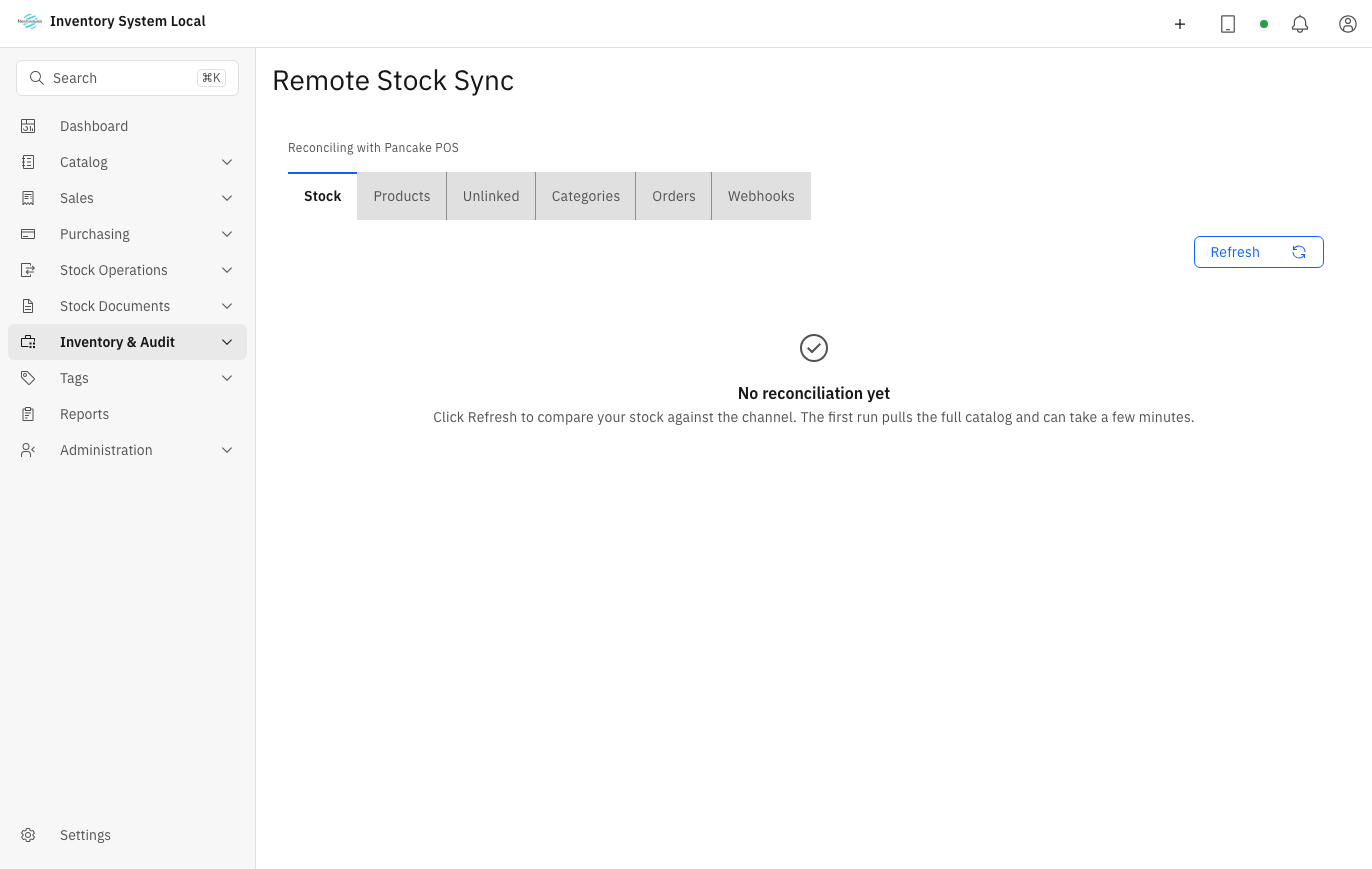
Go to Inventory & Audit → Remote Sync and press Refresh to run the comparison.
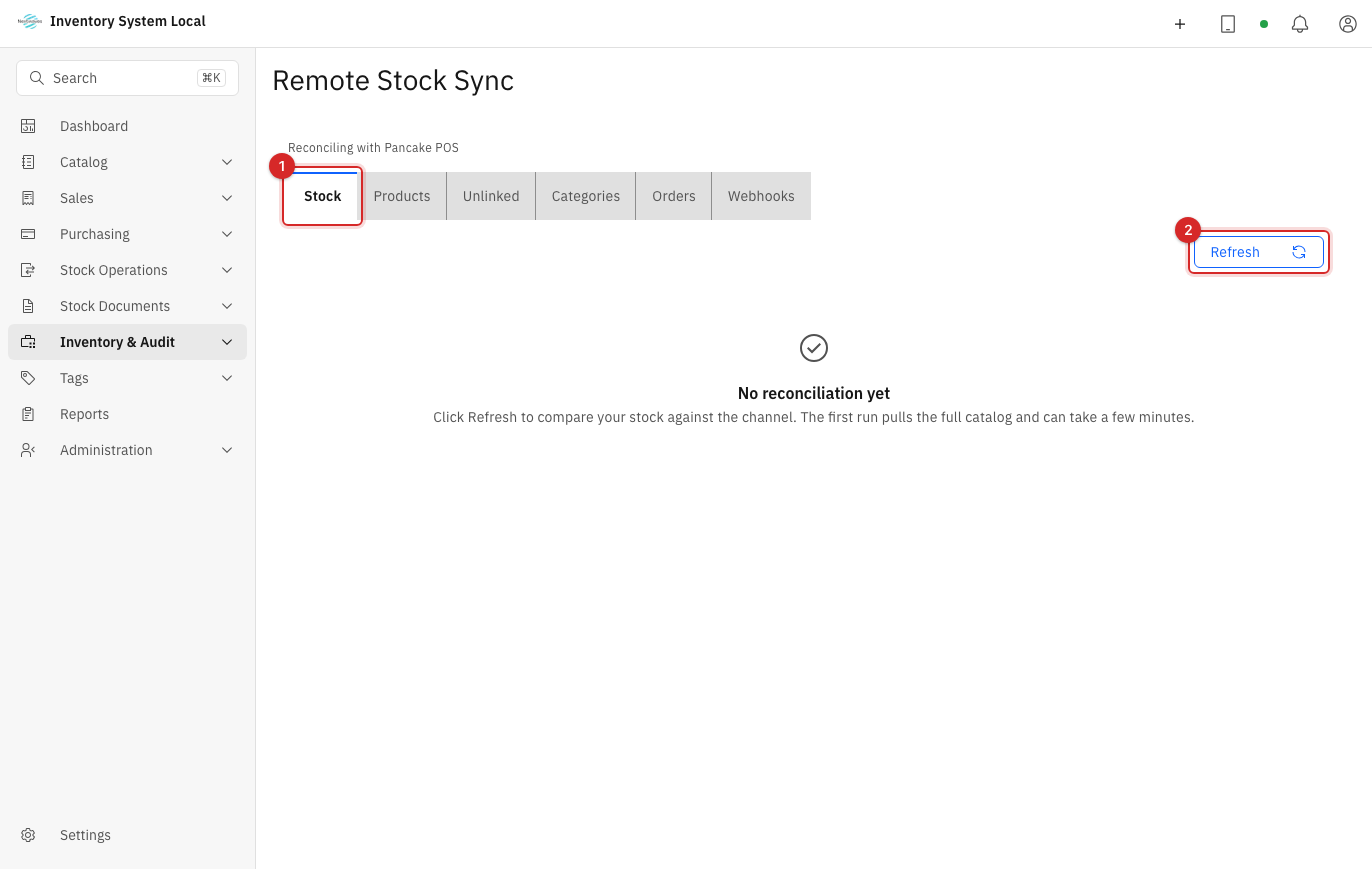
Open the Unlinked tab first. A product that exists on only one side will never match, so comparing quantities while unlinked products remain is wasted effort. Press Repair per row or Repair all to auto-link by SKU and then barcode; on channels without auto-repair, link the remaining products by hand.
With no unlinked products left, move to the Stock tab: compare per product, preview the changes, and only then apply them in bulk.
The Products, Categories, Orders, and Webhooks tabs isolate one data type each, for when you suspect a specific area has drifted.
WARNING
Do not edit the same data on both systems while a sync is running. Edit on the system acting as the source of truth and let the sync bring the other side into line.
When something goes wrong
| Symptom | Likely cause | What to do |
|---|---|---|
| An order placed on the marketplace never arrives | Connection interrupted or a webhook failure | Check the connection status under Settings → Integrations and the Webhooks tab of the sync screen before re-creating the order by hand |
| Stock differs between the two sides | The same item sold in both places, or stock edited outside the source of truth | Identify which transaction changed stock on each side so nothing is deducted twice, then return to the one-place-only rule |
| One product never matches | The product is not linked between the two sides | Clear the Unlinked tab first, with Repair all or by hand |
| The channel never notifies the customer of shipment | Status not pushed to the channel | Check the Orders tab of the sync screen and the integration's status trigger configuration |
Read next
- Pick, check, and ship: the goods side of a channel order.
- Catalog and warehouses: SKU and barcode conventions that make linking automatic.
- Settings and integrations: where connections and webhooks are declared.