

Review reports
This page is for the people who have to answer questions like "how much did we sell today", "which products lose money", and "can I trust this stock number": usually the store manager and the accountant. You will learn what to look at each morning, which question opens which report, and the order to follow when two numbers disagree, instead of guessing.
The numbers here are produced by the other workflows: sales at the POS, receipts through warehouse documents, corrections through stock counts. Reports only read the data; to fix a number, go back to the source document.
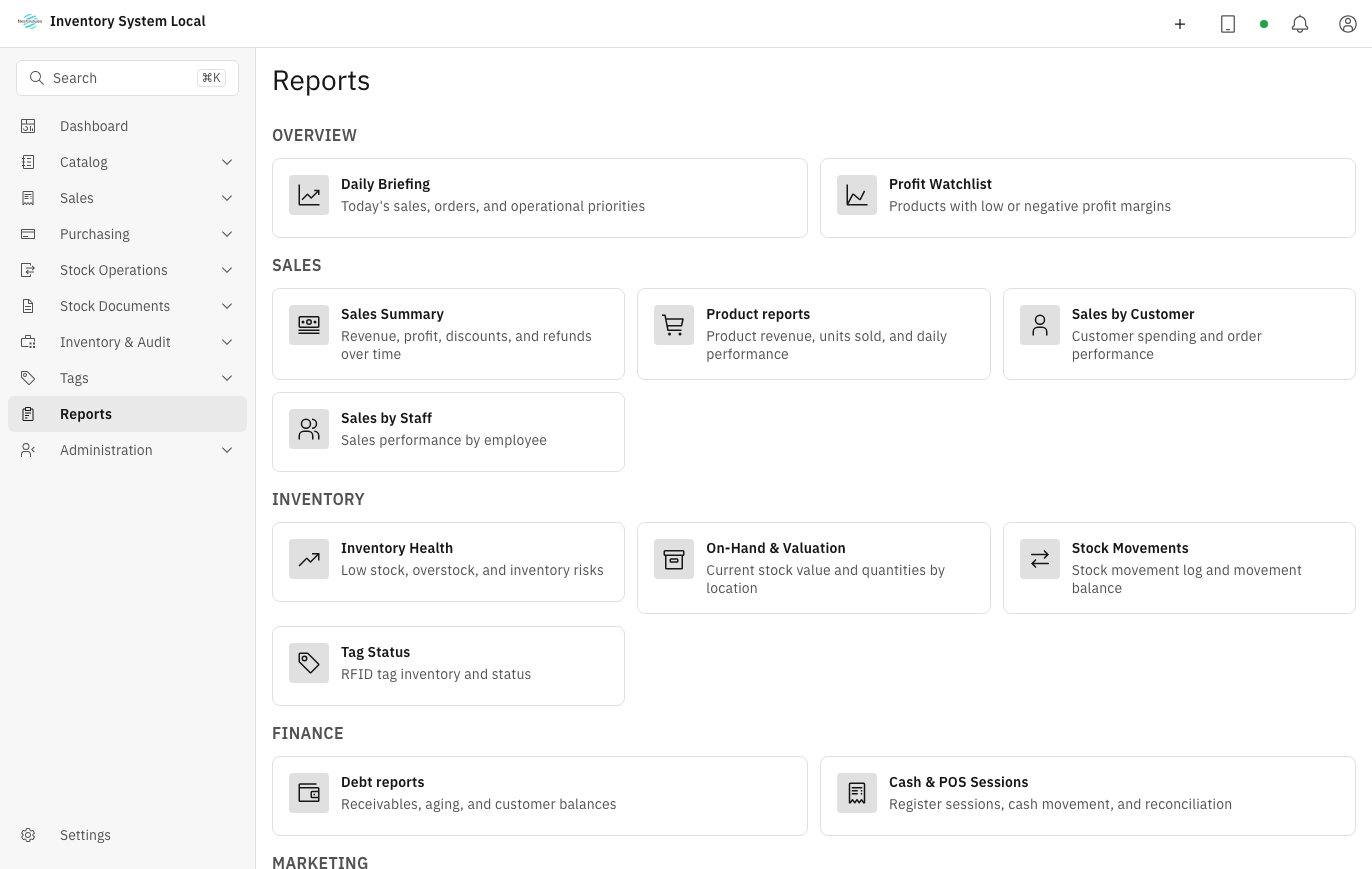
Three layers of information
The system answers three levels of question. Keep them apart:
| Layer | Answers | Where |
|---|---|---|
| Dashboard | What needs attention right now | The Dashboard menu |
| Daily Briefing | How the day looks at the start of a shift | Reports → Daily Briefing |
| Detailed reports | Analysis, reconciliation, exports | The Reports menu |
You only see the report groups your account is allowed to view: sales, inventory, and debt reports each have their own permission. If a group is missing, request access as described in Users and security.
Before trusting a number
Three conditions decide whether the numbers mean anything:
- Products have a Cost price. Without it, every profit and margin figure shows 0, not because you sell at a loss but because the system has nothing to subtract.
- The timezone is set correctly under Settings → General Settings. A wrong timezone pushes end-of-day sales into the next day.
- Sample data is deleted once the store runs for real. Sample orders carry the
NWC-SAMPLE-code and count straight into revenue.
Start the morning on the Dashboard
- Open the Dashboard.
- Set the scope with the two selectors in the top right corner: warehouse and period.
- Scan the number tiles. A red Inventory risk tile comes first.
- Scroll down to the work queue: each row is a situation the system detected, with a link to the screen that fixes it, sorted by impact from the top down.
A tile showing 0 with a "no activity" note means the query ran and there really was nothing in that period, not that the screen is broken.
Which question opens which report
The names in the right column match the Reports menu exactly:
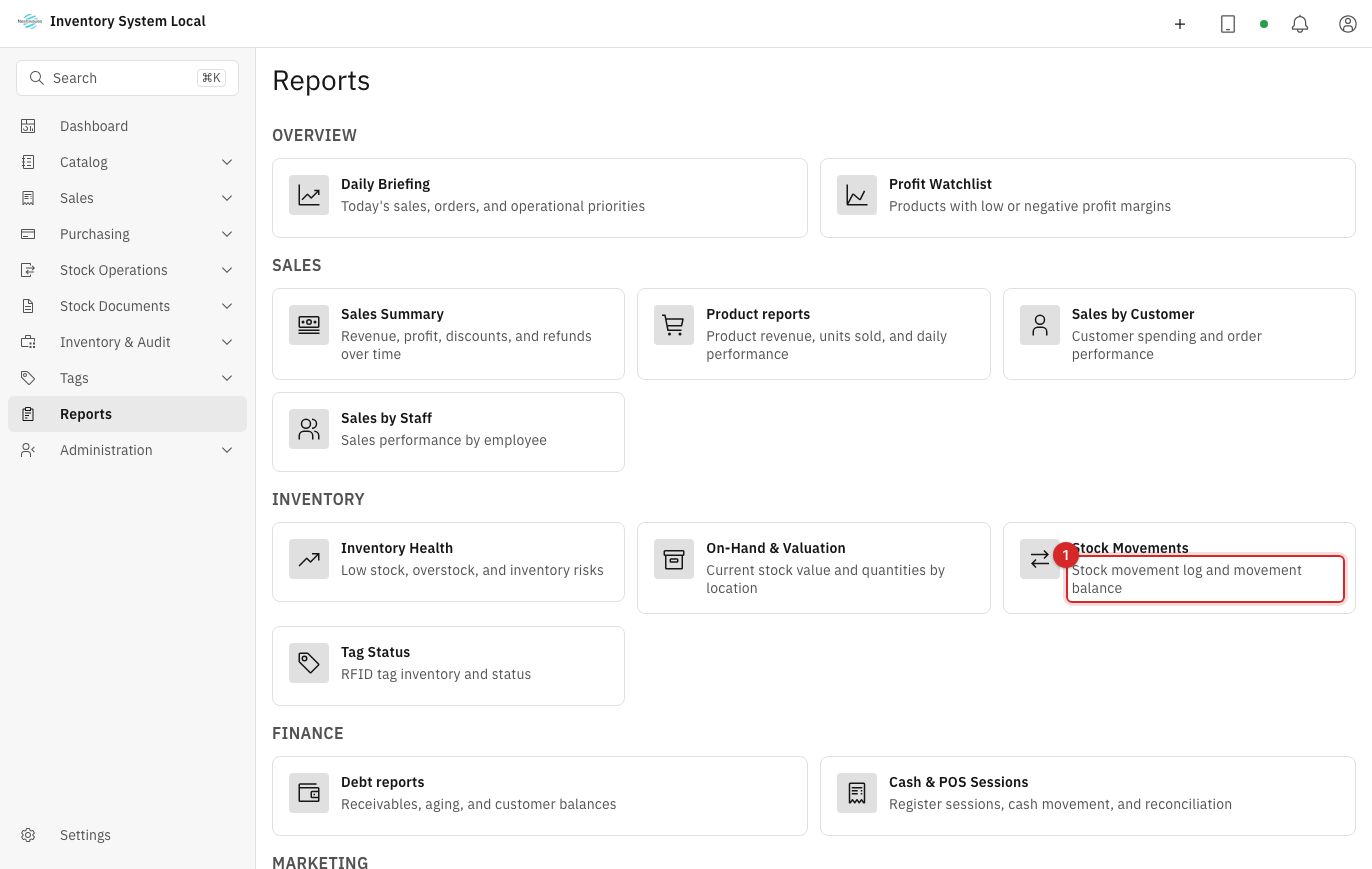
| You are asking | Open |
|---|---|
| How much revenue this period | Sales Summary |
| Which products sell best | Sales by Product |
| Which customers buy the most | Sales by Customer |
| Which staff sell well | Sales by Staff |
| Which products lose money or run on thin margins | Profit Watchlist |
| Which products move and which sit still | Product Performance |
| What is overstocked, running out, or in excess | Inventory Health |
| How much stock is left and what it is worth | On-Hand & Valuation |
| Why a stock number changed | Stock Movements |
| Whether the stock number matches the ledger | Stock In-Out-Balance |
| What state RFID tags are in | Tag Status |
| Who owes money and for how long | Debt Summary, Debt Aging |
| Whether a cashier shift has a cash gap | Cash & POS Sessions |
| Whether vouchers actually drive sales | Voucher Performance |
| How consignment stock sold and what is owed to the consignor | Consignment reports |
Stock In-Out-Balance is the one to remember: it takes opening stock, adds receipts, subtracts issues, and lands on closing stock per SKU. When you need to prove the ledger adds up, this is the report to open.
The four shared controls
Nearly every report carries the same controls at the top:
- Period: a preset range or custom dates. Reports do not share one default period, so before comparing two reports, put both on the same period first.
- Warehouse: all warehouses or one. An account restricted by warehouse only sees its own, so two people can open the same report and see different totals with neither being wrong.
- Export: exports exactly what you see, filters and column choices included. Filter first, then export.
- Columns: show or hide columns; the system remembers the choice per user and per report.
When two numbers disagree
Work through this order and stop at the step that finds it:
- Compare period and warehouse between the two screens. Most cases end right here.
- If a profit figure looks wrong, check the Cost price of the products involved.
- If a stock figure looks wrong, open Stock In-Out-Balance and narrow it to that SKU: the report points at the entry that breaks the expected balance. To read individual entries, continue in the stock ledger.
- If the number disagrees with a sales channel, open Inventory & Audit → Remote Sync and clear the Unlinked tab first. Details in Process channel orders.
- If the number disagrees with what is on the shelf, run a stock count.
End of day
- Match revenue against order counts and each payment method.
- Open Cash & POS Sessions: look for cash gaps, unusual refunds, and cancellations.
- Skim Stock Movements for odd swings or large adjustments.
- If debt tracking is on, check Debt Aging for amounts falling due.
- Anything that needs action gets an owner and a deadline today, not tomorrow.
Operational guidance
Low-stock, slow-mover, and thin-margin warnings are signals to investigate, not conclusions. Check the underlying transactions and the business context before reordering, discounting, or adjusting stock.
When something looks wrong
| Symptom | Likely cause | What to do |
|---|---|---|
| Two reports show different totals | Different period or warehouse | Recheck the two selectors at the top of each report |
| Profit and margin show 0 | Products missing cost price | Enter a Cost price |
| Revenue unusually high | Sample data still present (NWC-SAMPLE-) | Delete it under Settings → Sample Data |
| End-of-day numbers land on the wrong day | Wrong timezone | Fix it under Settings → General Settings |
| Report stock differs from physical stock | Transfers or submitted documents still pending | Complete the pending documents, see Issue, transfer, and adjust |
| A report group is missing | Account lacks that view permission | Request access, see Users and security |
| An export is missing data | Filters narrowed the result | Remove filters and export again |
| You see less stock than a colleague | Account restricted by warehouse | Check the warehouses assigned on the user profile |
Two counting rules that raise questions: sales reports exclude draft and cancelled orders, and refunds are netted against revenue rather than removed from it.
Read next
- Count and reconcile inventory: when system stock disagrees with the shelf.
- Issue, transfer, and adjust stock: read the ledger entry by entry.
- Debt and consignment: act on the debts you see in reports.