

Set up the system
This is the administrator's job, done once when taking over the system, and it fits in a single session if the information is prepared. It deserves care: the choices made here, currency, timezone, warehouse rules, follow every transaction afterwards, and some are nearly impossible to change once real stock exists.
Prepare before sitting down: the company registration details and tax ID, the list of real warehouses and stores, a product catalog file if one exists, the staff list with each person's actual job, and the owner's decision on two big questions: track stock by batch and expiry or not, and require approval on warehouse documents or not.
Rollout order
Follow this order, because each step builds on the previous one:
General settings
Sign in with the provided admin account and change the initial password immediately.
Go to Settings → General Settings.
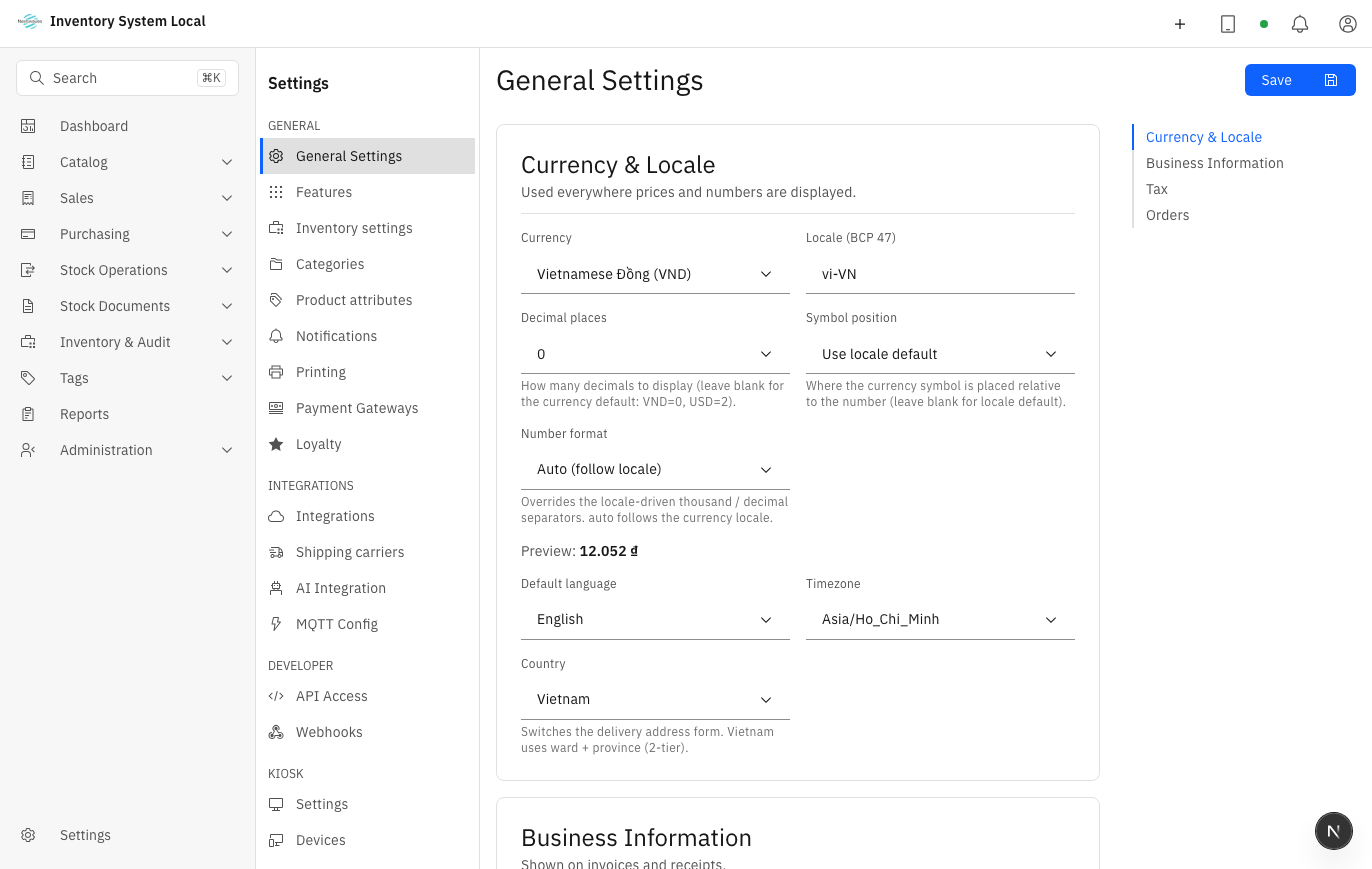
Under Currency & Locale, pick the Currency, Locale (BCP 47), and Decimal places. These decide how prices render on every screen.
Set the Timezone for where the business operates. The timezone is how the system understands "today": get it wrong and tonight's sales land in tomorrow's report, and nobody notices until a reconciliation.
Enter the company name, address, phone, email, and Tax ID; these print on invoices.
Under Tax, set the Default tax rate (%) and decide whether Prices already include tax. Get this one wrong and every selling price is off by exactly one tax amount. Press Save.
Turn on the modules you need
Go to Settings → Features.
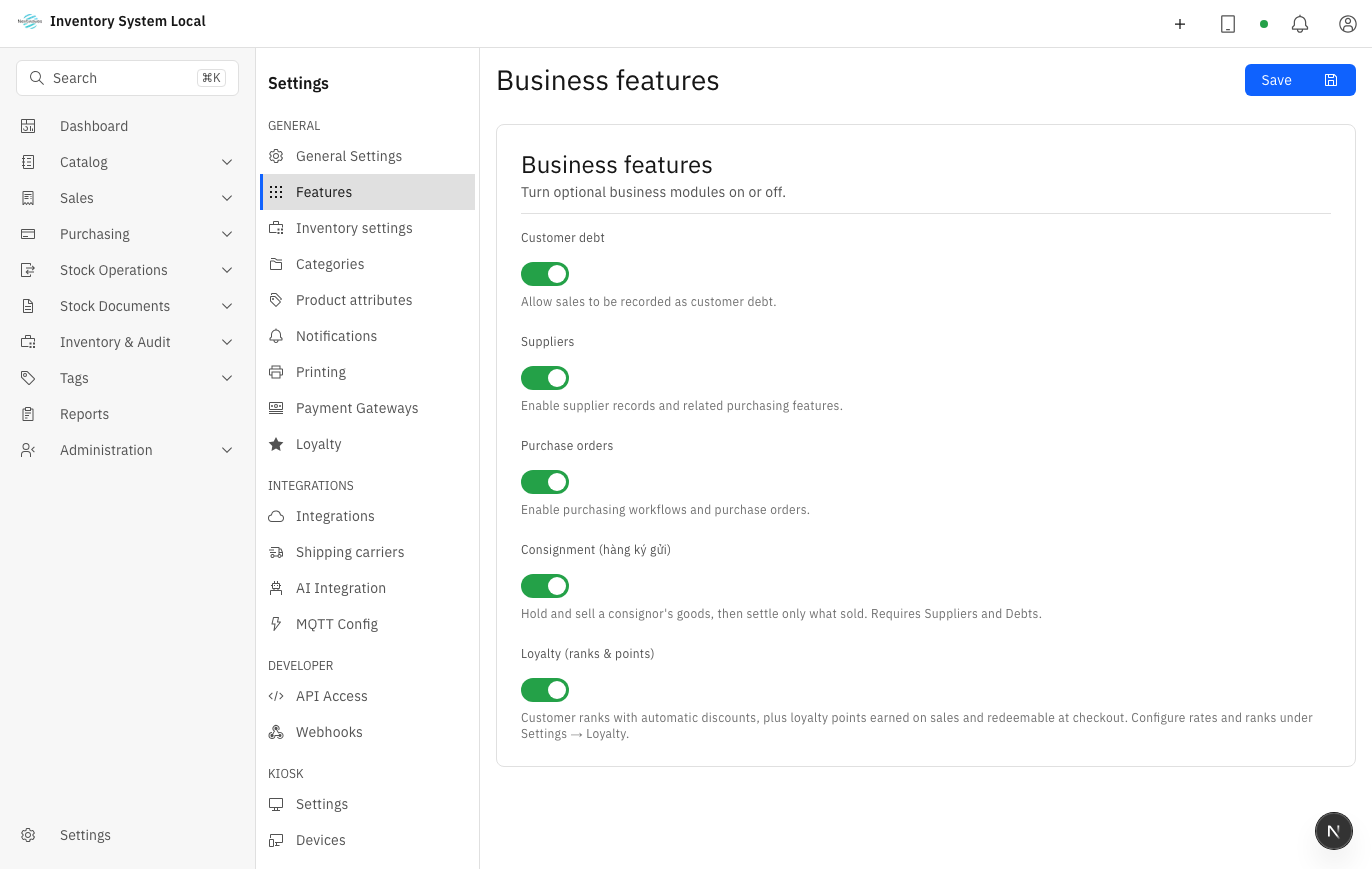
Enable only what the business actually uses: Customer debt if you sell on credit, Suppliers and Purchase orders if you order formally, Consignment if you sell on behalf of others, Loyalty if you run points. The shorter the menu, the less a new employee gets lost.
Press Save.
Two things worth knowing: consignment needs both Suppliers and Customer debt to run its full cycle, and turning a module off only hides its screens without deleting data, so changing your mind later is safe.
Warehouse rules
Go to Settings → Inventory settings. This is the section worth reading slowly: every switch changes how warehouse staff work each day.
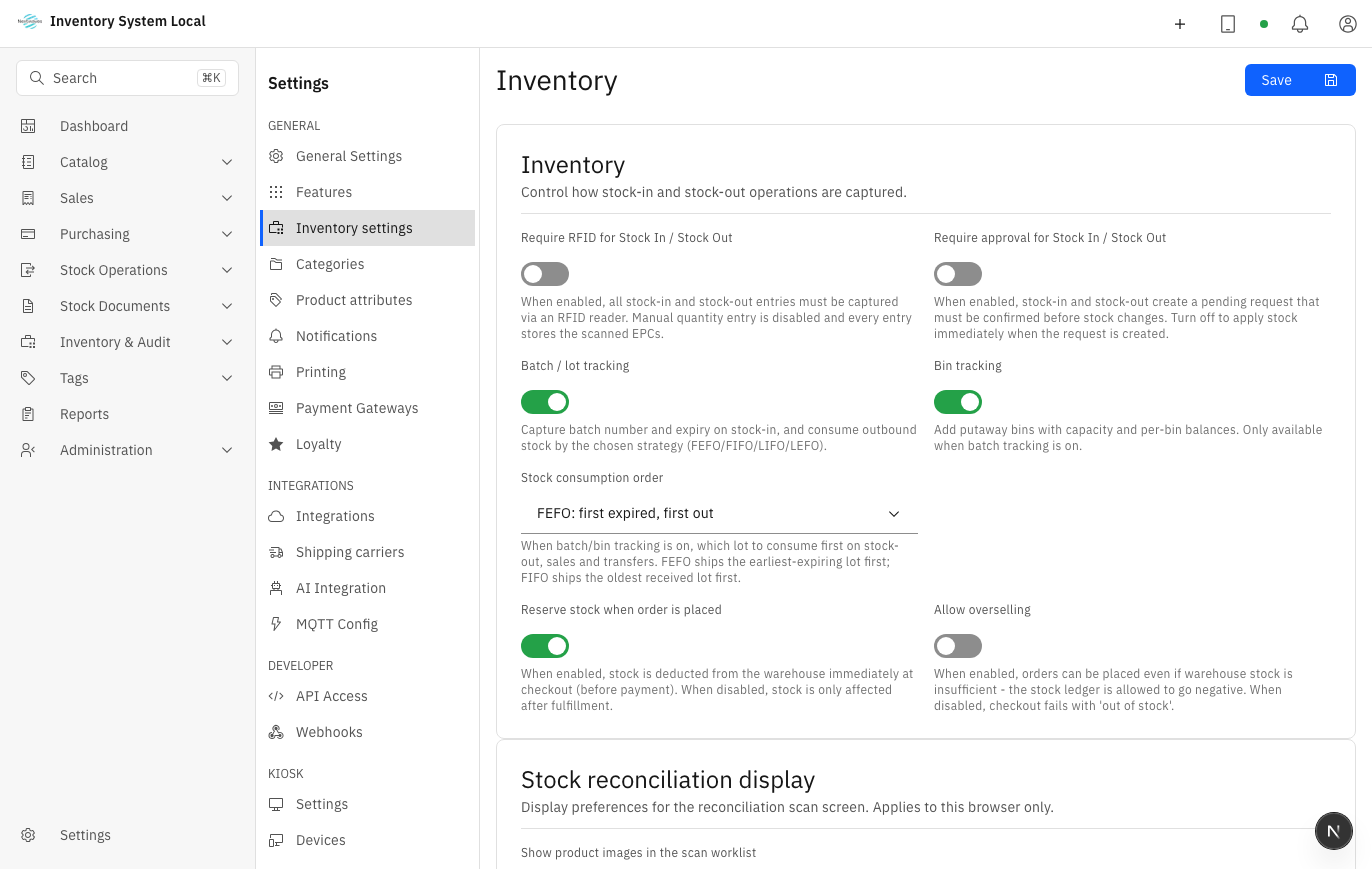
Require approval for Stock In / Stock Out
When on, warehouse documents stop at Submitted until a second person with the permission completes them; only then does stock change. You gain protection against careless entries and a separation between whoever enters and whoever approves; you pay with one extra beat per document. Worth enabling with two or more people in the warehouse; it can be changed later and applies to documents created from then on.
Require RFID for Stock In / Stock Out
When on, document lines must carry scanned EPCs; quantities cannot be typed. The numbers get much harder to fake, but goods arriving without tags cannot be received at all. Enable only once goods arrive reliably tagged, see Manage RFID.
Track stock by batch & bin
With batch tracking on, every receipt records a batch number with an optional expiry, and stock is counted per batch; add bin tracking, available only after batches are on, and goods are also tied to positions inside the warehouse. Food, cosmetics, and pharmaceuticals practically require batches. The price is one extra step on every receipt, and this is the hardest choice to walk back: once stock exists per batch, turning it off is effectively impossible. If unsure, ask one question: will anyone ever need to know "which batch expires first".
Stock consumption order
Only meaningful with batch tracking on: when issuing, selling, or transferring, the system picks which batch goes first. FEFO: first expired, first out for goods with expiry dates; FIFO: first in, first out for goods without. Choose FEFO only if expiry dates are entered consistently, otherwise the rule has no data to run on.
Allow overselling
When on, orders can be created even without enough stock and the ledger may go negative; when off, checkout fails with an out-of-stock message. Enable only if the business genuinely sells before receiving and accepts a ledger that dips below zero, see how to read negative numbers in Issue, transfer, and adjust.
Foundation data, in order
- Create warehouses and the catalog: without these, documents and the POS have nothing to pick.
- Create roles and users: build the role set first, assign people after.
- Load opening stock with stock-in entries using the Initial stock reason, see Purchase and receive. Never load stock by editing numbers: the ledger should have a traceable origin from its first line.
- Connect devices and channels last, once there is data to test with: RFID readers, sales channels.
Run one full trial before real data
Create one test product and one test warehouse. Receive one unit with a stock-in entry, open stock levels and the ledger to see the number appear, then issue that same unit out. Only when the loop matches perfectly should real data go in, and remember to clear the test data along with the sample dataset under Settings → Sample Data, see Settings and integrations.
If reports land on the wrong day, go back and check the timezone. If a menu entry is missing, check in this order: module on, plan includes the feature, account has the permission.
Read next
- Create the catalog and warehouses: the very next step after this page.
- Settings and integrations: the map of the whole Settings area for later changes.
- Users and security: the starter role set for a store.