

Configure the system and integrations
The Settings menu decides how the software behaves: which modules are on, which rules the warehouse follows, which channels are connected, and which devices are allowed to talk to the system. This page is the map of that area: where each group lives, when to change it, and which parts deserve extra care. Detailed setup for a brand-new system lives in Set up the system; this page is for when the system already runs and you need to change one specific thing.
You only see Settings entries when your account has the matching admin permission and the subscription plan includes the feature. If a colleague sees an entry you do not, check those two things first, see Users and security.
Which group changes when
Grouped by rhythm of use, Settings falls into three kinds, each deserving a different level of caution:
| Kind | Entries | When it changes |
|---|---|---|
| Foundation | General Settings, Features, Inventory settings | Set once at rollout; mid-life changes need a plan |
| Channels and devices | Integrations, Shipping carriers, Payment Gateways, Printing, the Kiosk group, the Security group, RFID Readers, MQTT Config | When you open a channel, add a counter, add a device |
| Technical | API Access, Webhooks, AI Integration, Telemetry, Sample Data | Only the technical team or an administrator |
The three foundation entries
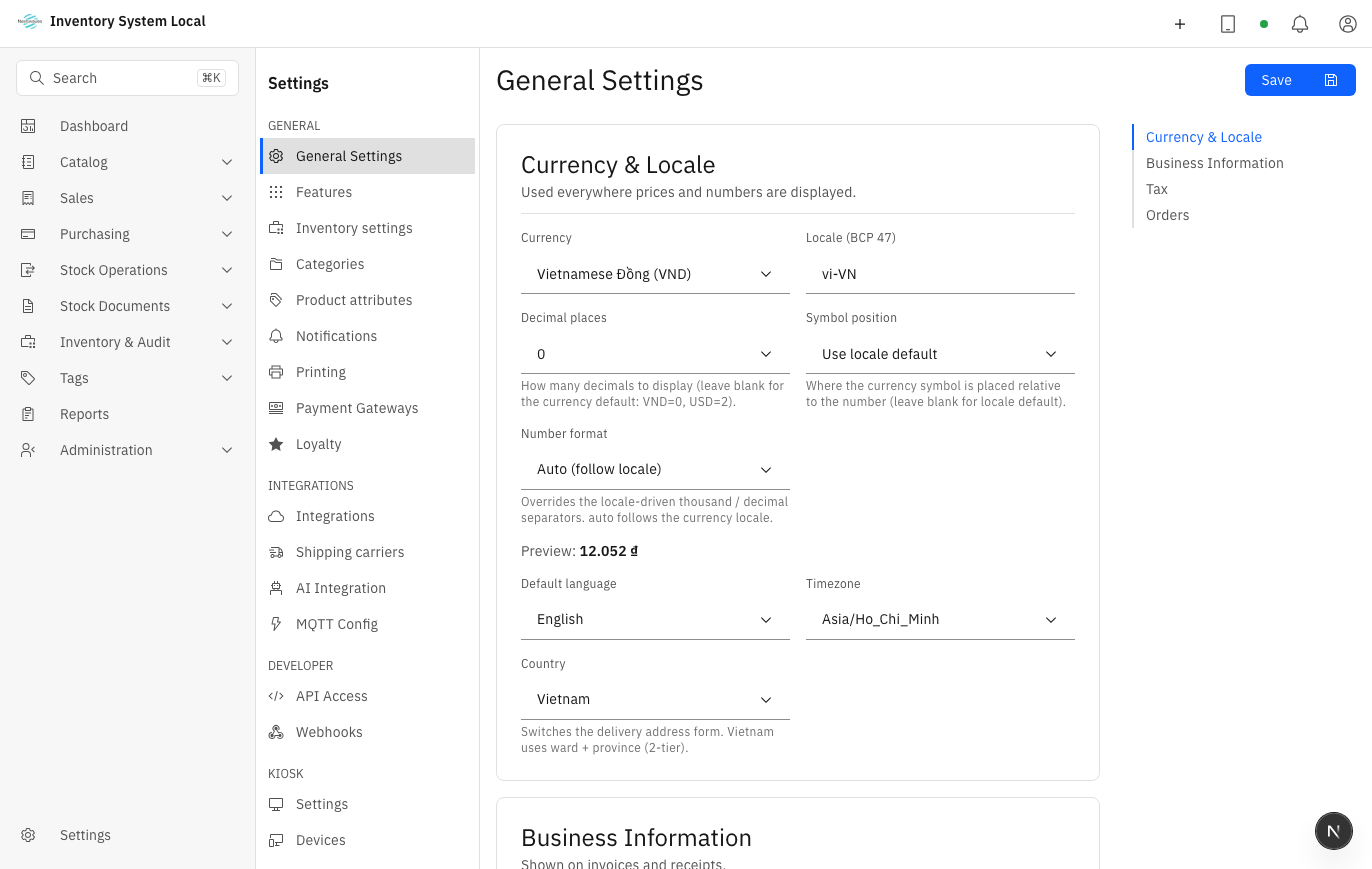
General Settings holds company details, currency, regional format, timezone, and tax. A wrong timezone pushes end-of-day revenue onto the wrong day in every report, so if it must change, change it while no transactions are running.
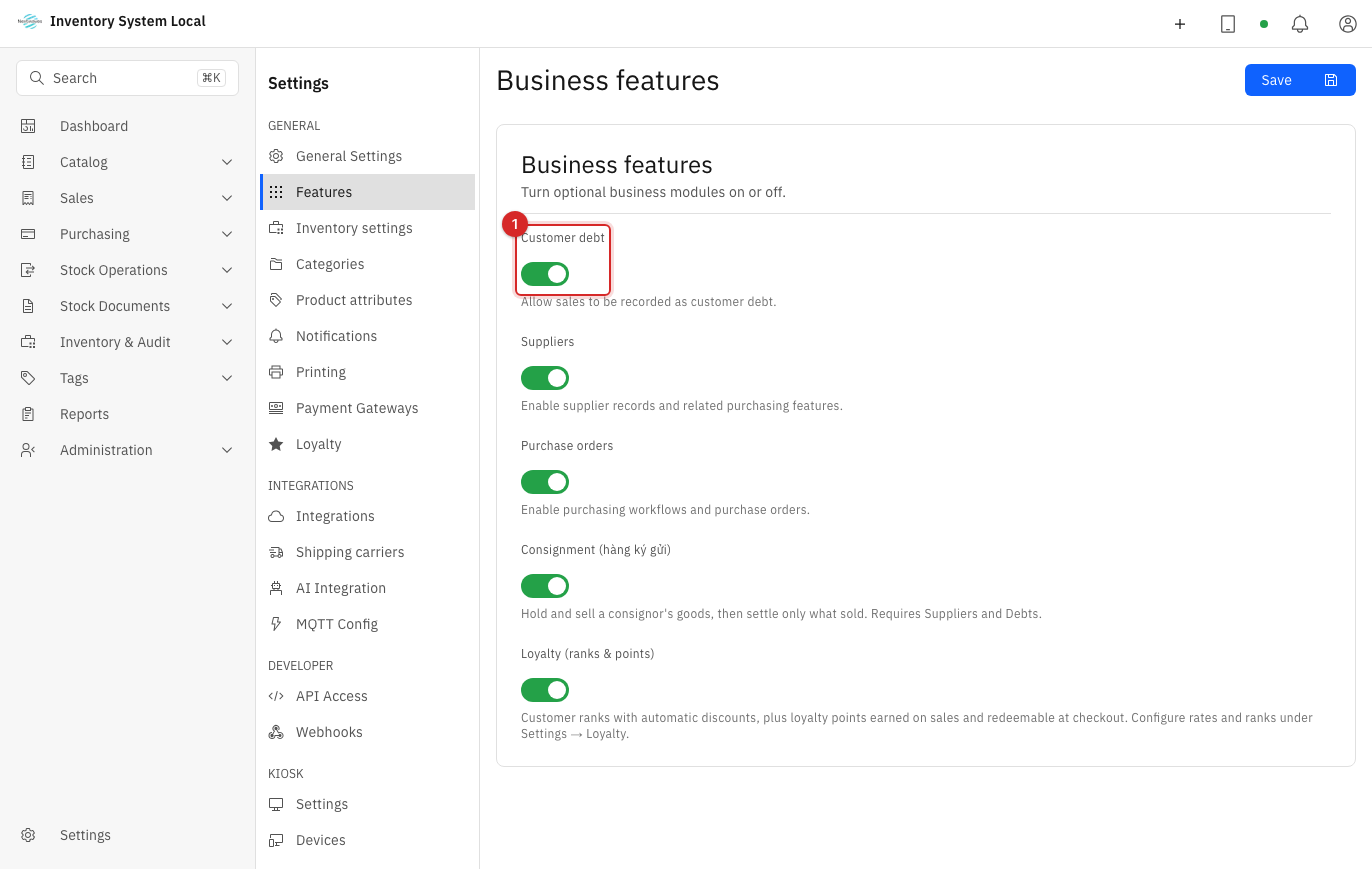
Features is a row of switches for business modules: purchasing, debt, consignment, kiosk, RFID. Turning a module off only hides its screens; the data stays put and comes back when you switch it on again. So feel free to turn off what the store does not use and keep the menu short.
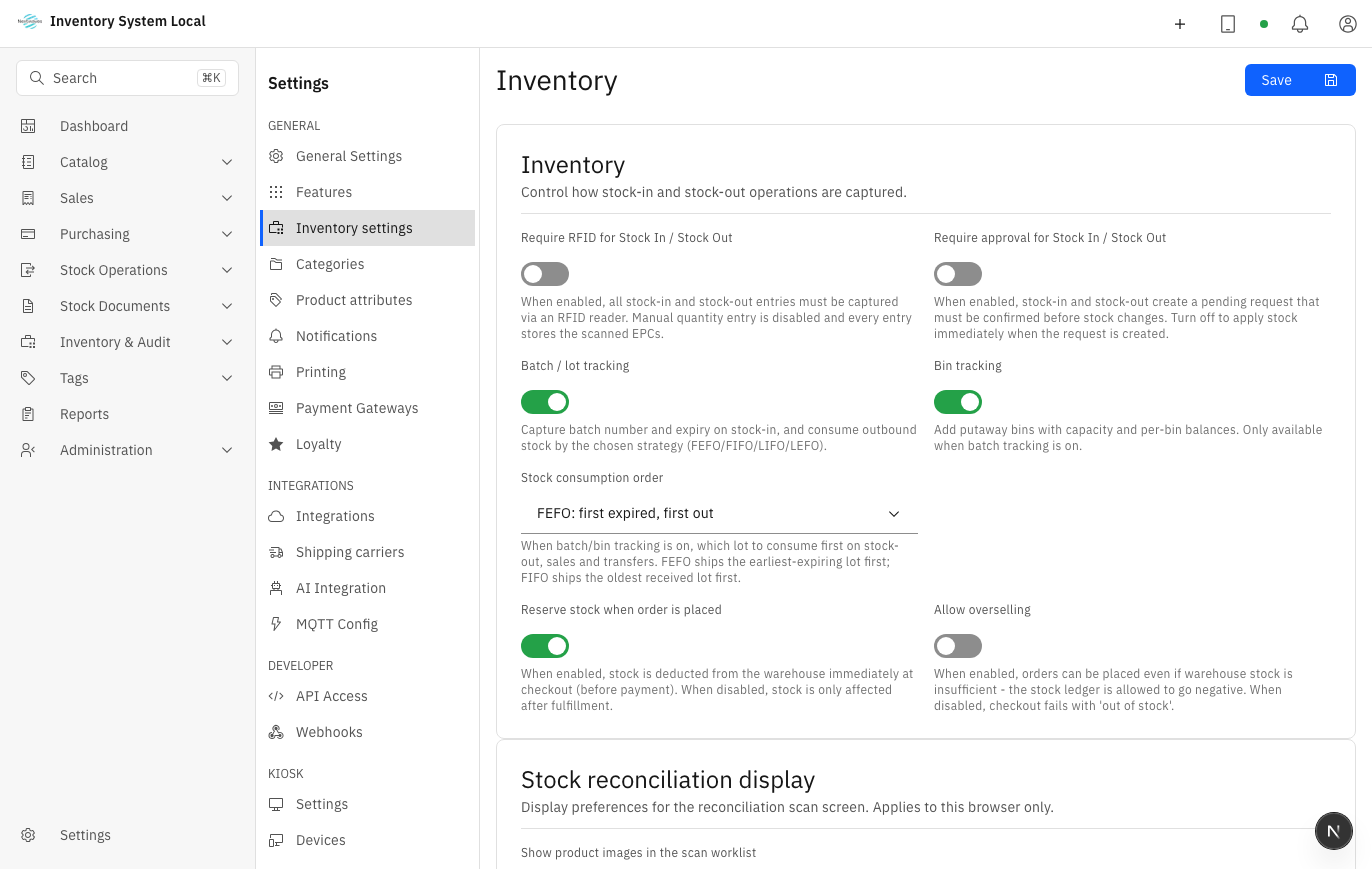
Inventory settings collects the rules that touch every document: mandatory approval, batch and bin tracking, Stock consumption order (FEFO or FIFO), Allow overselling, and RFID scan requirements. Every switch here changes how warehouse staff work day to day, which is why each choice is explained in Set up the system.
Channels, shipping, and payments
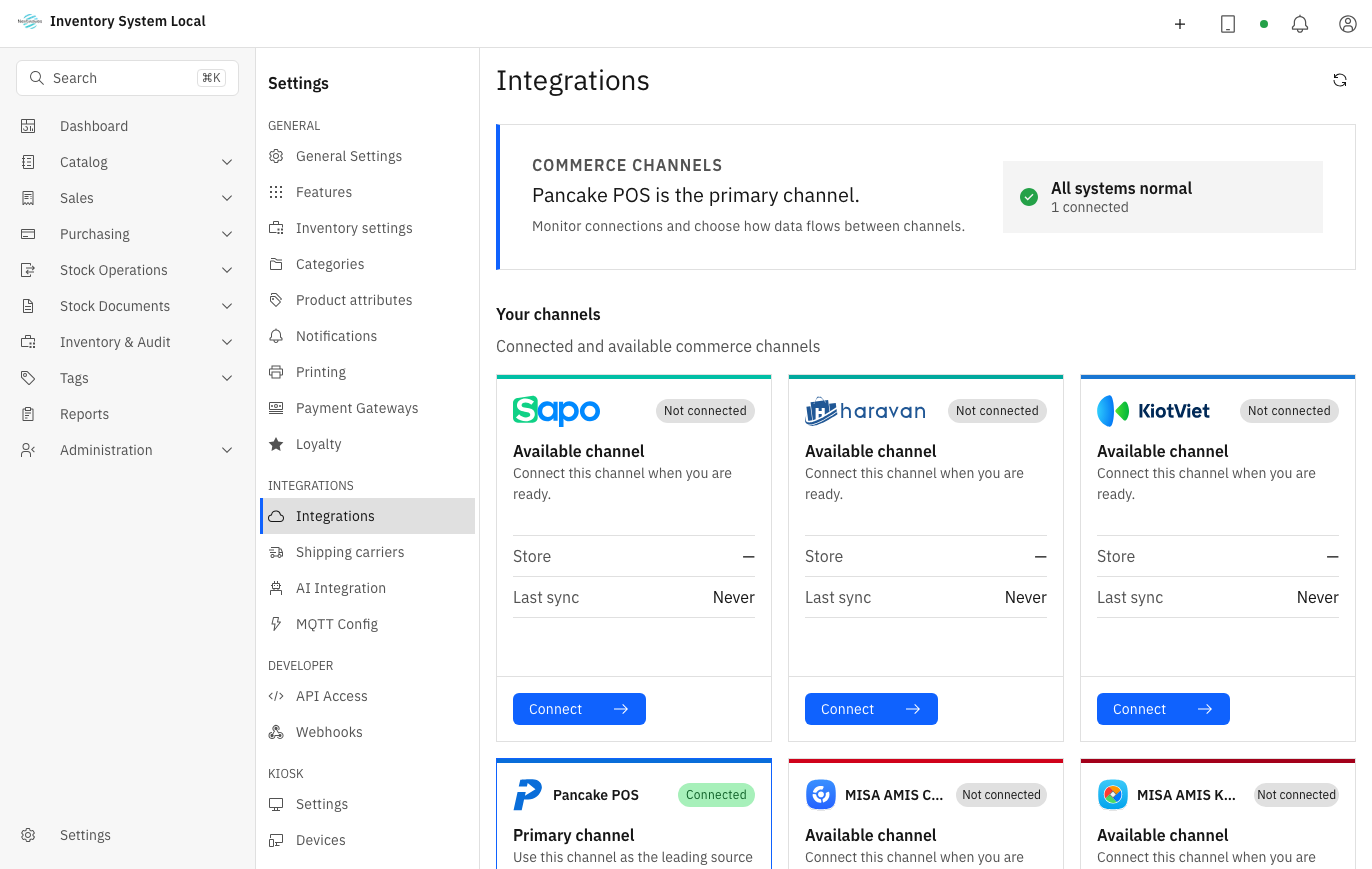
Integrations is where Easy Inventory connects to marketplaces and outside software, currently Sapo Integration and Haravan Integration. Connecting a channel, choosing which system owns the stock numbers, and handling incoming orders has its own workflow in Process channel orders; this screen is only where the connection details are entered.
Shipping carriers stores carrier accounts and delivery configuration, used when you ship orders in Pick, check, and ship.
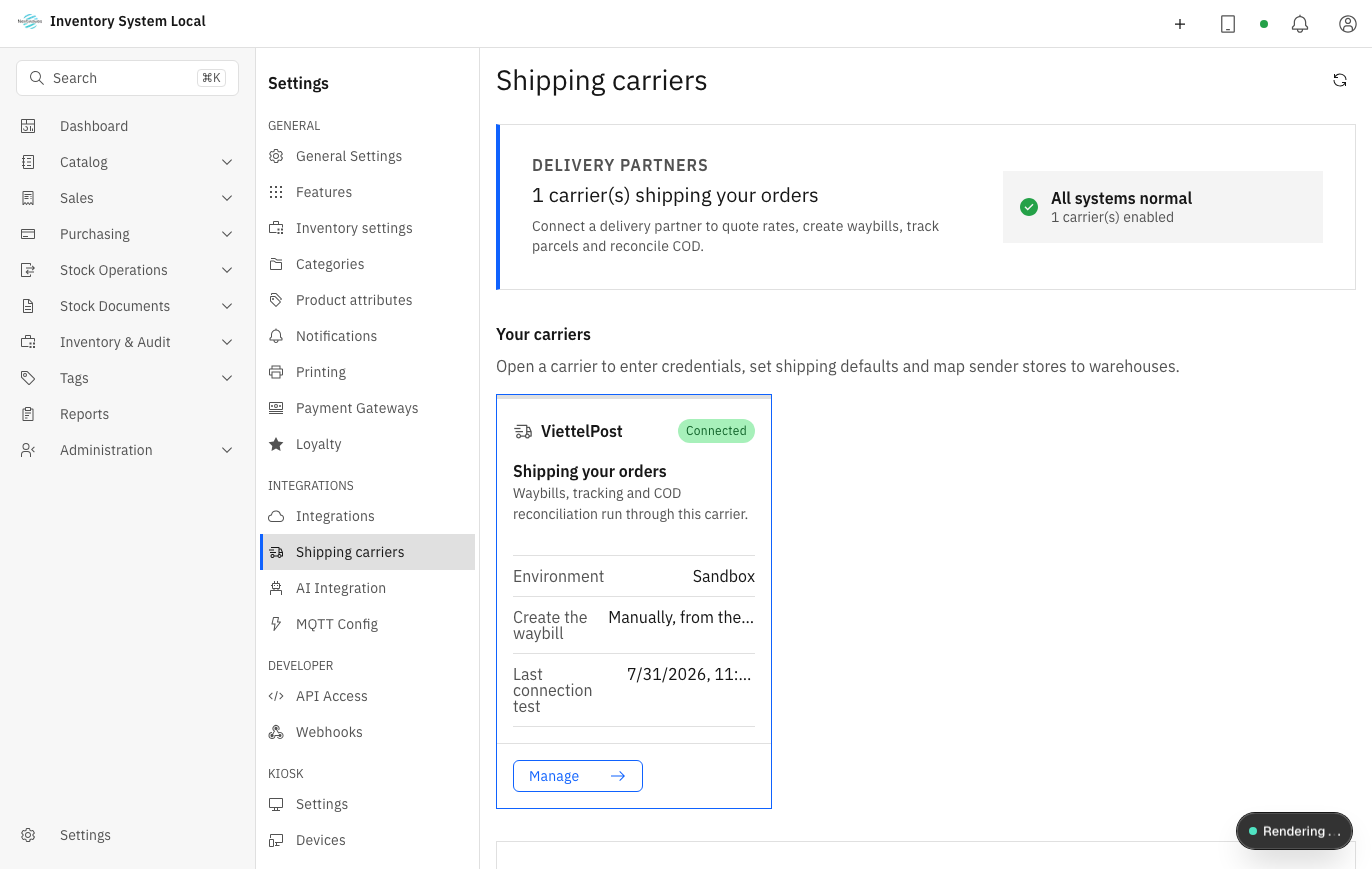
Payment Gateways and Printing serve the counter: the payment methods customers can pick, and the invoice and label templates that print. After changing either, run a real test sale at the counter, because mistakes here only show up at payment time, see Sell, return, and use kiosk.
Devices in the store
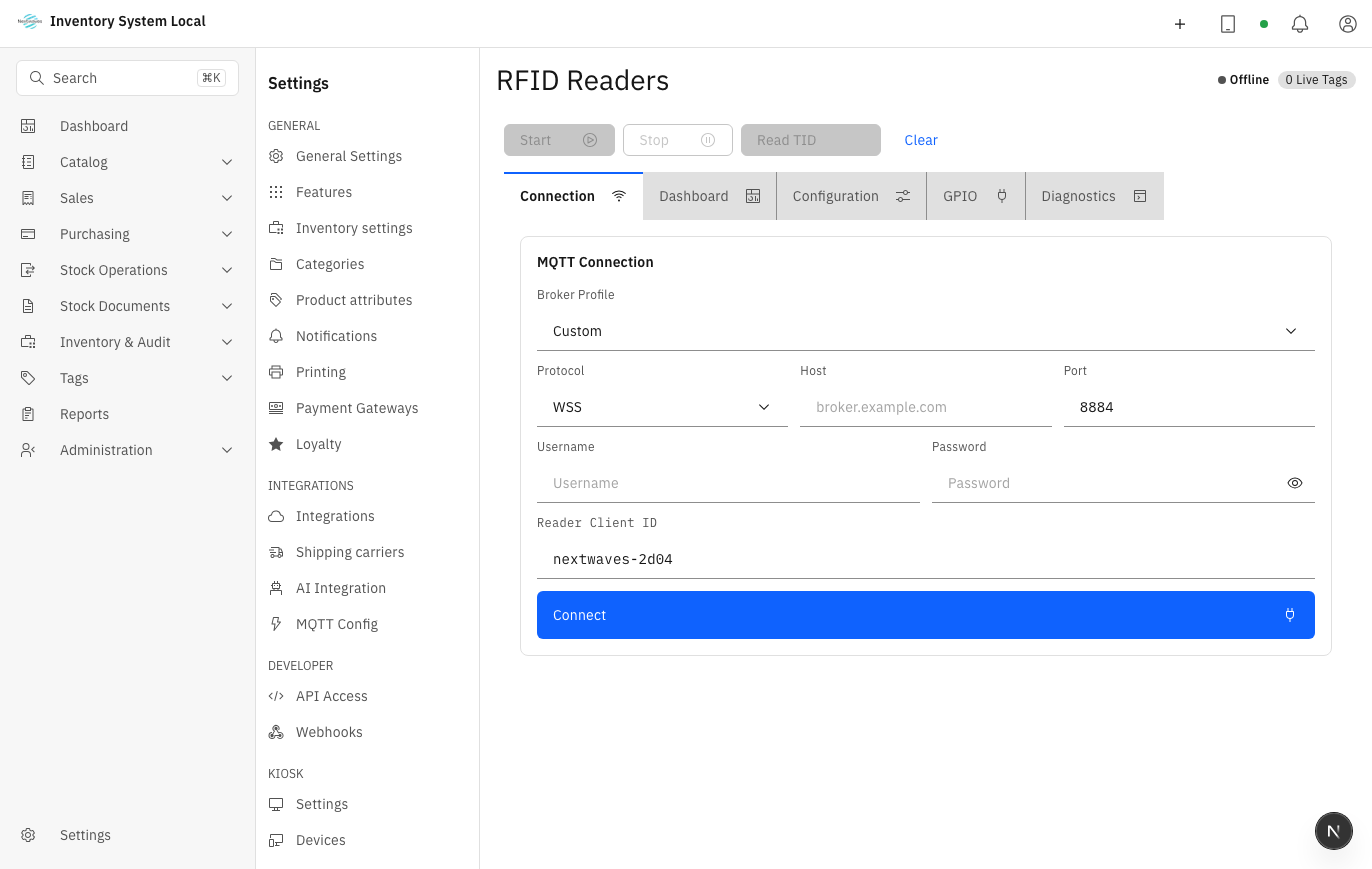
RFID Readers registers each reader: which reader stands in which warehouse or at which counter. MQTT Config is the messaging channel between readers and the software: readers do not call the application directly, they publish through a relay called an MQTT broker, usually set up by the technical team during installation. If that relay stops, every screen that scans tags goes quiet, so when RFID "dies everywhere at once", this is the first place to look. Day-to-day work with tags and readers lives in Manage RFID.
Pair a Tablet links a handheld scanner or tablet to the system for counting work in the warehouse.
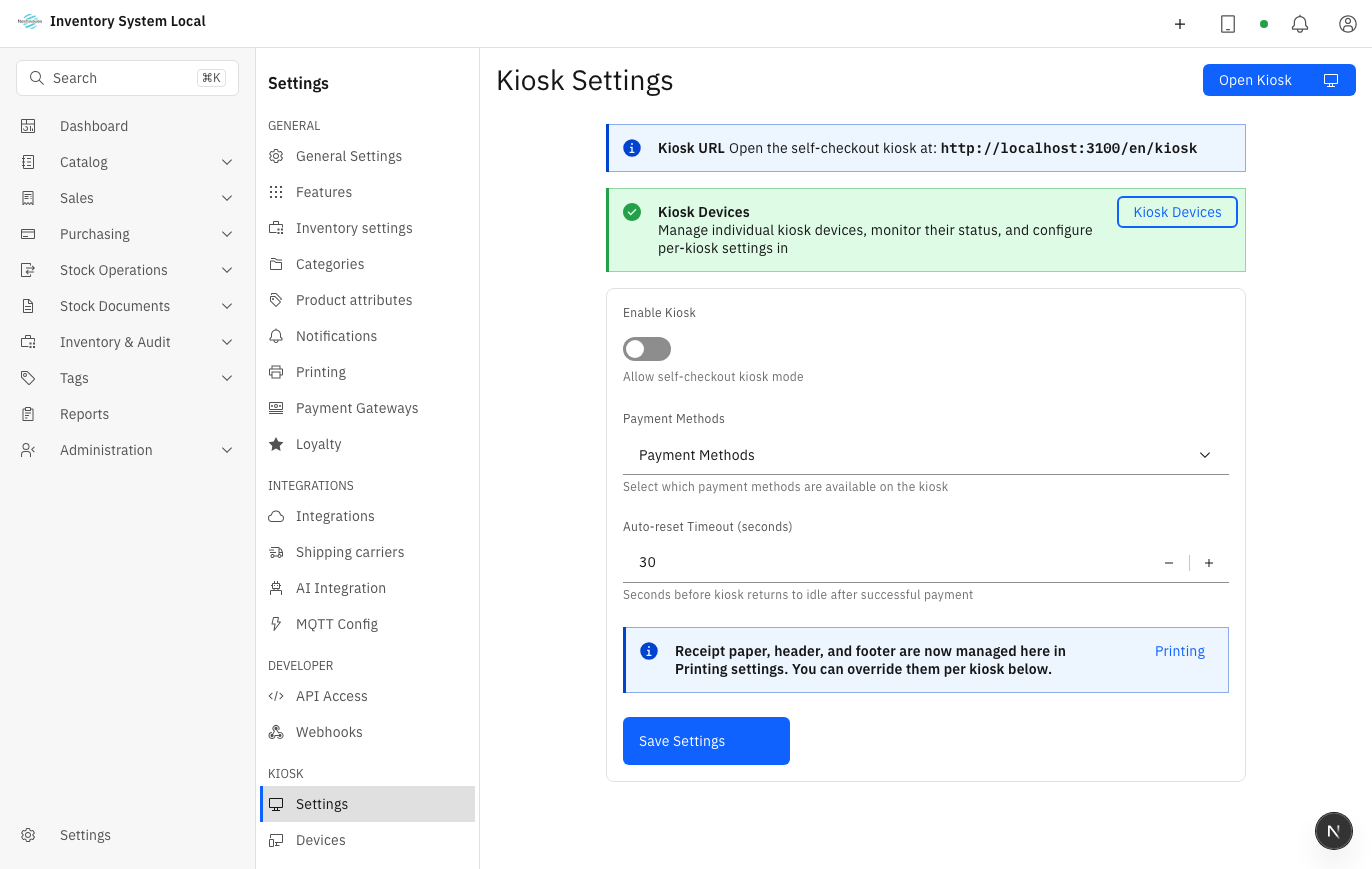
The Kiosk group configures self-service machines: which devices act as kiosks, plus their appearance and advertisements. Daily kiosk operation is covered in Sell, return, and use kiosk.
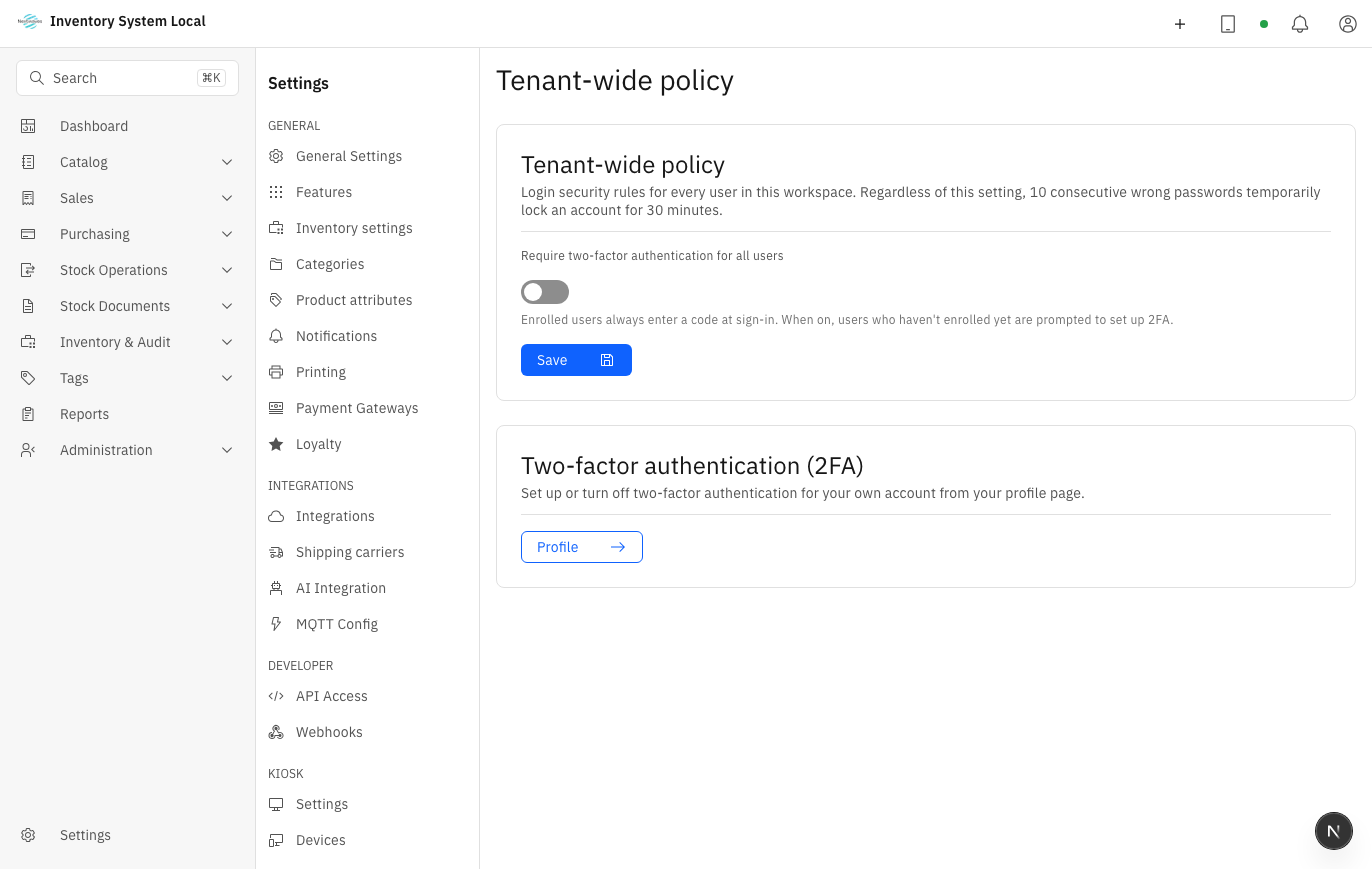
The Security group covers exit-gate readers, security alerts, and sign-in policy such as two-factor authentication. Account policy is explained in Users and security.
After any device change, run one real action at the physical spot: scan a tag, print an invoice, walk an item through the gate. Devices are the one part of Settings where "saved" on screen proves nothing about whether it works.
API Access and Webhooks
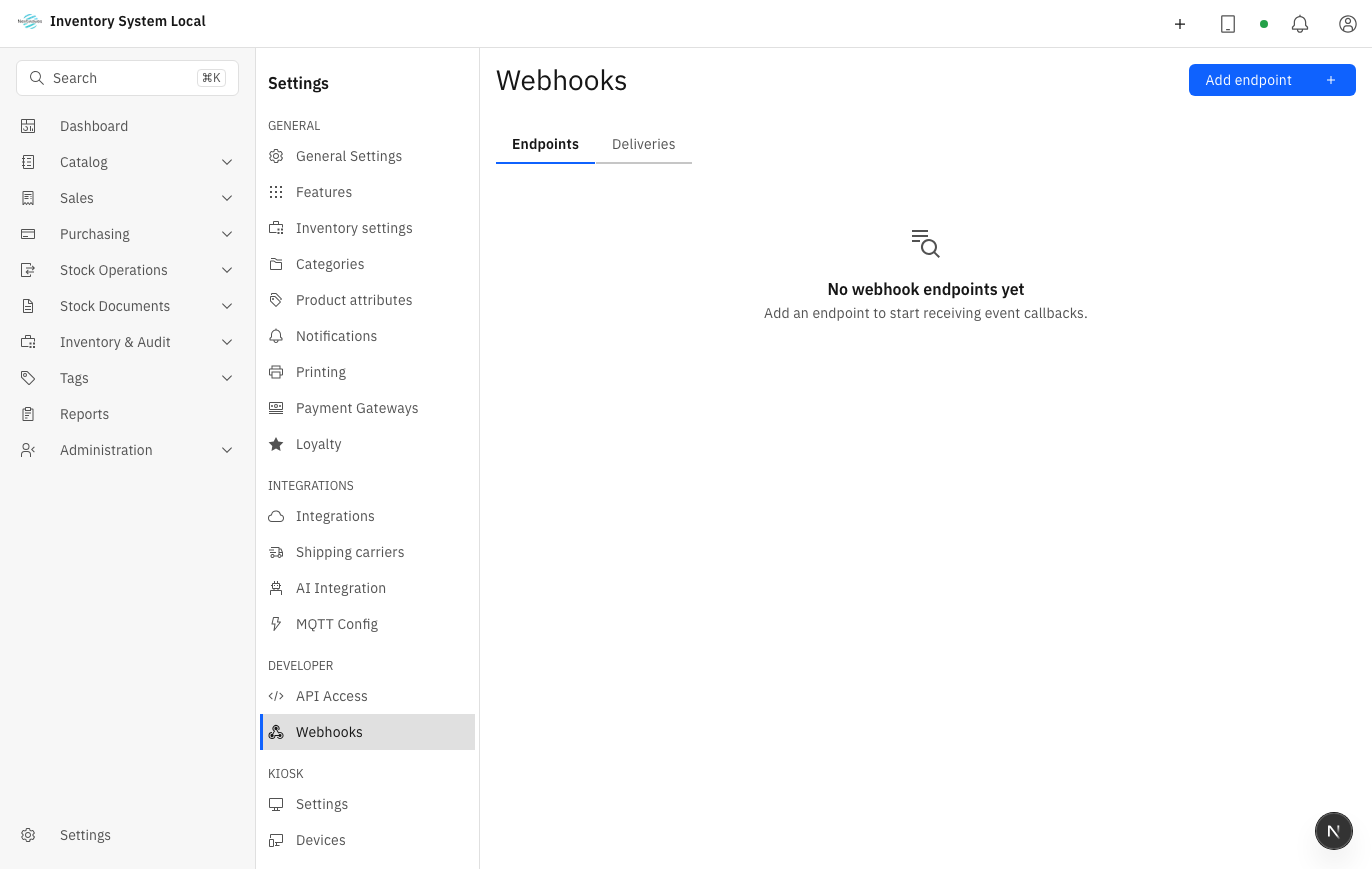
These two entries are for the technical team when the company wires its own software into Easy Inventory. API Access issues keys for outside systems to call in; Webhooks registers addresses that Easy Inventory notifies whenever something happens.
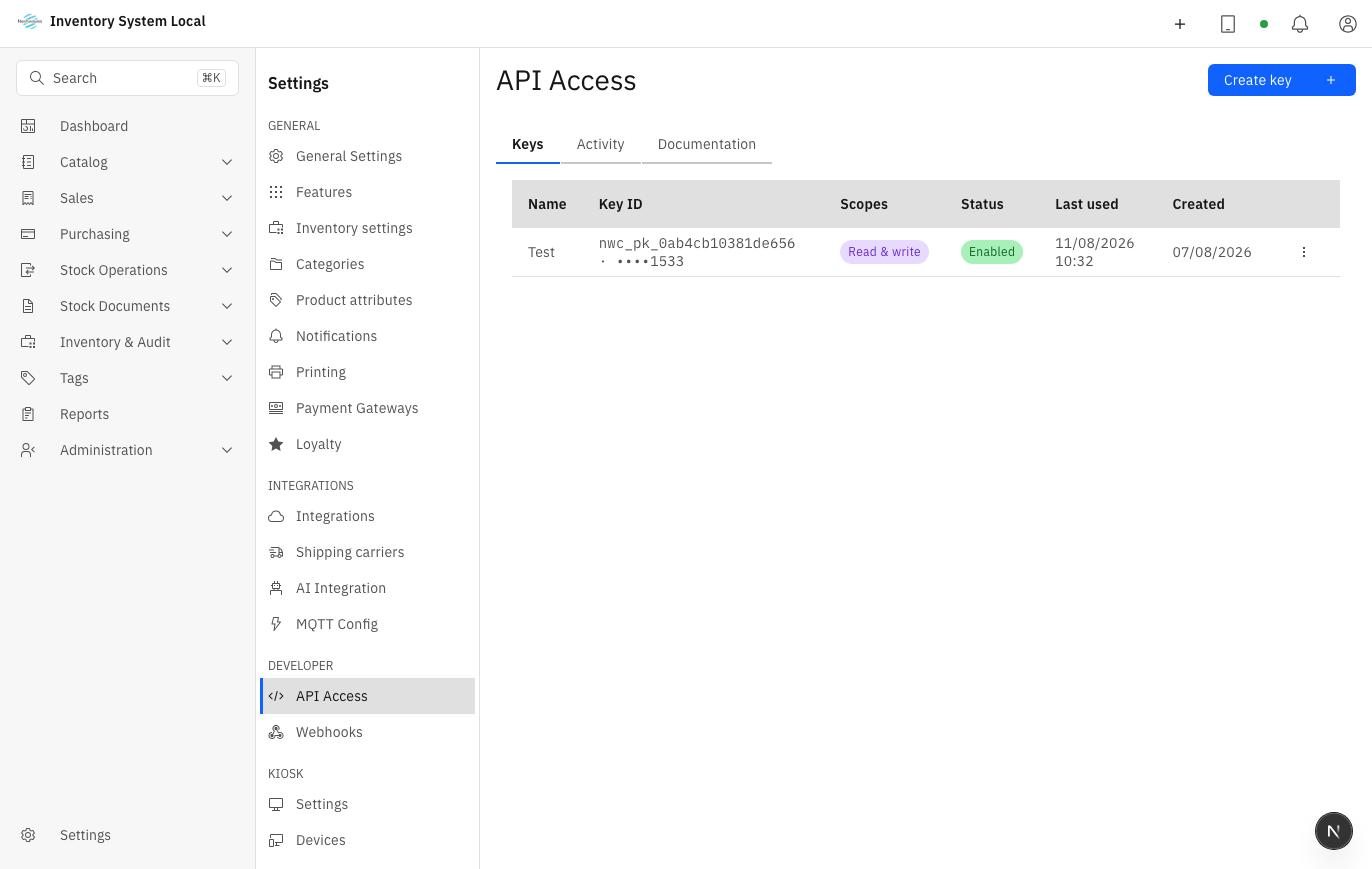
For a manager, three rules cover it: treat API keys and webhook secrets like passwords, and save them the moment they are created because the system will not show them again; grant each key only the scope it needs; and revoke keys that are no longer used. When an integration seems dead, open the API call history or the webhook delivery history and check when it last succeeded before drawing conclusions.
AI, telemetry, and sample data
AI Integration picks the model provider behind the AI Assistant and sets usage limits so the cost stays predictable.
Telemetry answers the operational questions business reports cannot: which reader keeps failing, which screens staff actually use. Its view permission is not part of the default admin role, so the menu entry usually stays hidden until the permission is granted through a role.
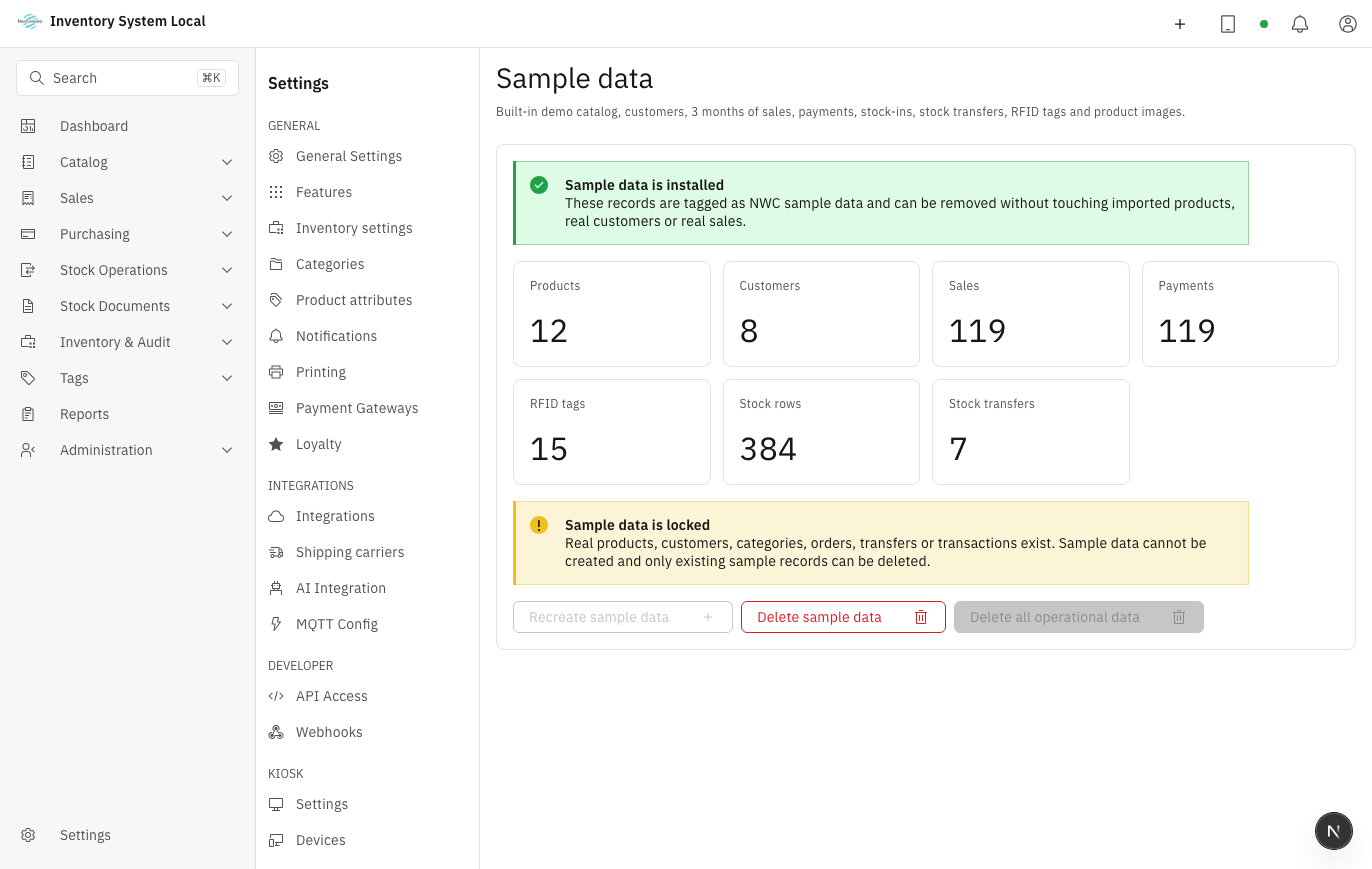
Sample Data is the practice dataset carrying the NWC-SAMPLE- code. Before the store goes live, delete it here; anything left over counts straight into real reports.
Changing configuration on a live system
WARNING
Do not change timezone, tax, stock deduction rules, and integrations at the same time on a system that is selling. Every change needs an owner, an announced time, and a way back to the old configuration if something breaks.
The safe habit: change one group, save, prove it with one real transaction or report, then move to the next group. Change several groups at once and you will not know which one caused the failure.
Read next
- Set up the system: what each foundation choice means at rollout.
- Process channel orders: connecting and running marketplace integrations.
- Manage RFID: readers, tags, and the scanning screens.
- Troubleshoot common problems: when a configuration change causes errors.