
Manage debt and consignment
This page is for whoever watches the store's money, usually the accountant or the owner. The two jobs share a page because they live under the same Purchasing menu and answer the same question: who owes whom, and how much. Debt tracks money between you, your customers, and your suppliers. Consignment is selling on someone else's behalf: their goods sit in your warehouse, you owe them nothing until an item sells, and the two of you settle up periodically.
Where debt comes from
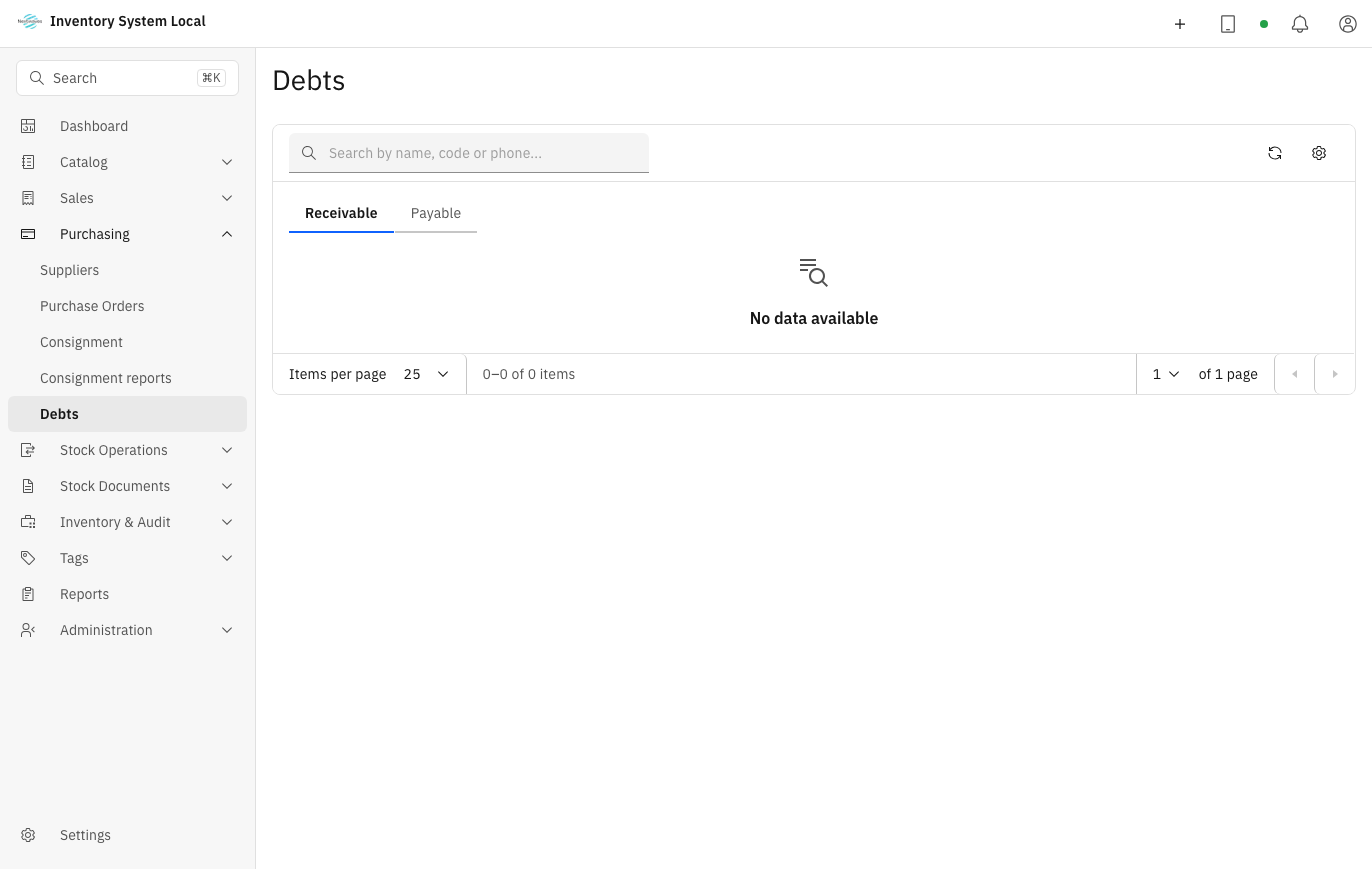
You never create debt by hand; it arises from transactions elsewhere and lands here:
Receivable grows every time a customer buys on credit at the counter, see Sell, return, and use kiosk, and shrinks when you record Collect Debt. Payable grows when you receive supplier goods without paying, see Purchase and receive, and shrinks when you record Pay Debt. For any of this to run, turn on the Customer debt module under Settings → Features first.
Track, collect, and pay
Open Purchasing → Debts. The Receivable and Payable tabs separate the two directions: customers owing you, and you owing suppliers.
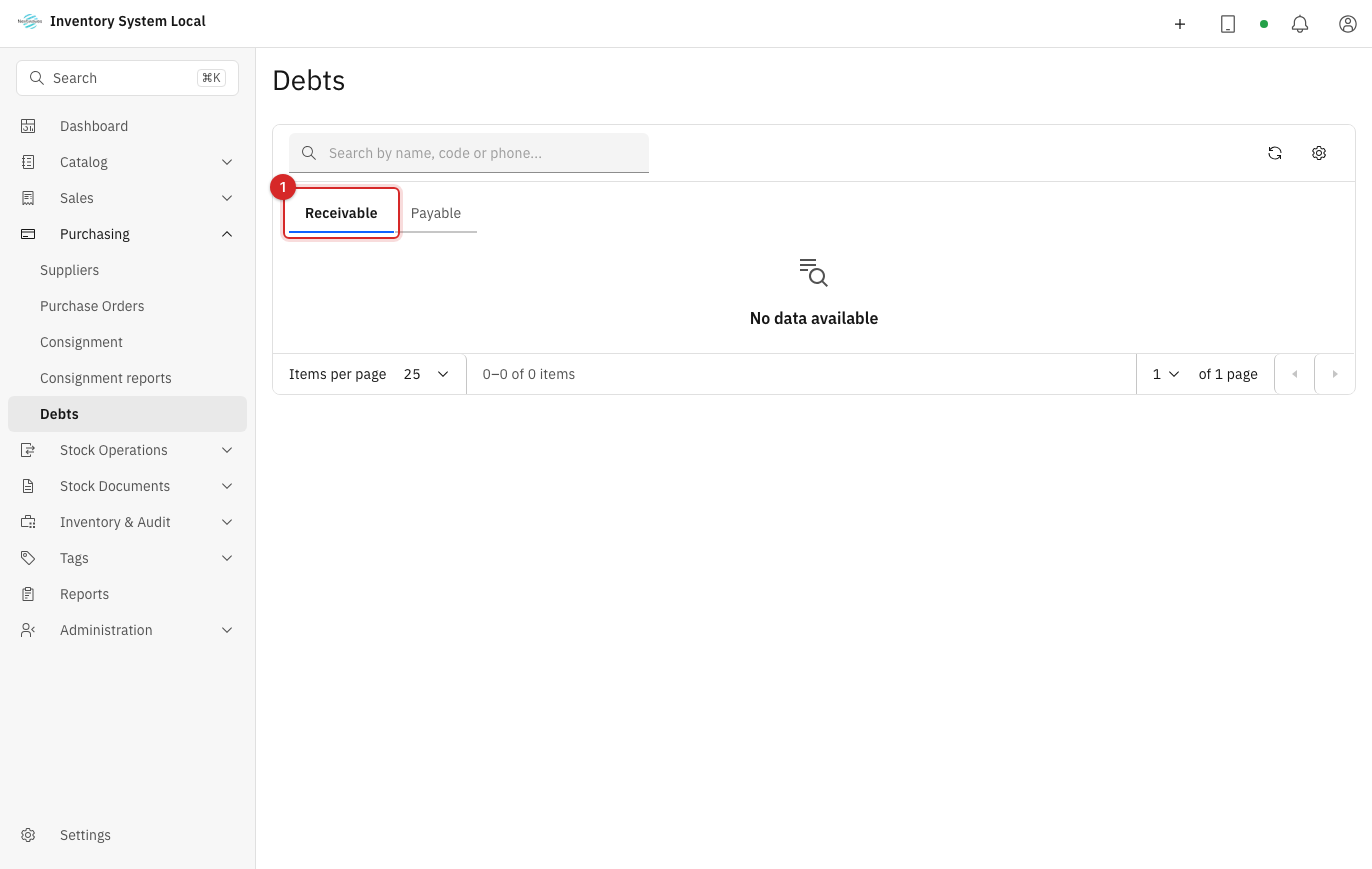
- Pick a customer or supplier to open their detailed ledger.
- Check the balance against the underlying orders and transactions before touching money. Positive amounts increase the debt, negative amounts reduce it.
- When customer money arrives, press Collect Debt; when you pay a supplier, press Pay Debt. Each action becomes one ledger line.
- Use Adjust only with a clear reason and evidence, for example writing off a verified difference. Never use adjustments to tidy up a balance you do not yet understand.
If you record something wrong, do not look for a delete button: void the transaction so the system keeps both the original line and the reversing entry. The debt ledger stays trustworthy precisely because everything leaves a trace.
How consignment works
The one difference from goods you buy outright: consignment stock remains the consignor's property until it sells. It sits in your warehouse, gets counted and audited like everything else, but you owe nothing yet. Only when items sell does the sold portion become a payable to the consignor:
Work in this order:
- Turn on all three modules under Settings → Features: Suppliers, Customer debt, and Consignment.
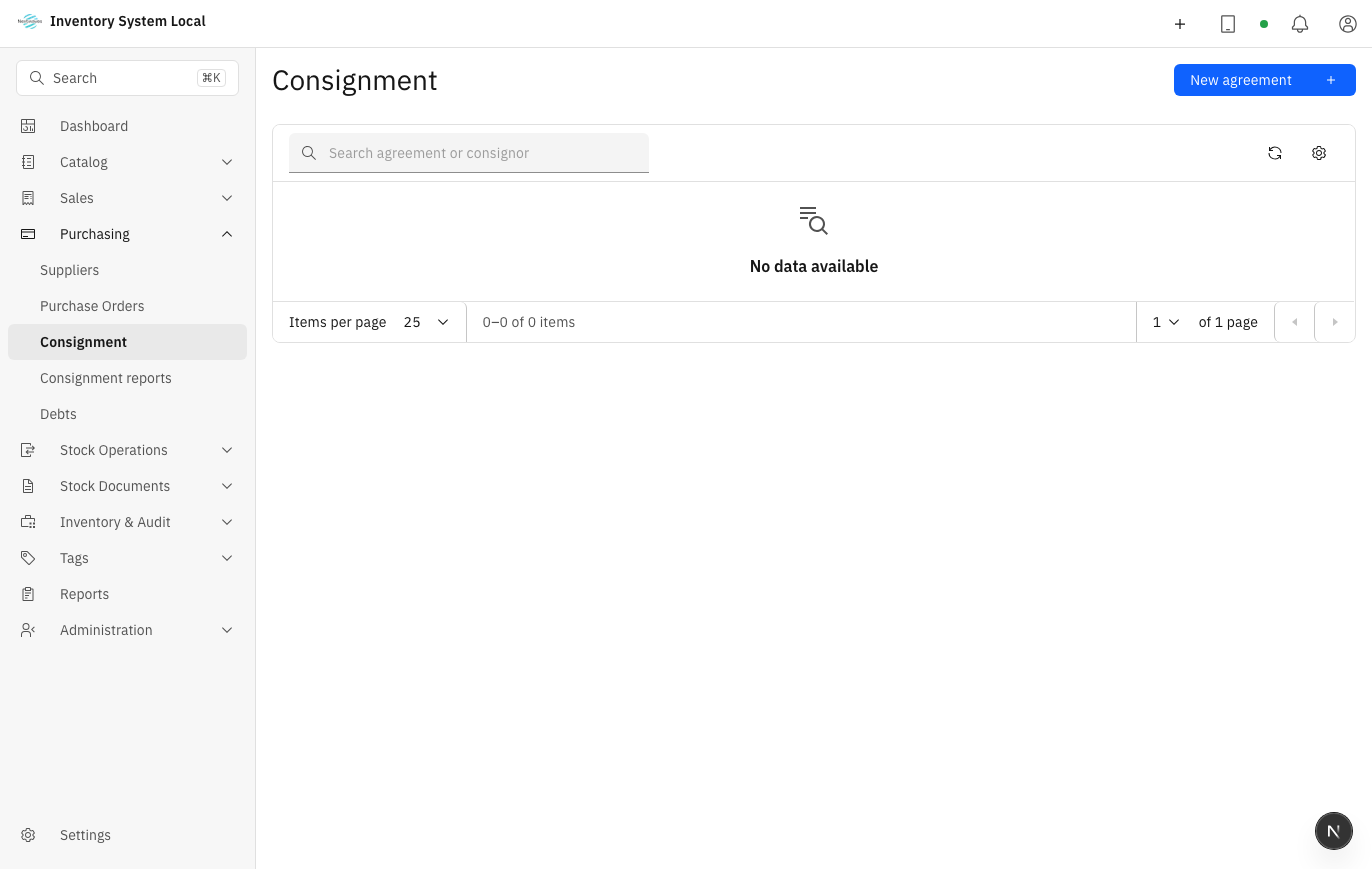
- Open Purchasing → Consignment, press New agreement, and pick the supplier sending you goods. The agreement is what tells the system which stock is sold on commission and on what terms.
- Receive the goods with an ordinary stock-in entry, see Purchase and receive. Stock under a consignment agreement is tracked separately from your own.
- Sell at the counter or against orders like any other product. Whatever sells accumulates under the agreement's Sold, not settled figure.
Settle a consignment period
When it is time to pay the consignor, you close a period:
- Open the agreement, switch to the Settlement tab, and create a settlement. Pick the Period end date; the system gathers every sale from the last settled point up to that date.
- Review the preview of items sold and the amount owed. If nothing sold in the period, the system says so and there is nothing to post.
- Press Post settlement. The amount owed to the consignor appears under Debts → Payable, and the agreement's Settled through marker moves to the end of the period you just closed.
- When you actually pay the consignor, record it with Pay Debt like any supplier payment.
Posted the wrong period? Void the posted settlement: the system takes back the payable and records the void, without erasing history.
When something looks wrong
| Symptom | Likely cause | What to do |
|---|---|---|
| Cannot pick a consignor when creating an agreement | Suppliers module off, or no supplier profile yet | Turn the module on and create the supplier first |
| Debt balance disagrees with the customer's own records | The two sides compare different date ranges | Agree on one range, then open each source transaction in the detailed ledger |
| Cannot create a settlement for the period you want | The period overlaps one already settled | Pick an end date after the current Settled through marker |
| Need to fix a recorded entry | Direct edits are not possible | Void the entry to create a reversal, then record it correctly |
Read next
- Sell, return, and use kiosk: pay-later sales, the source of Receivable.
- Purchase and receive: stock-in entries, the source of Payable and consignment stock.
- Review reports: Debt Summary, Debt Aging, and Consignment reports.